- Help
- Students
Printing & Downloading
Student information can be printed or downloaded for your records from either the People → Students page or an individual student profile.
Printing Student Information
You can print student information from the Students page or from an individual student’s profile.
To print student information:
- Click Print at the top of the Students page or within a student profile.
- Select the information you want to include.
- Review the print preview, then click Print. You can print a paper copy or select Save as PDF to save a digital copy.
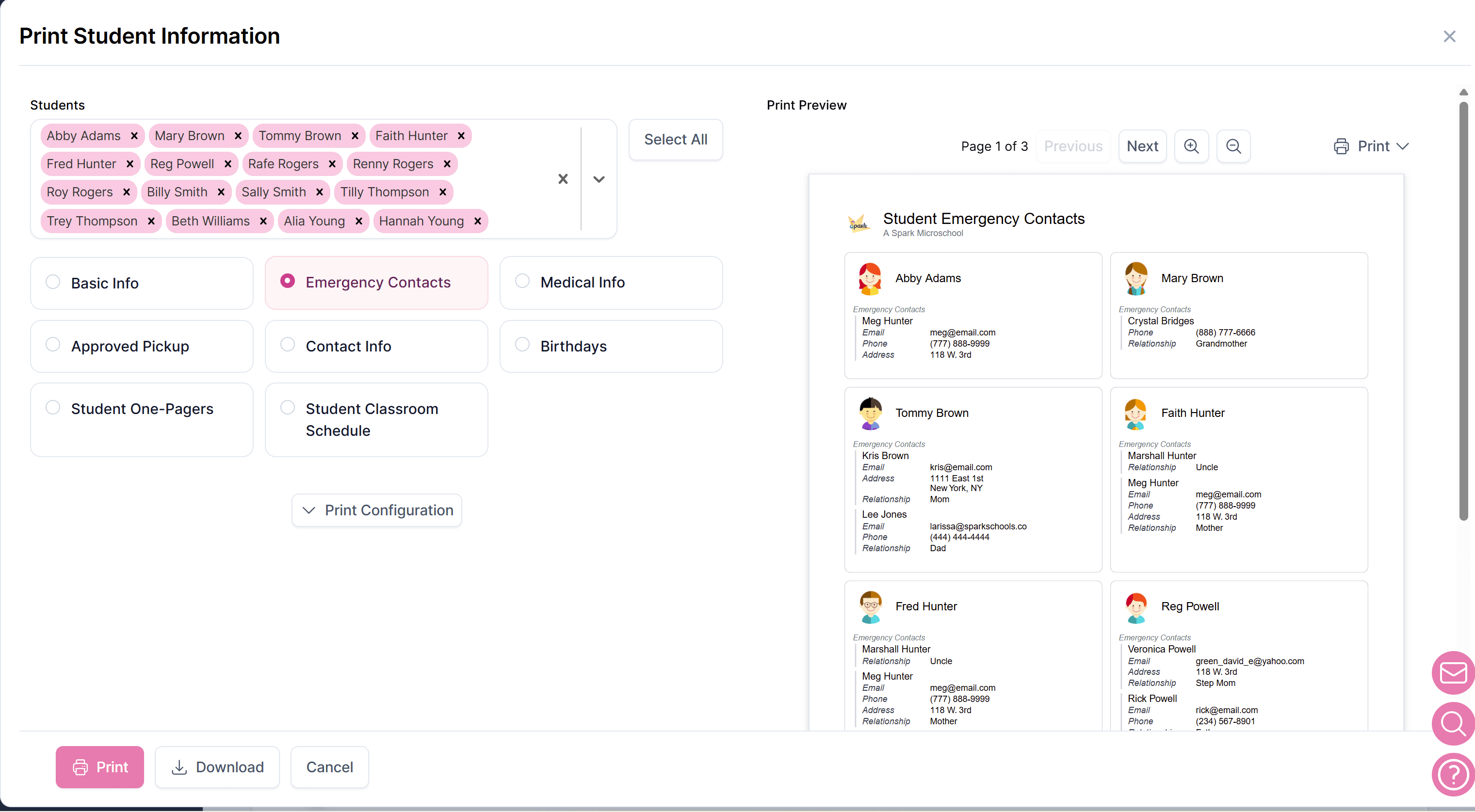
Selecting Students
Before printing, you can choose which students to include in the printout.
From the Students page: Use the checkboxes to select individual students, or select the checkbox at the top to select all displayed students. Then click Print and choose the information to include.
From the Print modal: Use the student selection field at the top to select one or many students to include in the print.
Quick Print Options
Several quick format options are available to make common printouts easier. These options include:
- Basic Info: Includes the student’s grade, gender, contact information, guardians, emergency contacts, approved pick-ups, and basic medical information.
- Student One-Pagers: Prints basic information for each student on a separate page.
- Emergency Contacts: Prints emergency contact information for each student.
Print Configuration
For more control over what is included, use Print Configuration. This dropdown allows you to select specific student information to include and adjust basic layout settings.
Custom Attributes—custom data fields created by your school—can also be included in printouts. To add these, select the attributes you wish to include in the Print Configuration section. Learn more about custom attributes here.
Downloading Student Information
To download student data:
- Navigate to People → Students.
- Click Download.
- Choose one of the following options:
- All Student Data — Downloads all available student information.
- Visible Columns Only — Downloads only the columns currently displayed in the table.
- Selected Students Only — Downloads data only for the students you have selected.
Downloaded files are provided in CSV format, which can be opened in spreadsheet applications such as Microsoft Excel, Google Sheets, or Apple Numbers.