- Help
- Assignments
Assignment Sets
What is an Assignment Set?
An assignment set is a collection of identical assignments scheduled across a range of dates. This feature allows you to create multiple assignments efficiently, saving time by avoiding the need to create each one individually.
After creating an assignment set, you can customize each individual assignment (or instance) as needed. Additionally, you can modify the default settings for the entire set.
Creating Sets
- Access the Assignment Set Modal
- Navigate to one of the spots where assignments can be created: the Student Planner or Assignments list (under Learning or within a classroom), or the Class Stream in a classroom.
- Click Add New at the top-right or hover over a date and press +Assignment (Student Planner).
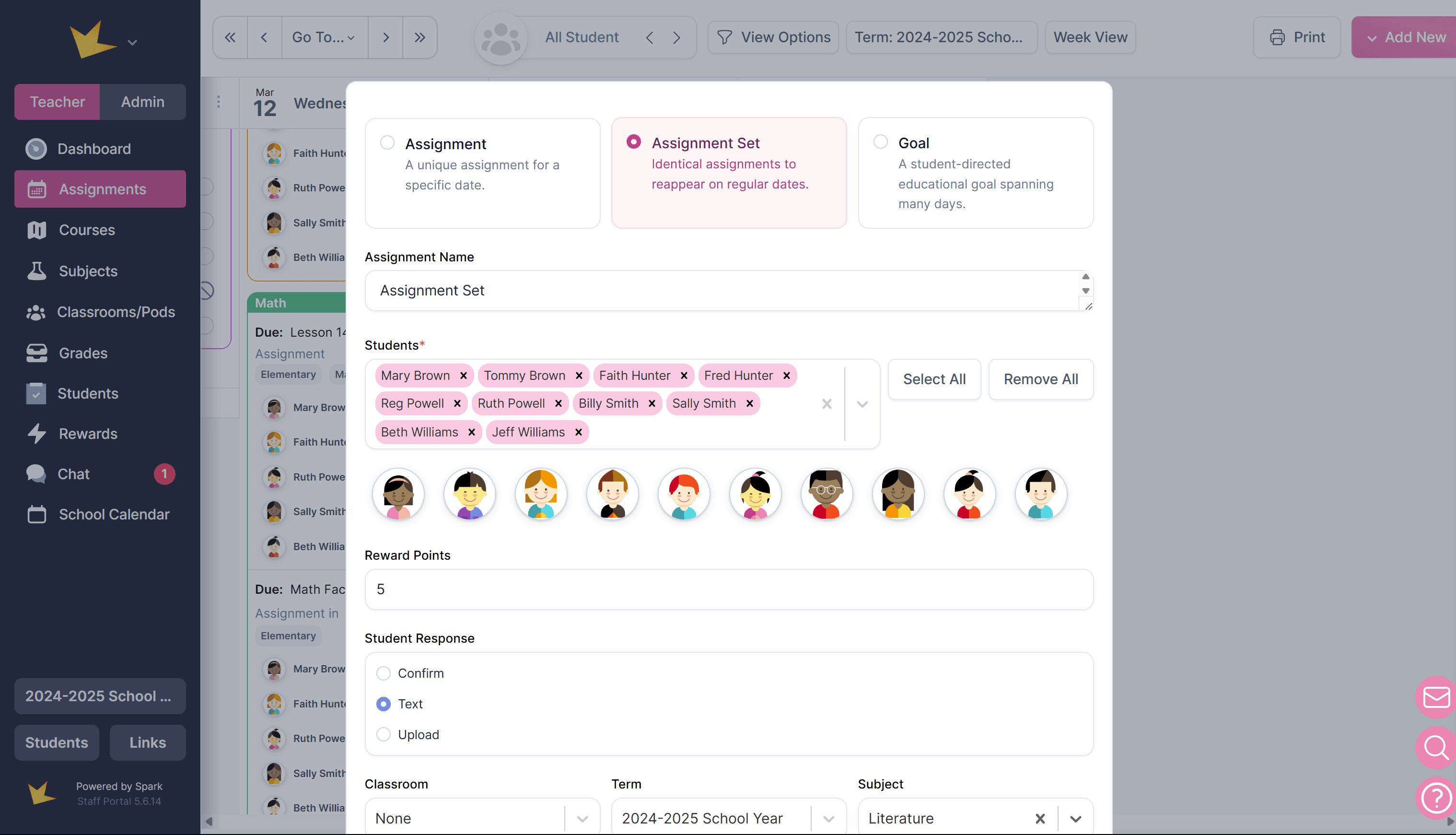
- In the modal, choose the assignment type: Assignment Set.
- Enter Basic Assignment Information
- Fill in details such as the assignment name, classroom, session, subject, response type, grades, and students.
- Create the Set Schedule
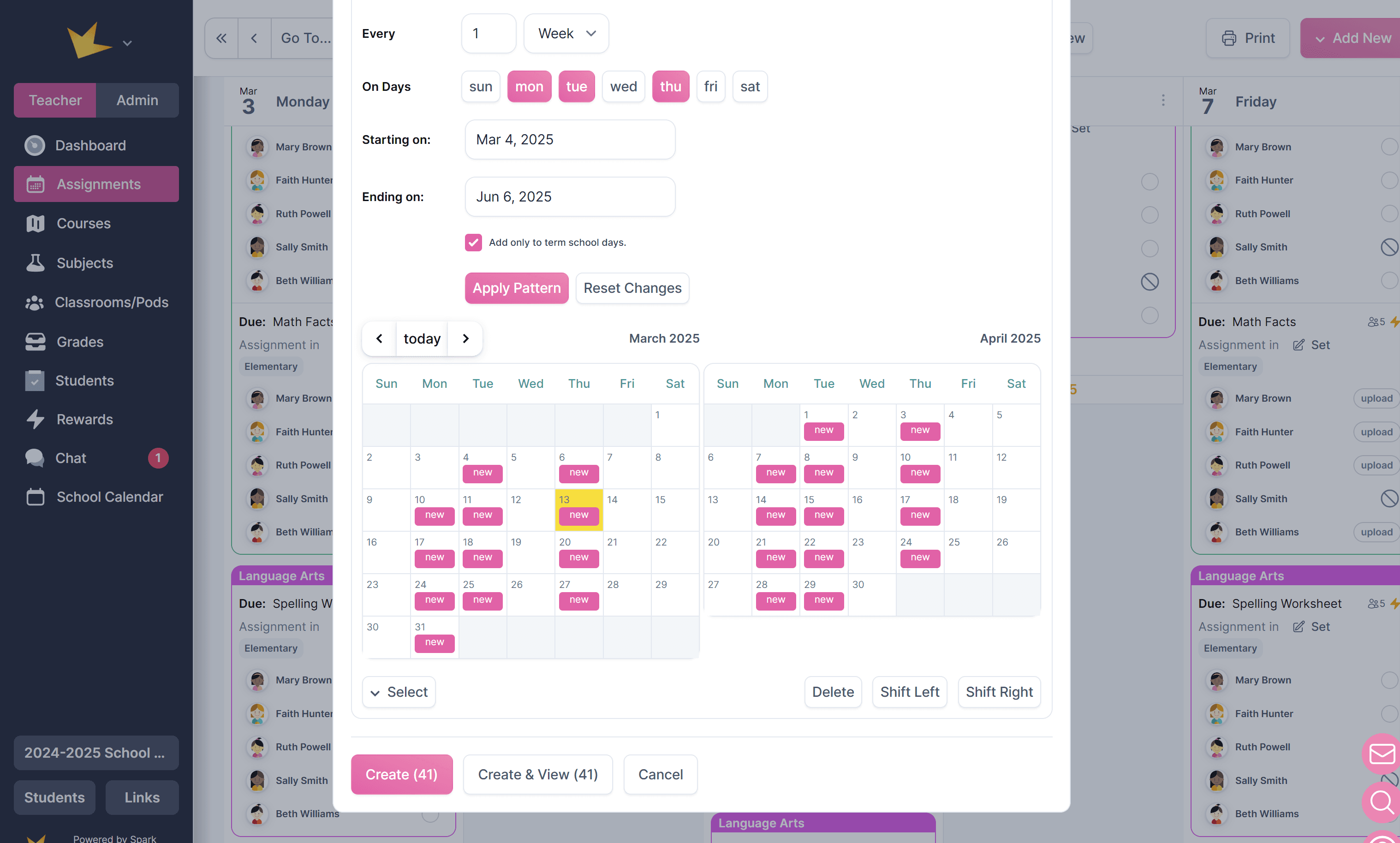
- Set whether assignments have a specific time or deadline.
- Choose the days of the week the assignments will be due.
- Define the date range for the assignments and optionally select “Add only to term school days”.
- Click Apply Pattern to display the assignments on the calendar as pink blocks.
- Review and Create the Set
- Once satisfied, click Create and View.
- Add any additional instructions or attachments as needed.
- Click Save to finalize the set.
Editing Sets
To edit or delete a set or an instance within a set, you must first locate an assignment instance or set. These can be found on the student planner or on the Assignments list (found in a Classroom -> Activity page or under Learning -> Assignments). Once located, you can either click on the instance to edit it alone, or click the Set button to edit the entire set.
Delete a set or instance:
- Either enter the instance or the set, and click Remove at the bottom of the modal. Select from the available options.
- Alternatively, right click on the instance on the student planner and select Delete.
Change the dates of a set or instance:
You can change the date of a single instance or adjust multiple instances within a set.
- Change one instance: Drag and drop the instance directly on the Student Planner, or open the instance and update the date in the Date & Time section.
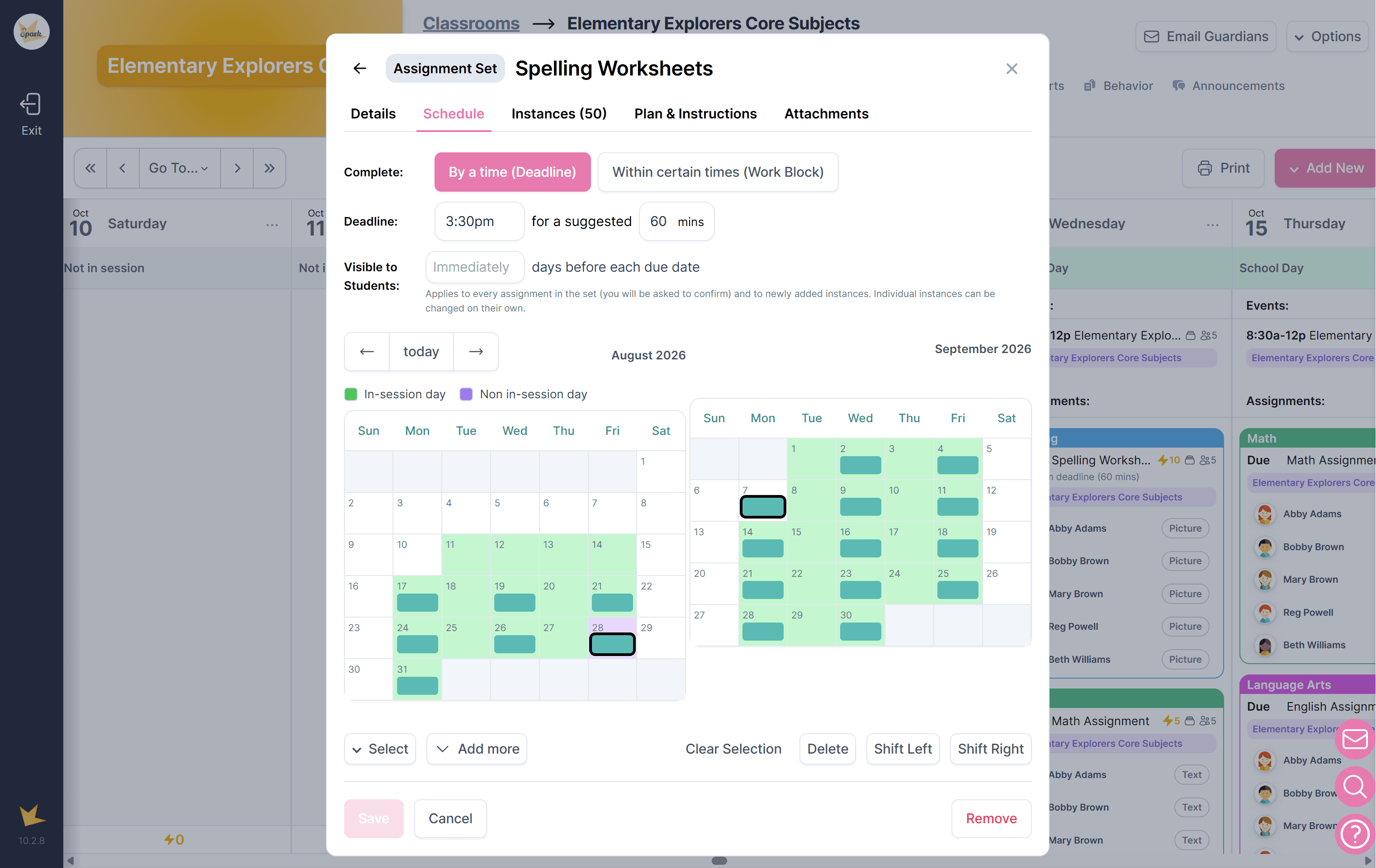
- Change multiple instances: Open the assignment set and navigate to the Schedule tab. Select the teal-colored blocks on the small calendar that represent the instances you want to modify. Then choose Shift Left, Shift Right, or Delete to adjust or remove the selected instances.
Edit set or instance details, instructions, or attachments:
- Open the assignment set or instance and make changes.
- Click Save when complete.
- Note: changes made only to one instance in the set will only save to that instance. Make sure you are in the set to make changes to set defaults.