- Help
- Billing
Accounts
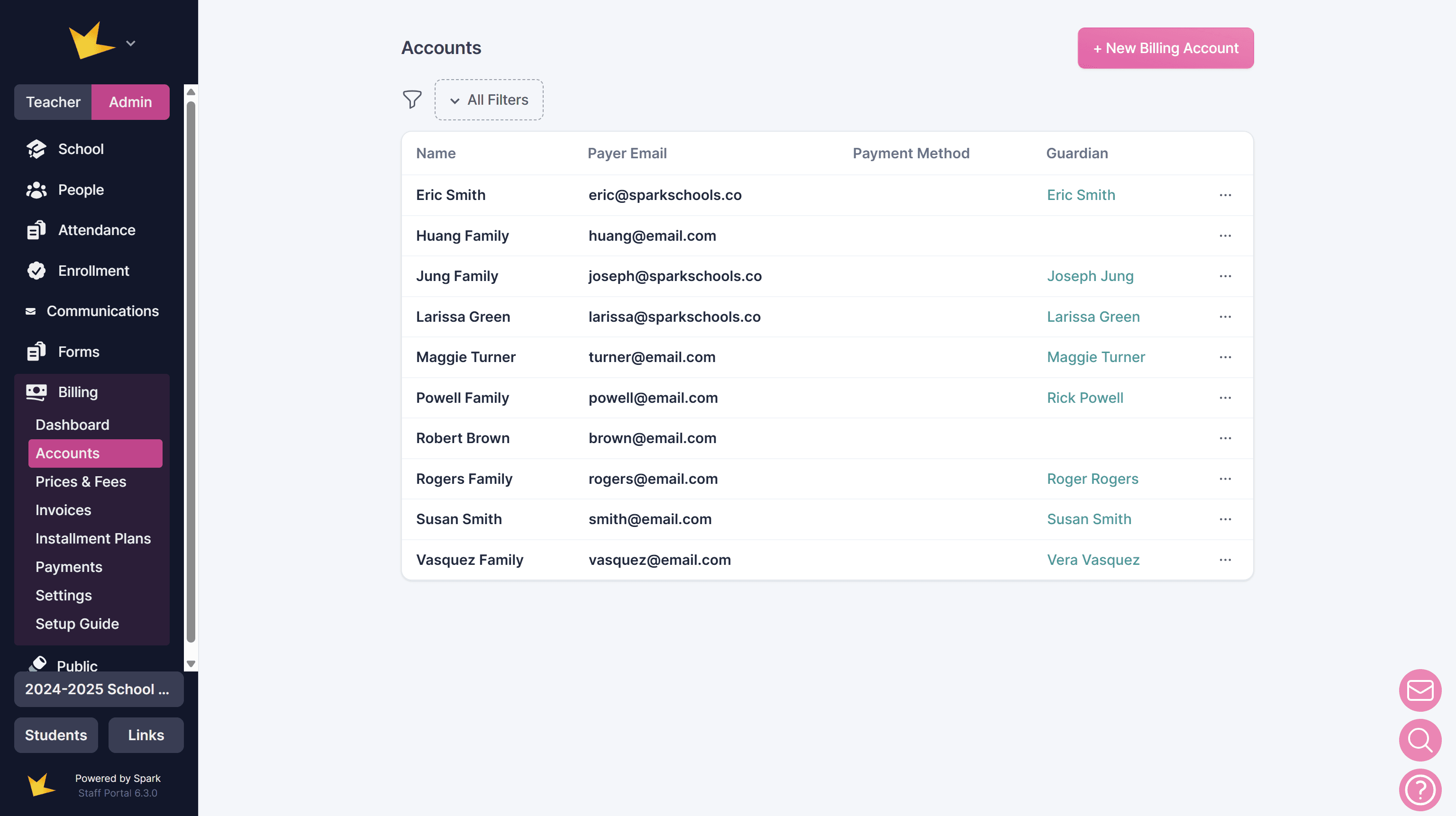
Billing Accounts are the foundation of Spark's billing system. Every payment, charge, invoice, funding request, and adjustment is managed through a billing account.
A billing account represents the individual or family responsible for paying your school.
Types of Billing Accounts
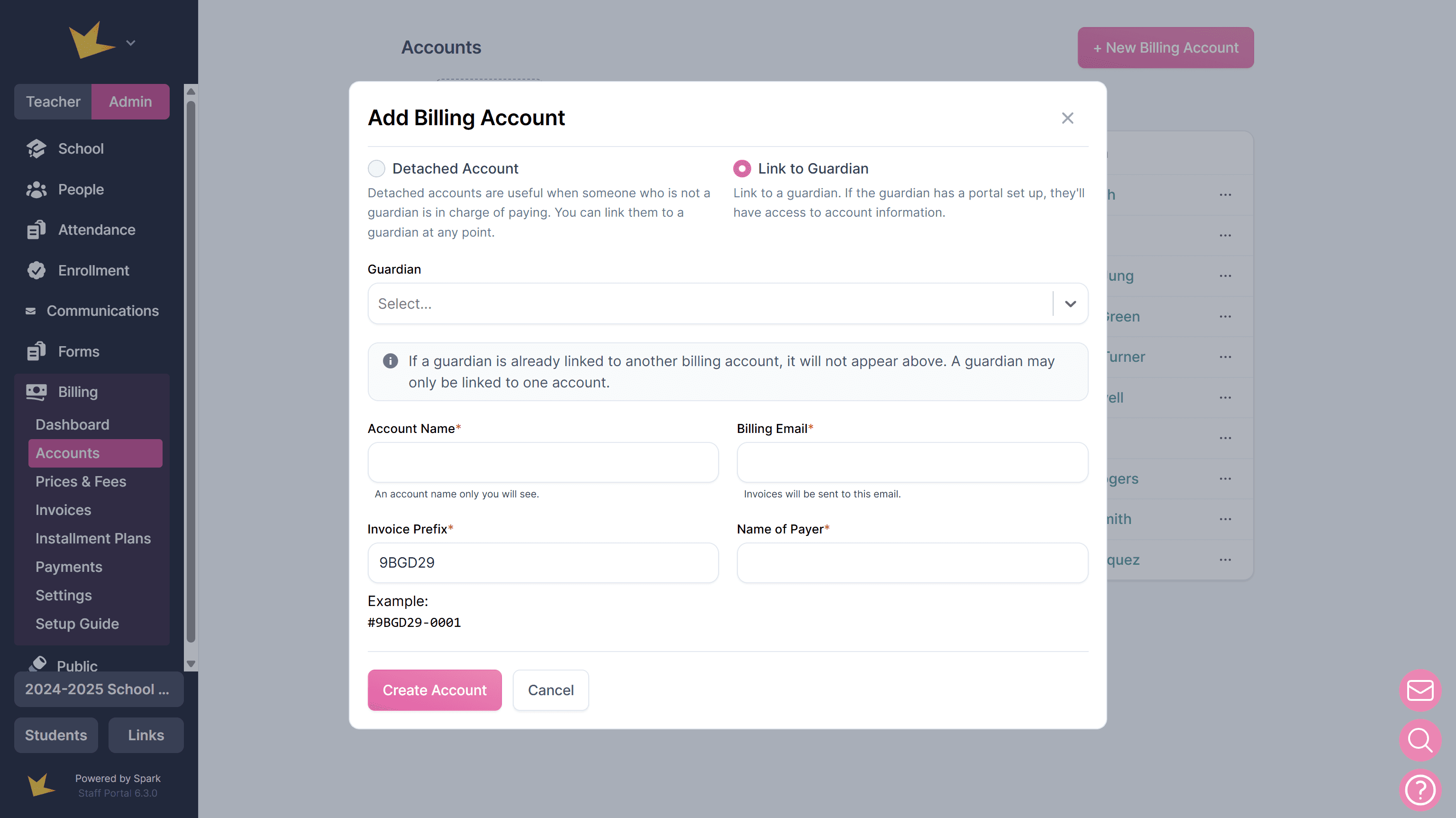
Spark supports two types of billing accounts:
Linked Accounts
Linked accounts are connected to a guardian in your Spark school. Guardians can access their billing information through the Guardian Portal, where they can:
- View invoices
- Make online payments
- Save payment methods
- (Optionally) view account statements
Detached Accounts
Detached accounts are for payers who are not guardians in your school.
Detached account holders do not have access to the Guardian Portal, but they can still receive invoices by email and make online payments through the secure payment link included in each invoice.
Creating Billing Accounts
To create a billing account:
- Go to Billing → Accounts.
- Click + New Billing Account.
- Choose one of the following:
- Link to Guardian — Select an existing guardian to create a linked account.
- Detached Account — Create an account for a payer who is not a guardian.
- Enter the required information and click Create Account.
Billing accounts can also be created automatically during enrollment or when creating a new guardian profile.
- From an Enrollment Application: When onboarding students and guardians from an application, scroll to the bottom of the application and create a billing account. Select the guardian who should be linked to the account before completing the onboarding process.
- From a Guardian Profile: When creating a new guardian under People → Guardians, select the Create a billing account checkbox to automatically create a linked billing account for that guardian.
Working Within a Billing Account
After creating an account, you'll manage nearly all billing activity from that account.
Open an account by navigating to Billing → Accounts and selecting the desired account.
Most billing work takes place on the Statements tab.
Charges
Charges define what an account owes your school. A charge can represent a single tuition amount or multiple itemized fees, such as tuition, registration, books, or supplies.
Charges can be created for:
- A single billing account
- Multiple billing accounts at once
When creating a charge, you can:
- Add one or more line items
- Select line items from your saved Prices & Categories
- Assign line items to individual students (if applicable)
- Charge per student or per family
- Assign the charge to a billing period
- Preview charges before posting when creating them in bulk
After posting, charges can be edited at any time, and multiple charges can exist for the same billing account.
Learn more in the Account Statements help doc.
ESA/Voucher Funding Requests
If your school participates in an ESA or voucher program, funding requests are managed within each billing account.
Funding requests generate downloadable invoice PDFs showing the charges for a student. Depending on your state's requirements, these requests can be submitted by either the school or the guardian.
To create a funding request:
- Open the billing account.
- Select the ESA/Voucher tab.
- Click Create Funding Request.
For detailed instructions, see the ESA/Voucher Management help document.
Payments and Adjustments
Billing accounts are also used to record payments and account adjustments.
Examples include:
- Scholarship payments
- Grants
- Gifts
- Manual payments
- Credits
- Debits
To record one of these transactions, open the account and use the Statements tab.
For more information, see the Account Statements help document.
Invoices and Installment Plans
Invoices and installment plans are created from billing accounts.
Although they can be created at any time, it's recommended to create charges first. Charges establish the account balance that invoices and installment plans are designed to collect.
Many schools also wait to create invoices until ESA funding or other payments have been applied, allowing invoices to reflect only the remaining balance owed.
See the Invoices and Installment Plans help documents for detailed instructions.
Account Access
Both linked and detached account holders can receive invoices by email and make online payments using the secure payment link included in each invoice.
If enabled by your school, guardians with linked accounts can also view their complete account statement. This setting is available under Settings → School → Miscellaneous.
When statement access is enabled, guardians can view:
- Current account balance
- Charges
- Expected funding
- Payments
- Credits and adjustments
- Invoices
Linked account holders also have access to additional billing features through the Guardian Portal, including:
- Viewing past, current, and future invoices
- Making online payments
- Saving ACH and card payment methods for future use
- Paying a single invoice or all outstanding invoices
- Downloading ESA/Voucher funding requests and marking them as submitted
