- Help
- Grades
PDF Reports
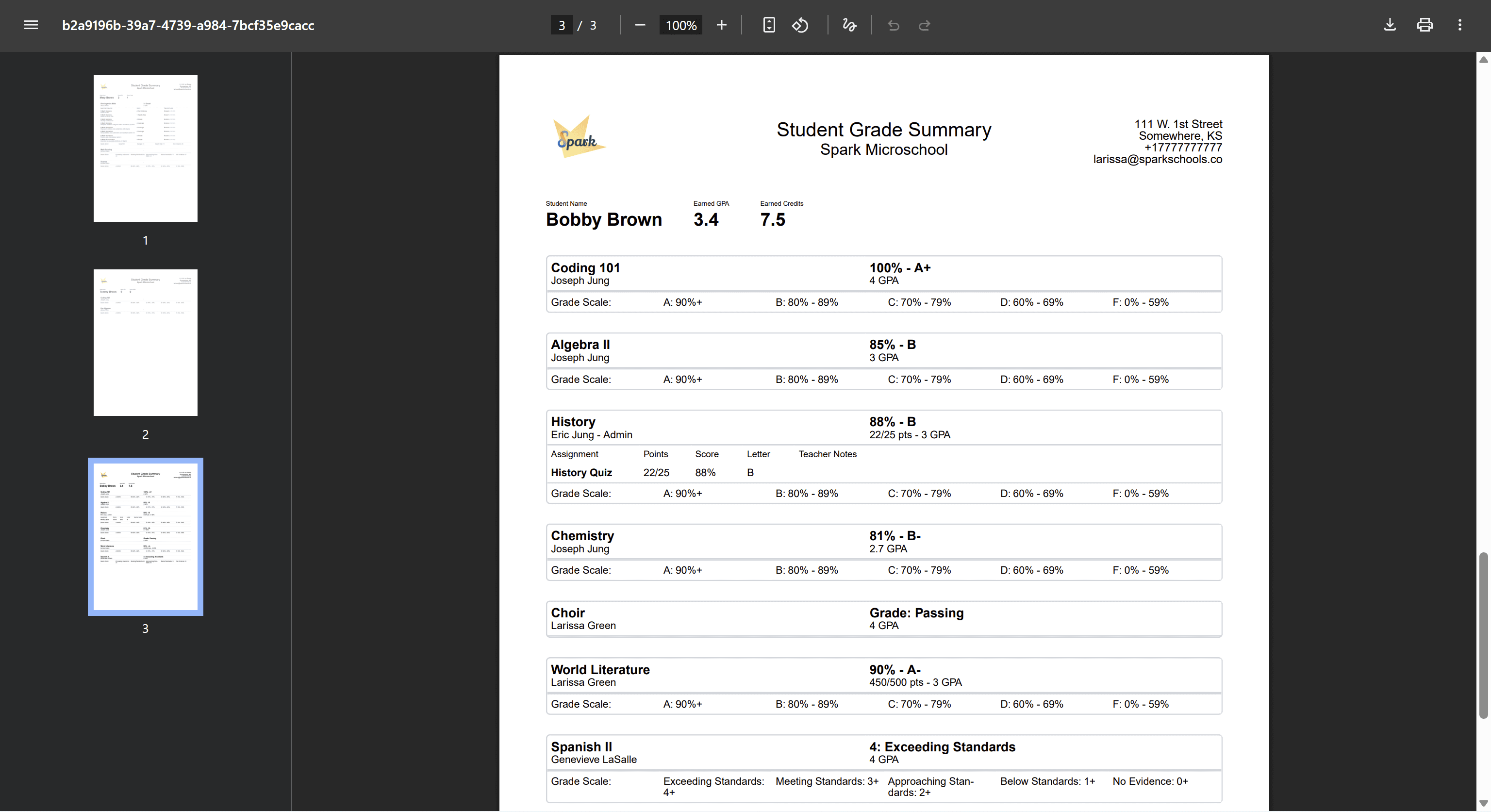
Spark’s PDF Grade Reports offer a more detailed and customizable view of student grades than standard report cards, including expanded assignment breakdowns and flexible options for what appears on the report. Additional report types will be added in the future.
Creating Grade Reports
To create a grade report:
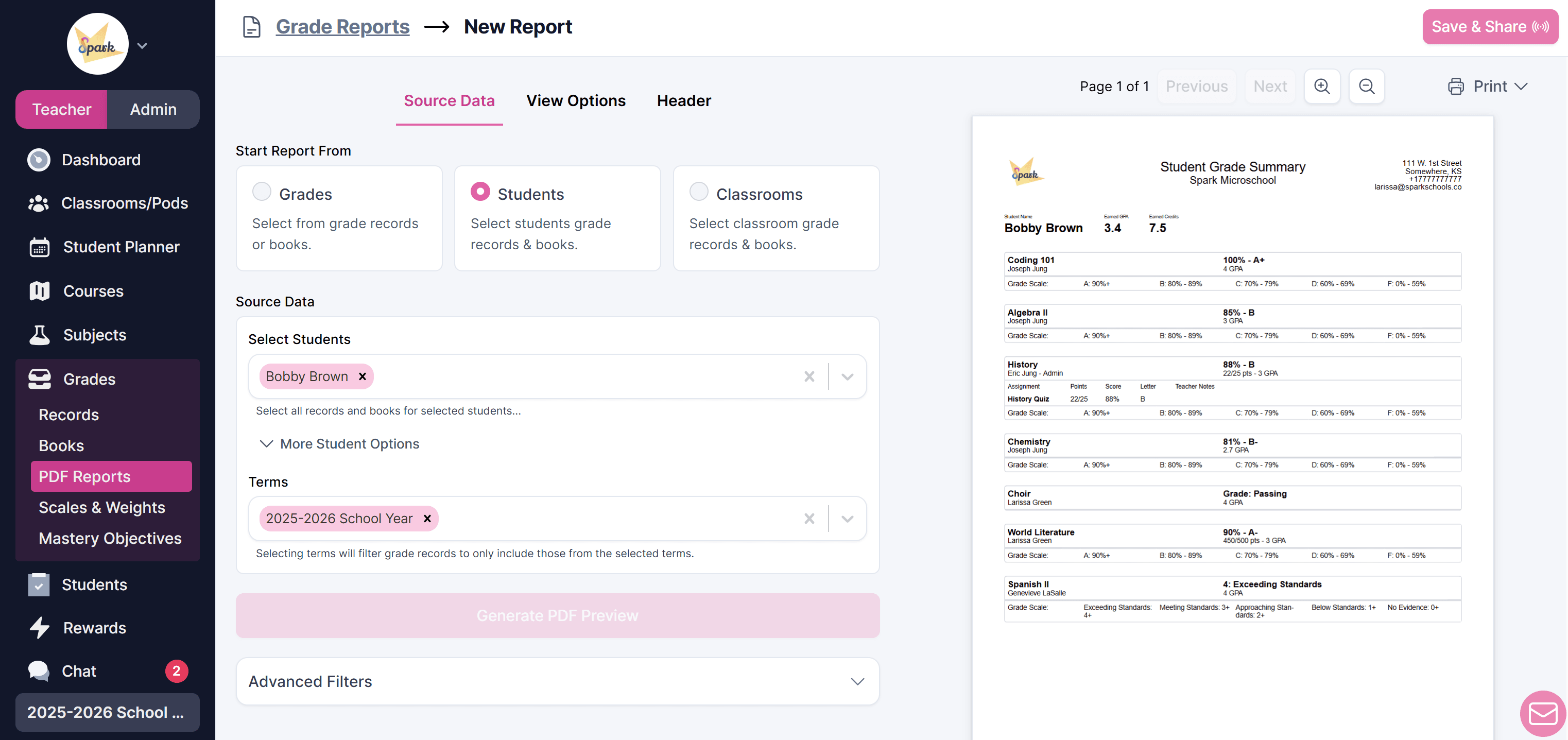
- Navigate to Teacher → Grades → PDF Reports.
- Choose the Report Type you want to create. Once selected, you will enter the report builder.
- Select the Source Data to include (term, gradebook, and other filters). A preview of your report will appear on the right.
- In View Options, select the details you want to include.
- In the Header section, customize the information and layout of the report header.
- Review the report preview. Use the Next and Previous buttons to scroll through students.
- Once your report is ready, you can:
- Download: Save the report as a PDF on your device.
- Print: Print the report for your records.
- Save & Share: Save the report to the platform and optionally post it to guardian portals (see below).
Saving & Sharing Grade Reports
Clicking Save & Share at the top of a report once it is complete will give you the option to create a saved report PDF. This PDF will be stored on your main Reports page and in each students' Reports tab. It can also be shared with guardians or downloaded and saved to your device.
Saving a Report to Spark
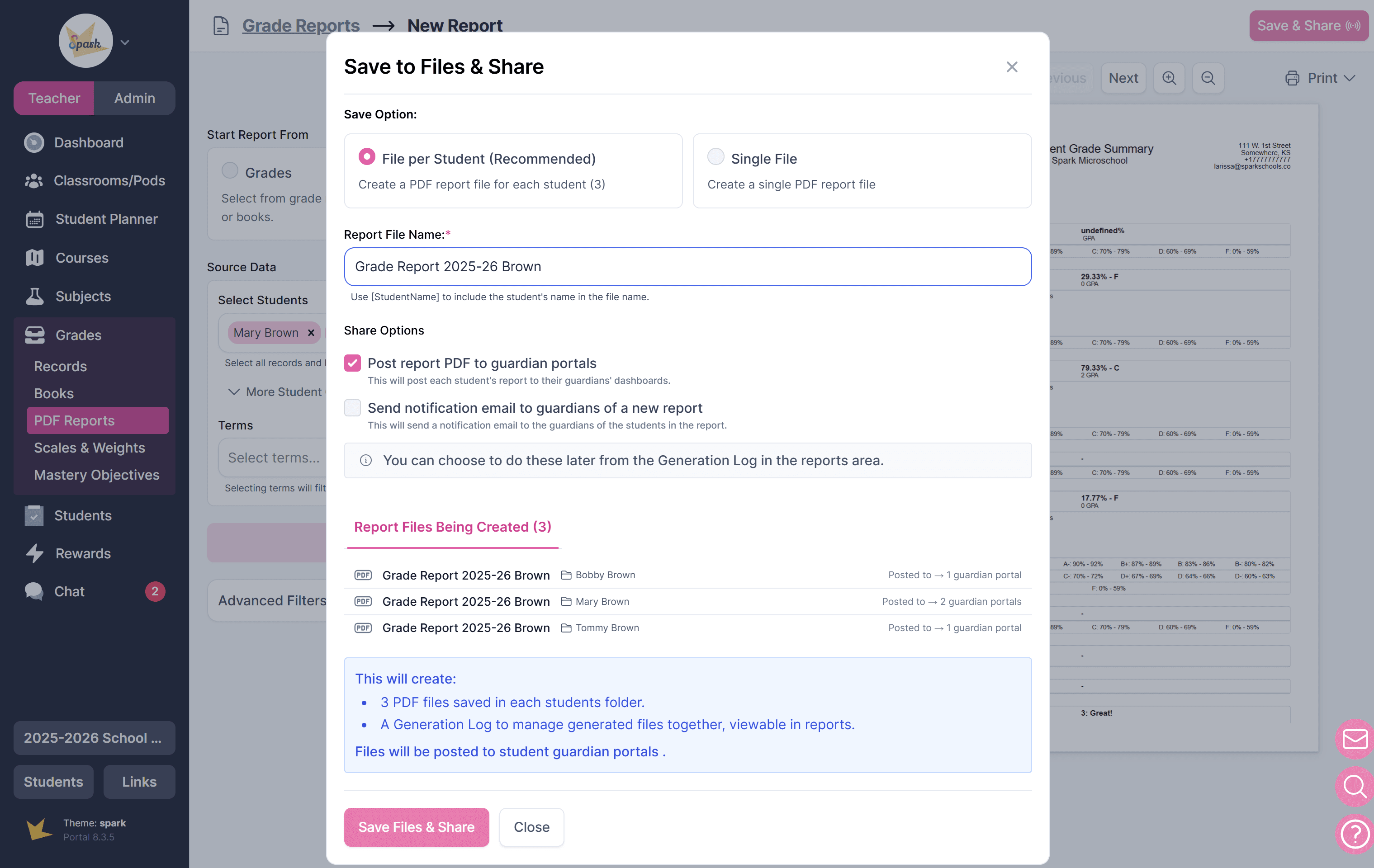
- Click Save & Share in the top-right corner.
- Choose whether to:
- Create one file per student, or
- Create a single file containing all reports.
- Confirm the file name is accurate.
- If creating a single report, select the folder where it will be saved.
- Click Save Files & Share to finish.
Sharing Grade Reports
Reports can be posted to guardian portals and will appear on each guardian’s Reports page. Only reports for the students linked to that guardian will posted.
To share a report with guardians:
- Click Save & Share in the top-right corner.
- Select the save option, "File per Student."
- Confirm the file name is accurate.
- Check the box "Post report PDF to guardian portals."
- Click Save Files & Share to finish.
To post an updated report for guardians, first remove the outdated report, then create and post a new one.
To remove a report from guardian portals:
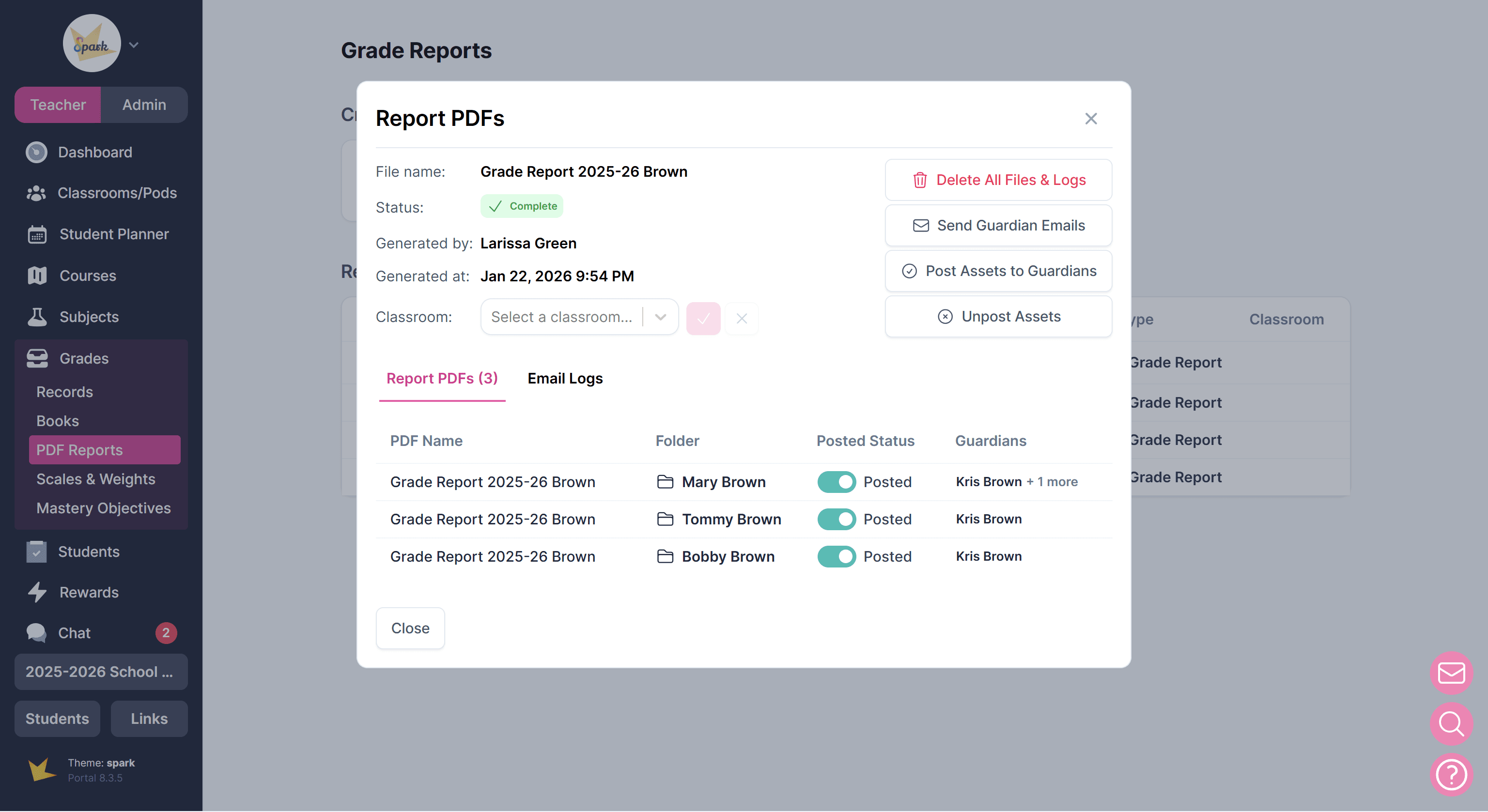
- Locate the report in the Report PDFs list on the main Reports page.
- Open the report.
- Click Unpost Assets to remove the shared files from guardian portals.
Downloading a Report to Your Device
First generate the report as outlined above. Then, click Print in the top right corner and select from the options.