- Help
- Online Payments
Online Payments Setup
Setting Up Online Payments
To allow payers to pay invoices using online payments, you must first set up your school's Stripe integration.
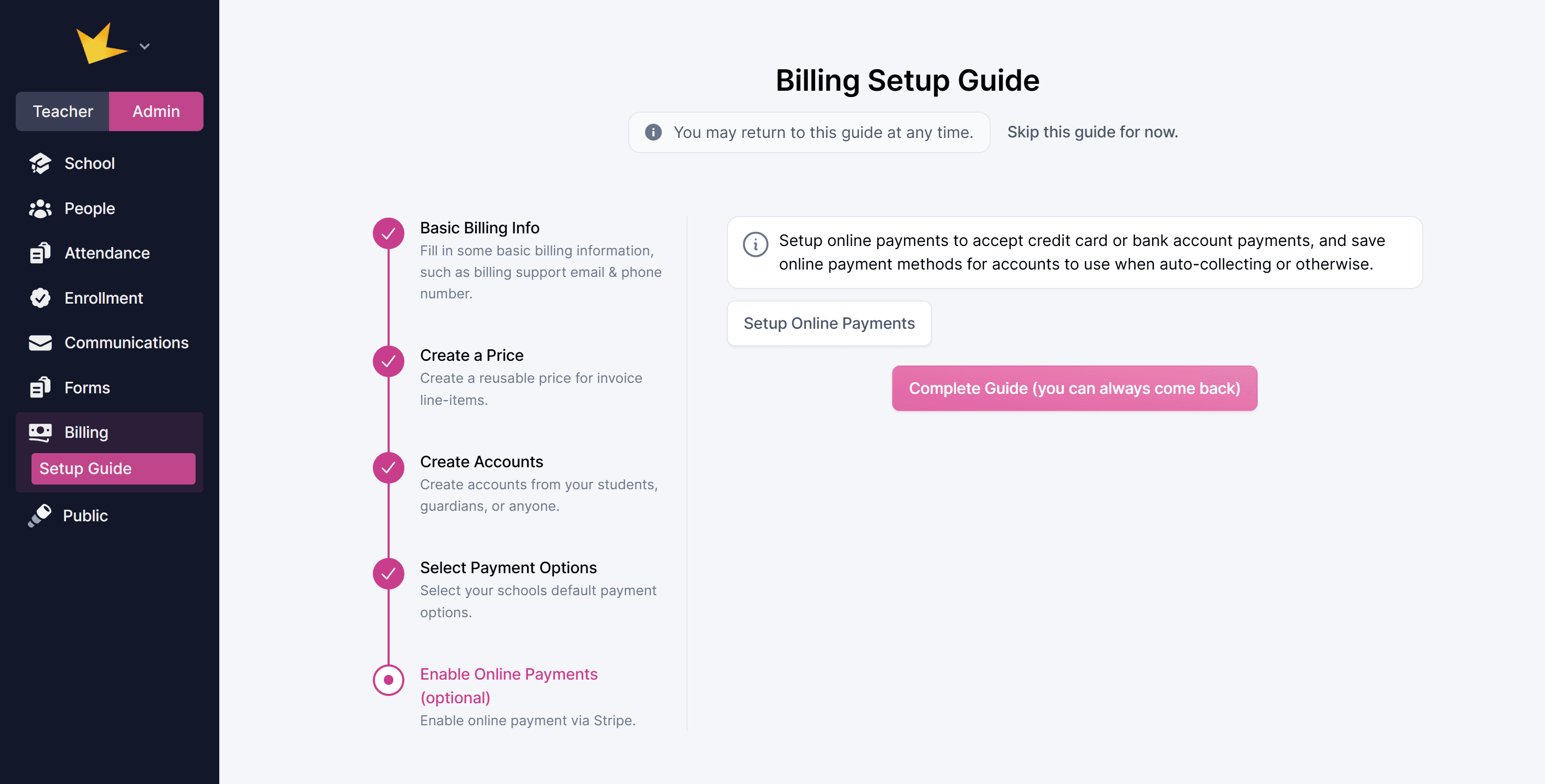
1. Go to Billing and enter either the Setup Guide or Settings page.
2. Click Setup Online Payments.
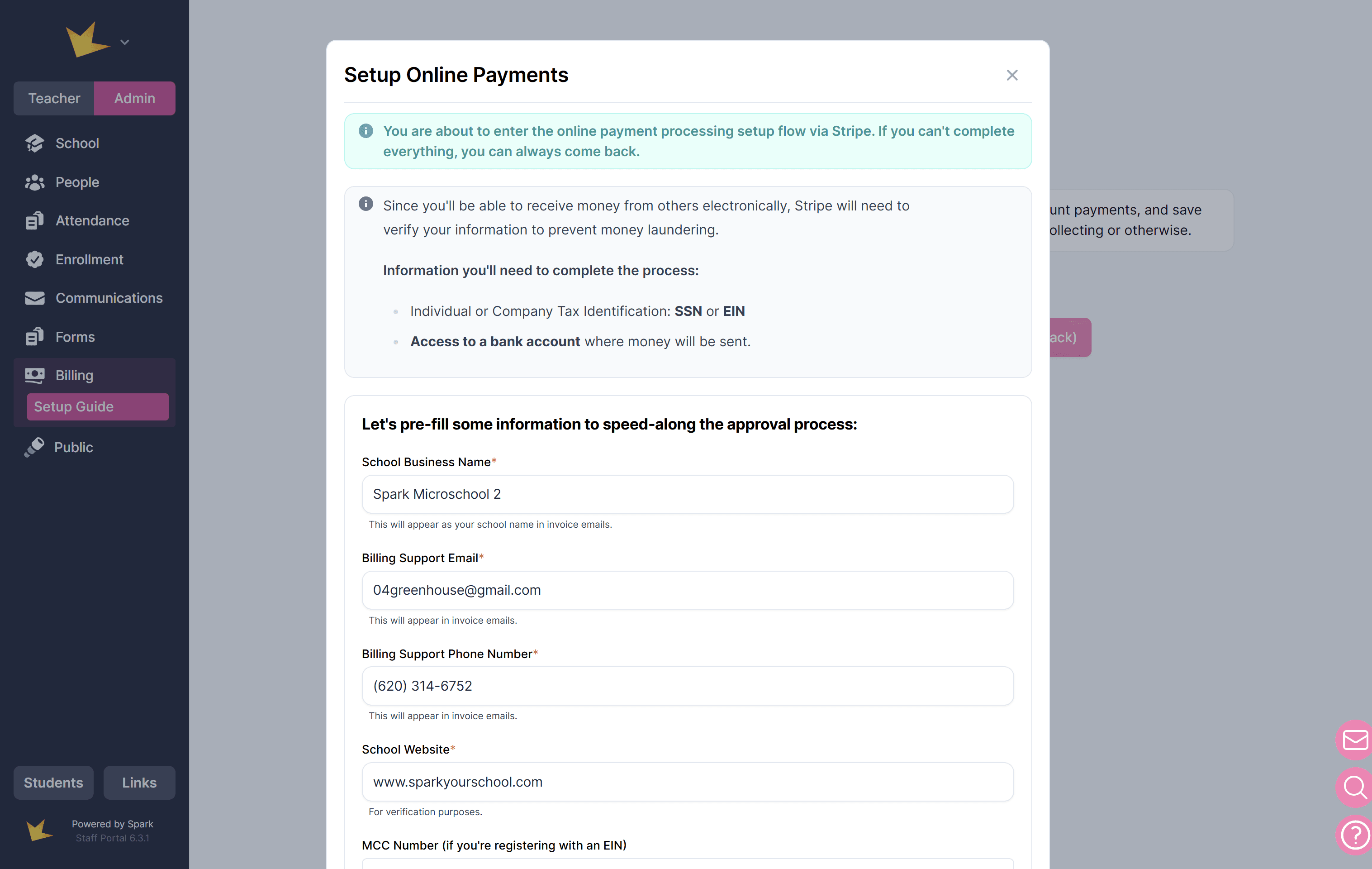
3. Fill out the required information in the Setup Online Payments modal.
4. Verify the information, then click Let’s Get Started to enter Stripe’s setup interface.
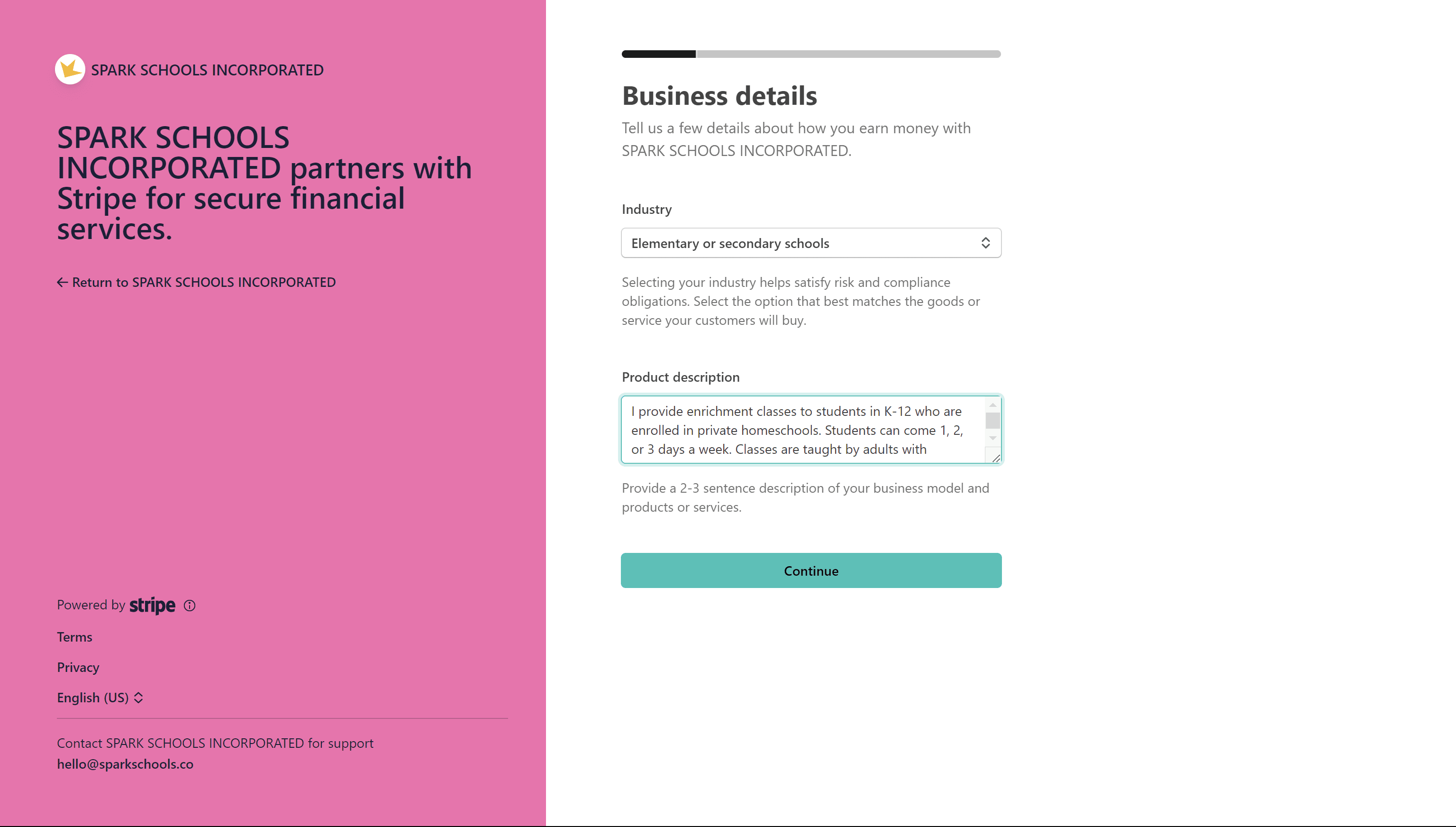
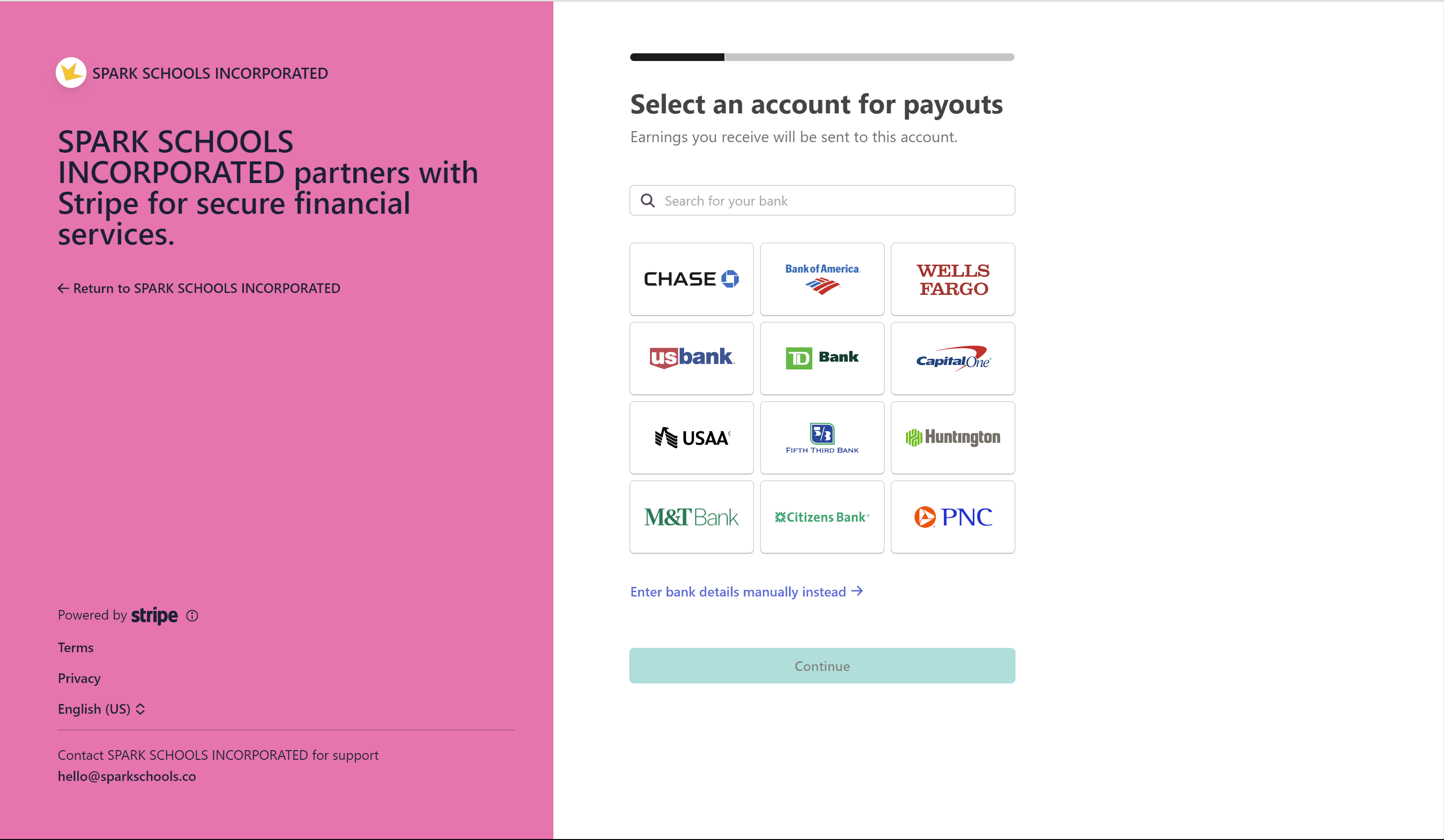
5. Complete the Stripe setup by following these steps:
- Enter your email and create a password (or log in with an existing Stripe account).
- Provide the verification code sent to your phone.
- Describe your product or service (e.g., “Spark Academy offers enrichment classes to K-12 students enrolled in homeschools.”).
- Enter your business details: country, type of business, and either SSN (for individuals) or EIN (for companies).
- Select or manually enter your financial institution for fund deposits.
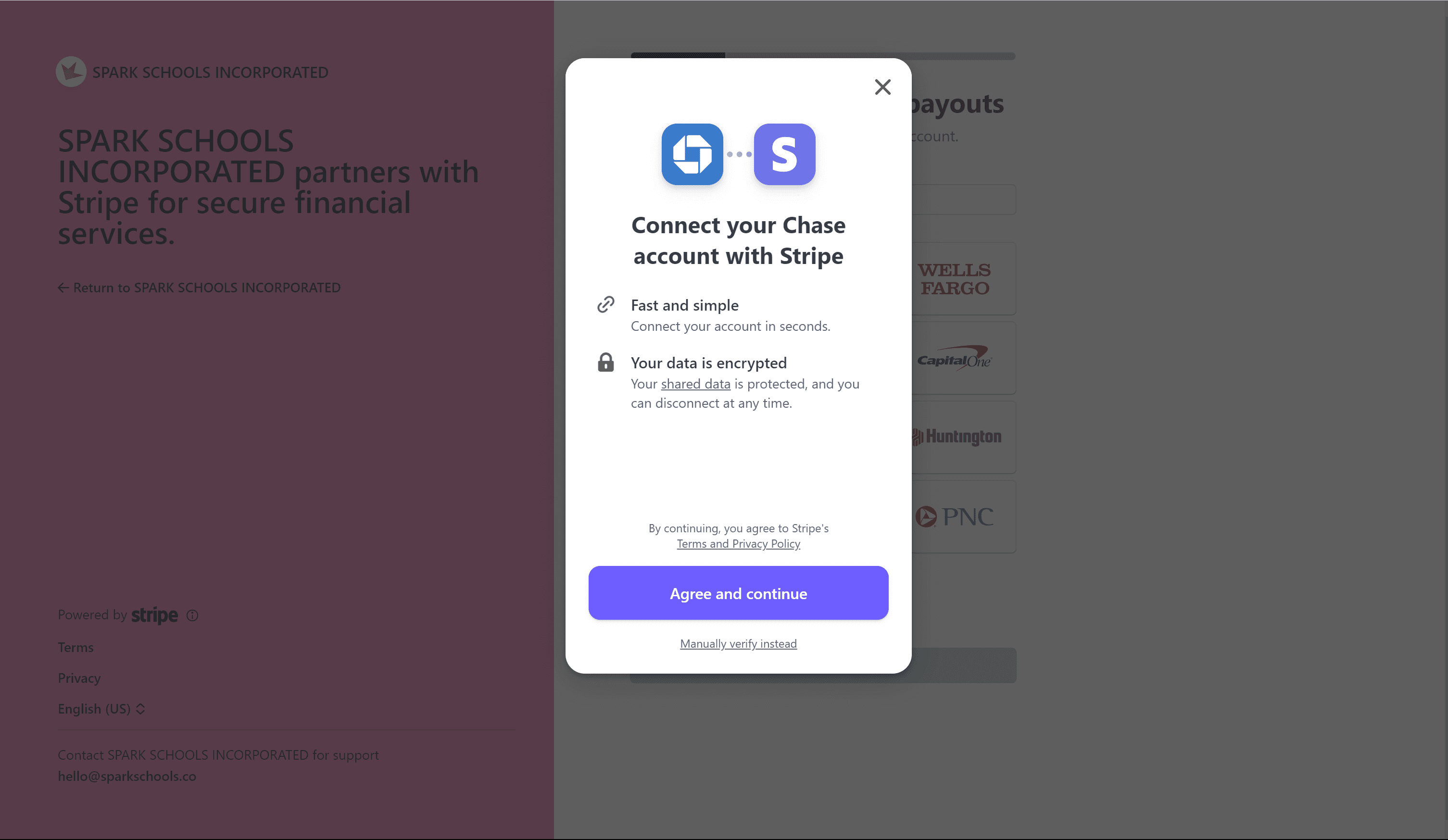
6. Review and edit the information as needed.
7. Click Agree and Submit to complete the setup.
Enabling Online Payment Options for Payers
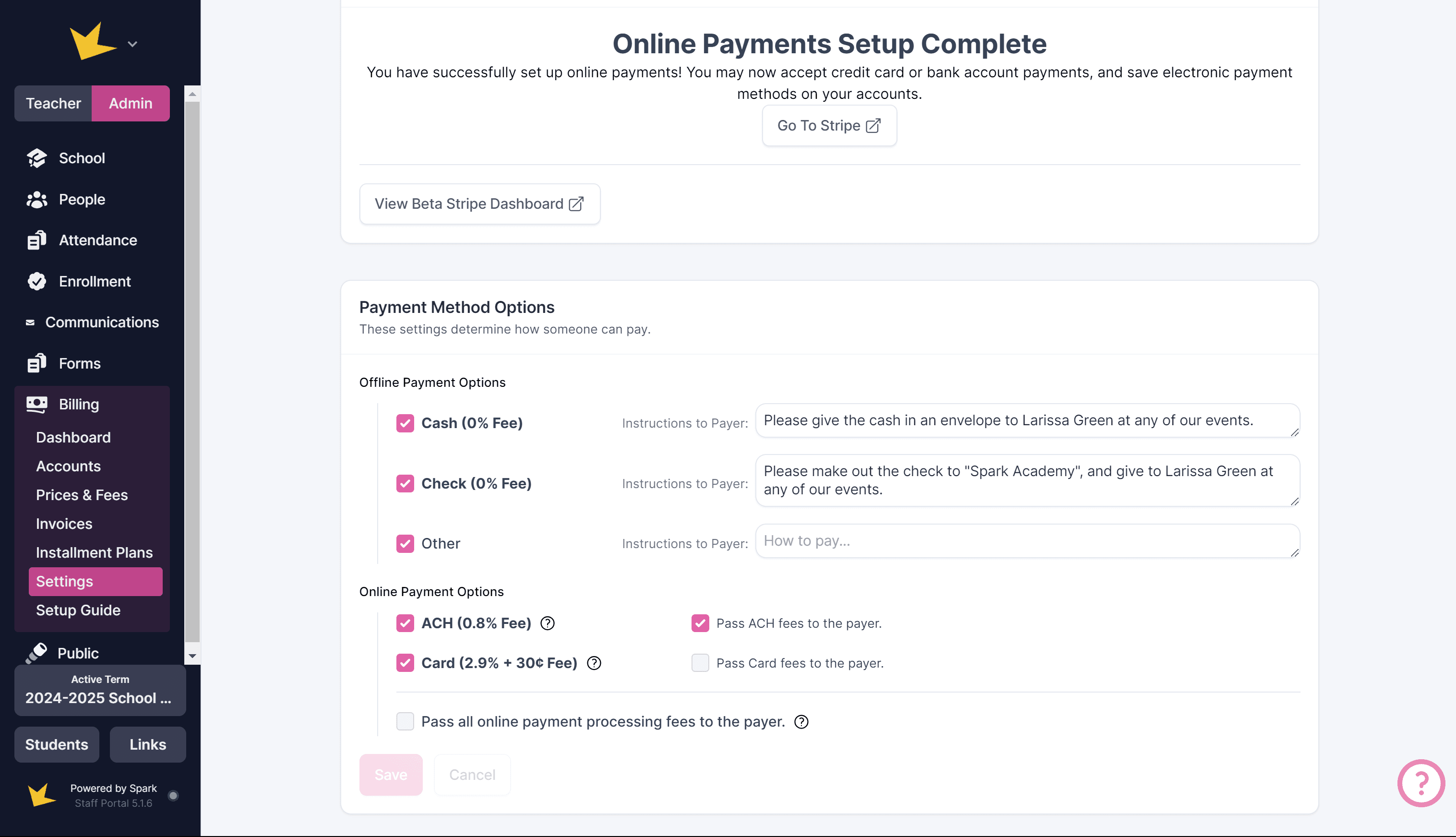
Before payers can use online payment methods to pay invoices, you must select online payment methods in your default payment options in Settings or on the invoice.
To enable online payment options in your school's default settings:
- Go to Billing → Settings.
- Scroll to Payment Method Options.
- Select your online payment options: ACH and/or credit/debit card.
- Click Save.
To enable online payment options on a specific invoice,
- Create a new invoice or open an existing one.
- Scroll down to the Payment Options section.
- Choose Custom Payment Options.
- Select the online payment methods you want to offer.
Online Payment Fees
Stripe charges fees for handling online transactions. These fees are
- ACH fees: 0.8%
- Card (credit/debit) fees: 2.9% + $0.30 per transaction
Once you select your default online payment methods, determine who will pay the online transaction fees by checking or unchecking Pass all online payment processing fees to the payer. Spark does not collect additional fees. You can customize both card and ACH fees individually.
Common Questions
Why do I have to provide my SSN or EIN to start using online payments?
This information allows Stripe to ascertain your veracity as an individual or business that is authorized to accept money. This helps prevent money laundering.
Why do I have to provide a school website when setting up online payments?
Stripe requires a website to verify that your school is a legitimate entity and to prevent money laundering.
If your school does not have a website, you can use the public profile link provided by Spark. See the FAQ below for more information.
I had to quit in the middle of setting up my online payments with Stripe. Can I finish it?
Yes, at any time you can go back to Settings and click Continue Setup under the Online Payments section. You will return to the step in the Stripe setup that you were in when you left.
I went through all the steps in Stripe to set up online payments, but the screen has been stuck on “Payment Setup Pending.”
It should only take a few seconds for Stripe to review your account and give you access, but sometimes it takes longer. If it seems to be taking too long, check your email to make sure Stripe hasn’t contacted you for more information. Or, contact us at hello@sparkschools.co.