- Help
- Assignments
Submissions
📣 Update Notice: The Student Planner was previously called "Assignments" or the "Assignment Calendar."
Student Submissions
Once a student completes an assignment or makes progress on a goal, she can submit that work from her student portal. You can access the assignment and goal submissions in several places on Spark School:
- In a Classroom/Pod:
- Activity & Rewards tab
- Student Planner tab
- School-wide:
- Student Planner, found on the left navigation
- Submissions page, found under Learning
- On the Dashboard (in the small school mode)
- Submission Review
- Activity Tracker
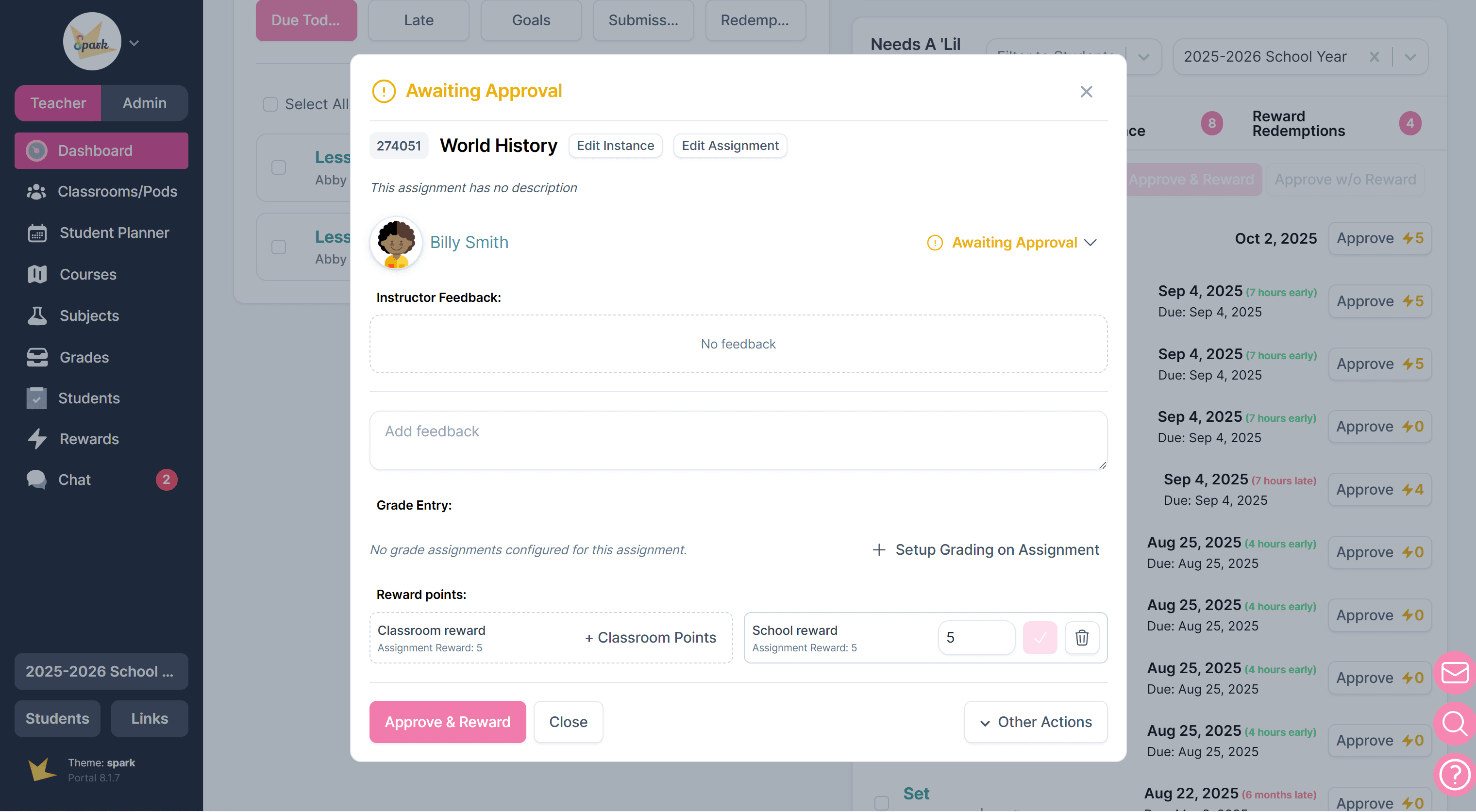
Once you have located the submission, click into the Submission Modal, where you can review their work, leave feedback, approve, or request a redo.
Reviewing Submissions
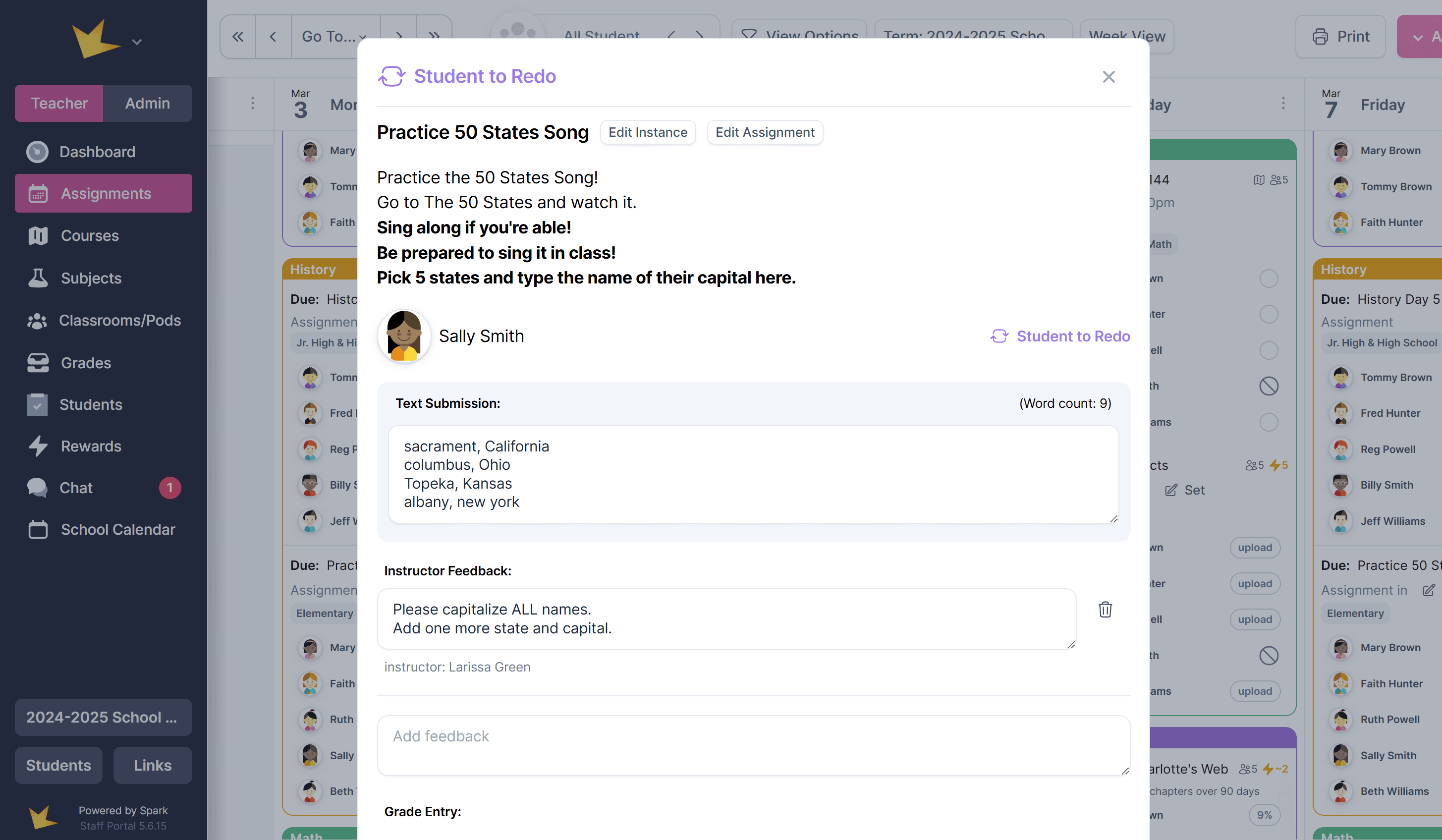
Once you locate and open a submission, you can view everything the student submitted that was required: a text response, photo, video, or document. If none of these were required, the submission will simply show a confirmation of completion.
Uploaded items can be opened for viewing or downloaded to your device.
Providing Feedback
- Provide feedback for a student by typing in the Instructor Feedback box, then pressing Add Feedback.
- Feedback will appear in the redo assignment or in the student chat.
Changing Submission Status
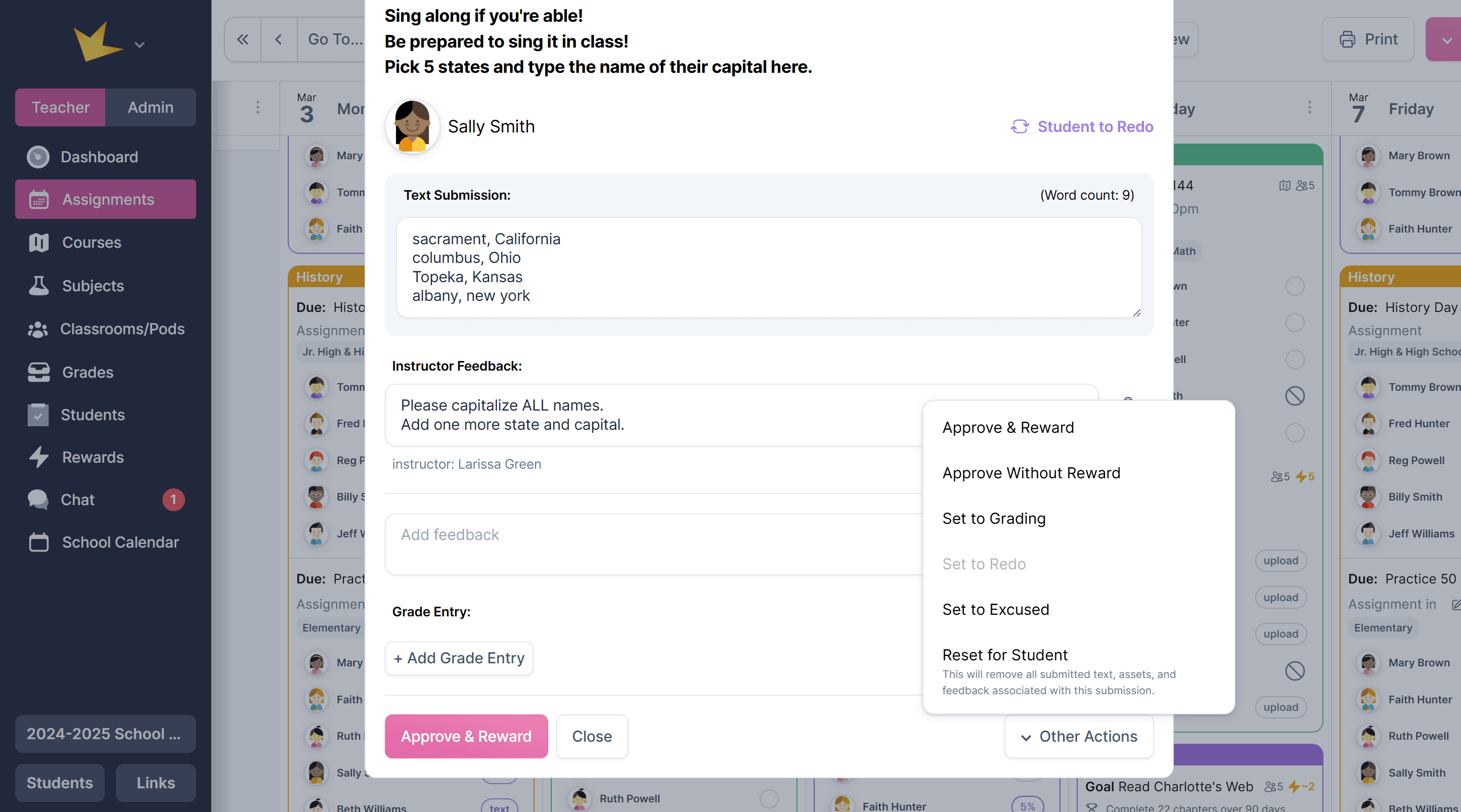
Mark the status of the submission using the Other Actions dropdown in the Submission Modal. Your options are:
- Approve & Reward: Marks the assignment as completed and awards points earned.
- Approve without Reward: Marks the assignment as completed but does not award points.
- Awaiting Approval: Creates a submission for grading.
- Allows you to submit an assignment or goal on behalf of the student.
- Useful if a submission was mistakenly approved, excused, reset, or marked for redo.
- Set to Redo: Sends the assignment back to the student for revisions. The assignment will reappear in the student’s portal as a redo.
- Set to Excused: Marks the assignment as no longer required.
- Reset for Student: Completely resets the assignment, as if no submission was made. The assignment will reappear in the student’s portal as unfinished.
Quick Ways to Approve Submissions
If you don't have time to review all the submissions that come through, you have a couple of options to make submission review easier.
- Approve many submissions at once: This can be done in the Submission Review section on the dashboard or in the Classroom -> Activity & Rewards tab.
- Automatically approve submissions: Select this setting in your assignments' Advanced Settings section.
Grading Submissions
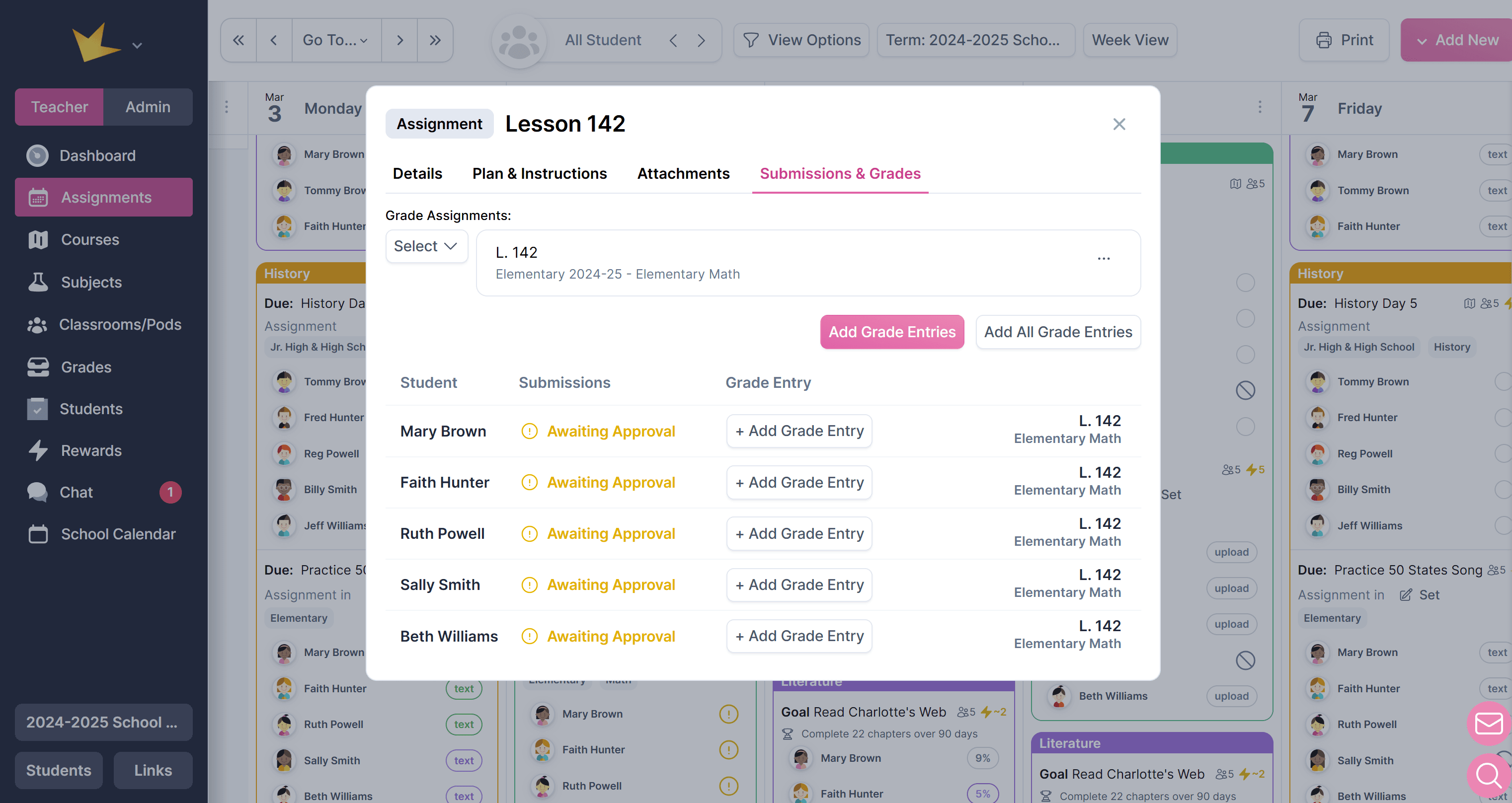
- Each submission modal has an option to + Add Grade Entry.
- Once clicked, select the grade class, assignment type, and enter the score.
Rewarding Submissions
All submissions can be awarded points, and students can redeem those points for rewards.
If an assignment was given a point value when it was created, the submission will automatically receive that full point value once it is Approved.
You can also manually award points—either partial points or points for an assignment with no preset value—using the Reward Points section inside the submission. Points can be awarded for classrooms points, school-wide points, or both.