- Help
- Getting Started
Navigating
Recently updated! Spark's navigation was reorganized in June, 2026. Looking for something? See our transition guide:
To revert to the old menu, click the star symbol at the bottom of the left menu bar.
Left Menu Navigation
Use the left navigation menu to move throughout Spark. Some menu items expand to reveal additional options and submenus.
Learning
The Learning section contains tools for managing teaching and learning activities, including:
- Student Planner – Create, assign, and manage student assignments.
- Courses – Build course templates and assignment blueprints that can be scheduled for students.
- Subjects – Manage the subject labels used to organize assignments and courses.
- Rewards – Create and manage your reward store, student points, and reward redemptions.
Scheduling
The Scheduling section contains Spark's calendar and scheduling tools, including:
- Scheduler – Build and manage daily and weekly schedules for classes, activities, and other school events.
- Event Calendar – Create and manage school events, field trips, holidays, and special activities.
- Sessions – Manage academic years, sessions, terms, and programs.
Settings
The Settings section contains your school's administrative and configuration options, including:
- School Information – Manage your school's name, logo, address, contact information, and other details.
- Email Templates – Customize the default emails Spark sends, such as enrollment, billing, and form-related emails.
- Subscription – View and manage your Spark subscription.
- Locations – Manage the locations used for classes, programs, and events.
- Files & Folders – Store and organize documents and files used throughout Spark.
Quick Emails, Search, & Help
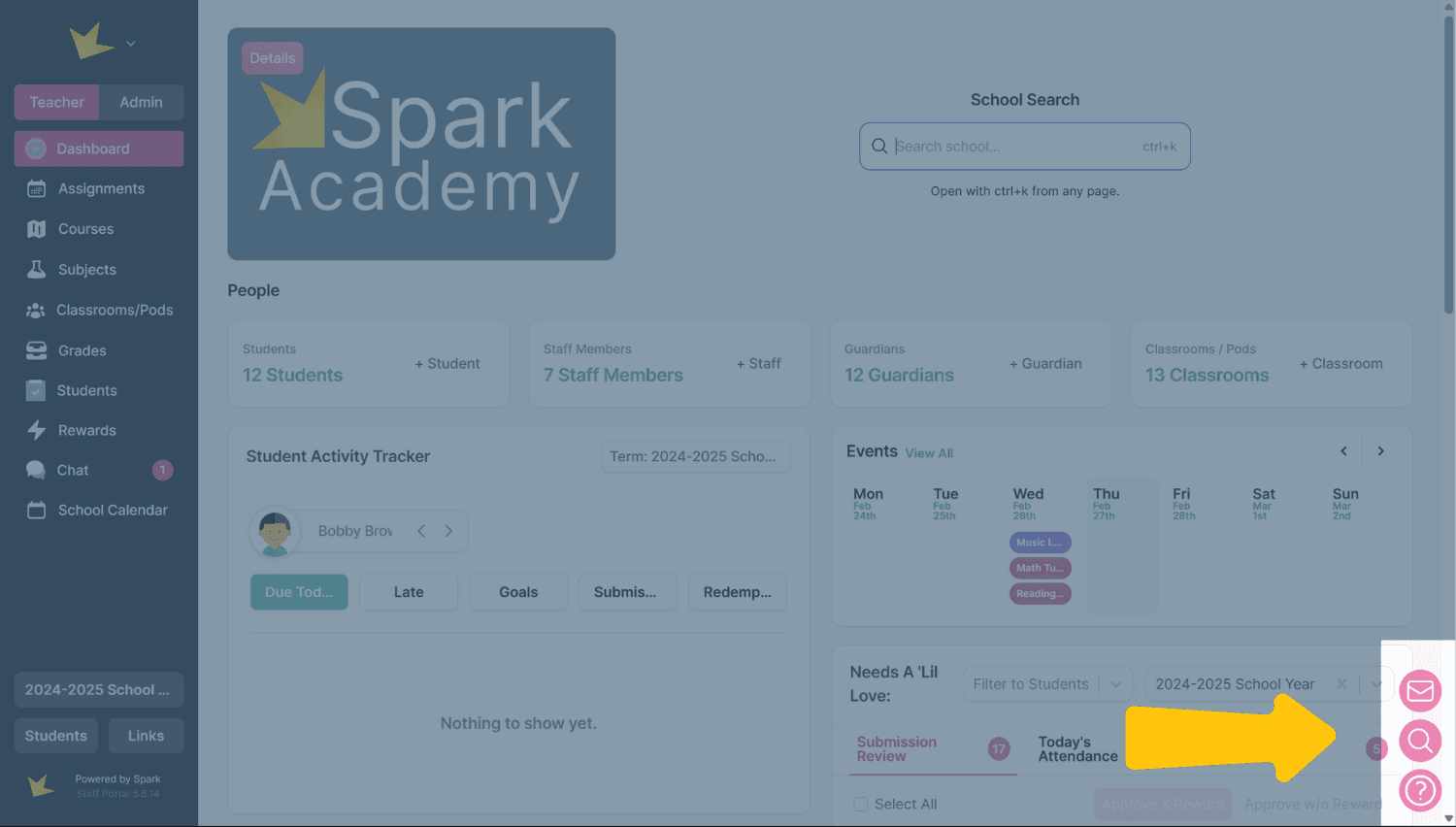
At the bottom right of any page of the Microschool version, you'll find an envelope, magnifying glass and question mark:
- Quick Email: Click the envelope to quickly send an email to a person or persons in your school.
- Search: Click the magnifying glass to quickly find features by typing keywords.
- Help: Click the question mark for FAQs, the Contact Us form, and Spark's roadmap.
Quick Links
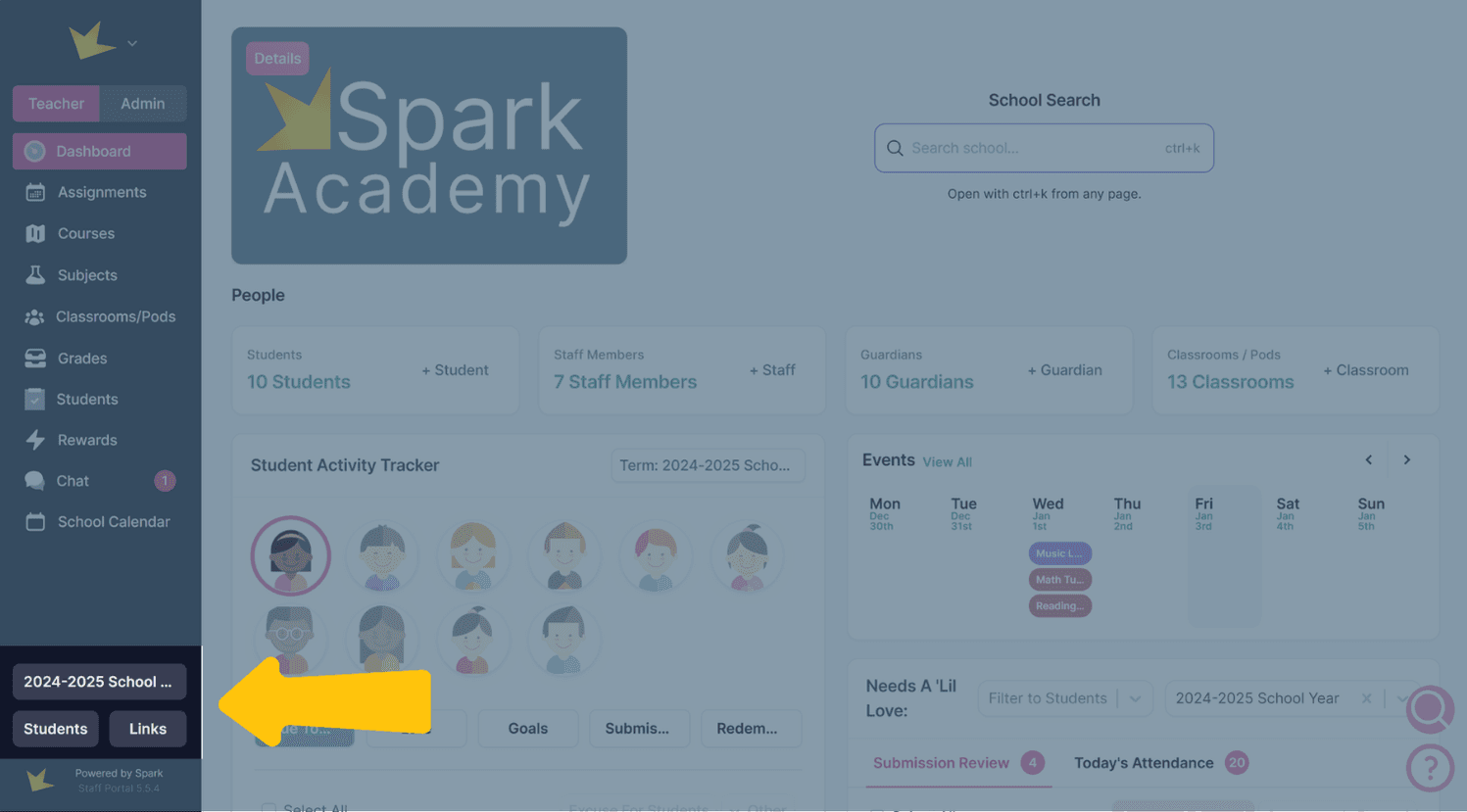
At the bottom of your left navigation bar are several quick links.
- Students: Access or add students from the drop-down menu. Click a name to open their profile or view their Student Portal.
- Links: Access your school's login page and resource page.
Logo Menu
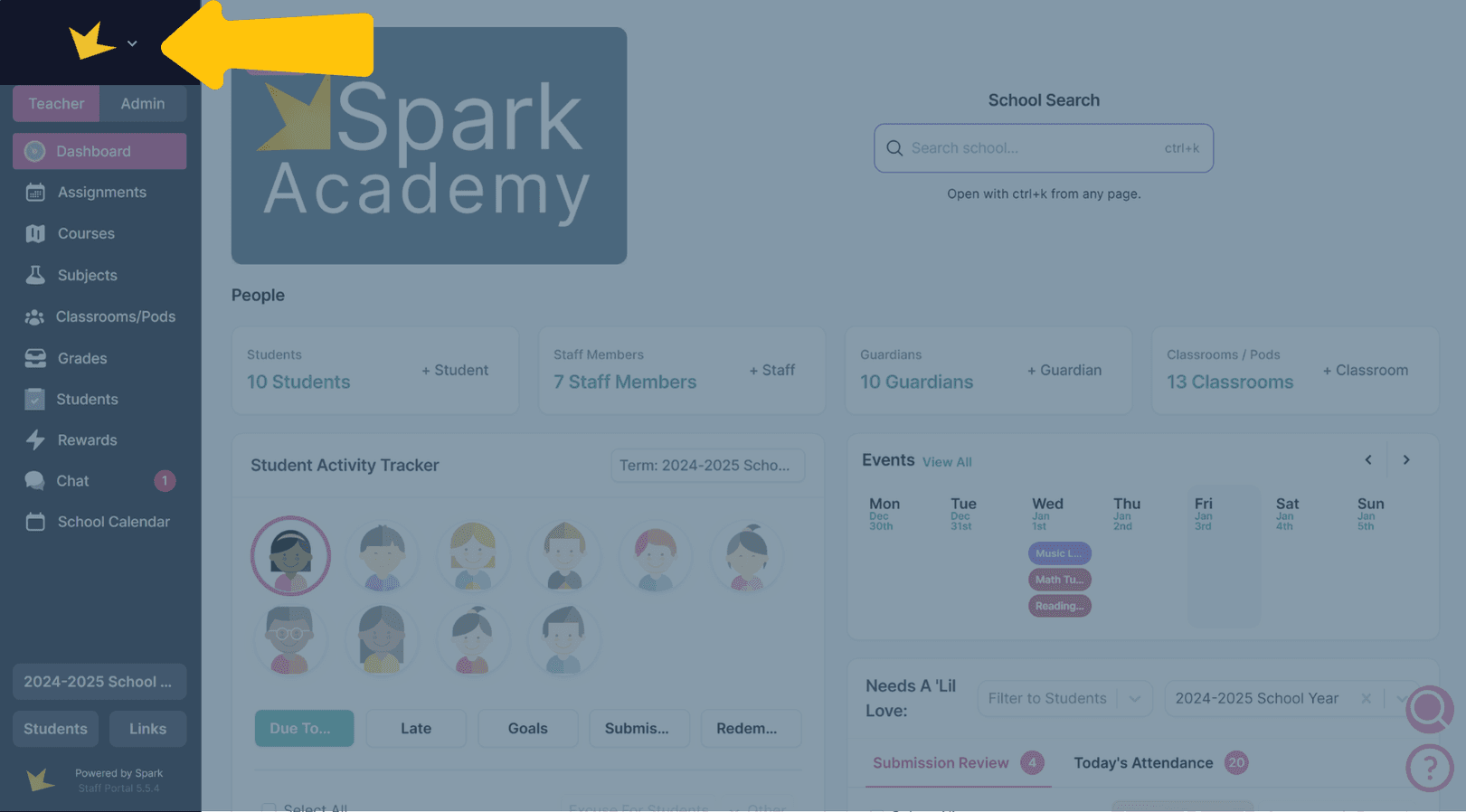
At the top of the left navigation, your logo links to a menu where you can:
- Switch schools or create a new one.
- Access your personal settings (profile, email, password, notifications).
Click your name below the logo to see a list of all schools where you are an admin, teacher, guardian, or student.
Themes
For a fun surprise, click the Spark logo at the bottom of the left navigation bar and see what happens!