- Help
- Classrooms
Class Stream
Using the Class Stream
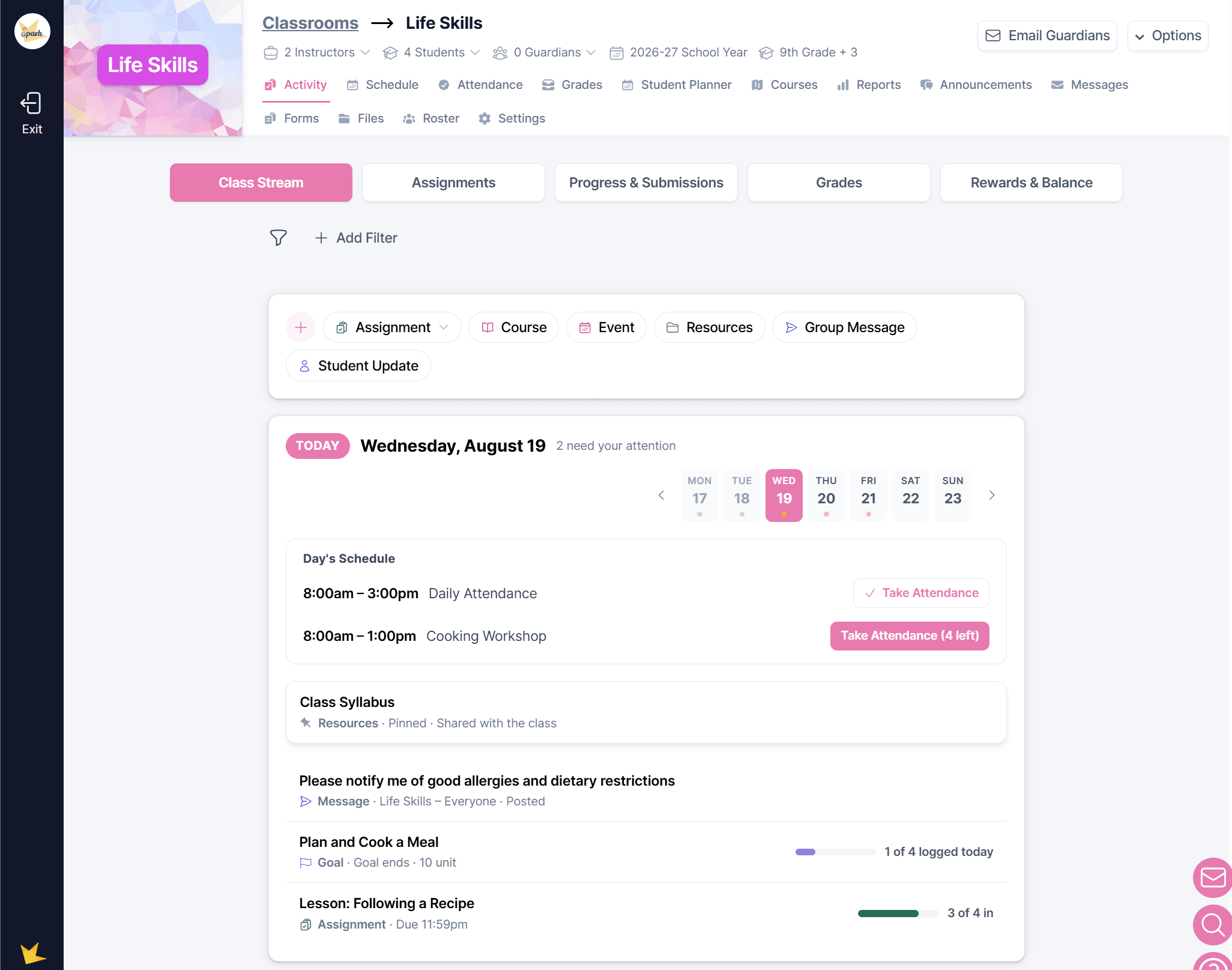
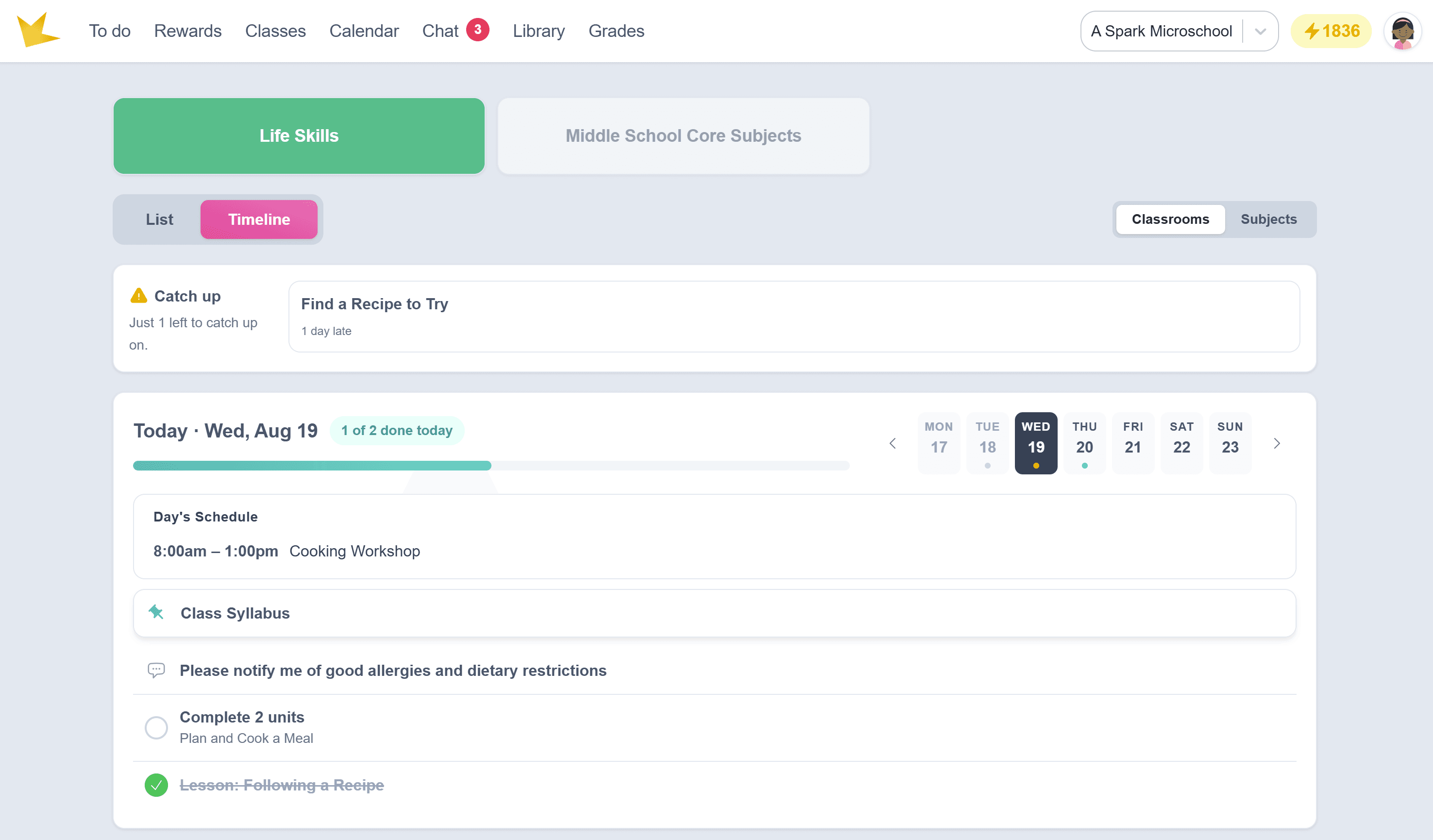
The Class Stream is the first page you see when you enter a classroom. It provides a central place to post important classroom information for students to view in their portals. Students see the same information in the Timeline view of their To-do page.
When you first open the Class Stream, it displays today's date. Use the date selector at the top of the stream to move to other dates. Dates with a dot indicator have assignments or events scheduled for that day.
The following can be added to the Class Stream:
- Assignments or Goals
- Courses
- Events
- Resources
Assignments and Goals
To add an assignment, set, or goal, click Assignments on the Class Stream and make your selection. Create the assignment or goal just as you would from the Student Planner.
For more information, see Creating Assignments & Goals.
Courses
A Course is a structured plan of study for a specific subject. It can include assignments, lesson plans, and attachments. Once a course is created, you can save it and schedule it for any date, student, or classroom as often as needed.
From the Class Stream, click Courses to either create a new course plan for the class or schedule an existing course.
Learn more about creating course plans and scheduling courses.
Events
Events can be created directly from the Class Stream. These are intended for classroom-specific events or activities and can be used to let students know what is scheduled for a particular day.
To create an event:
- Navigate to the date of the event.
- Click Events on the Class Stream.
- Enter the event information.
- Click Create.
Students rostered in the classroom are automatically added as participants and can see the event on the Timeline in their student portals.
Resources
Use the Resources button on the Class Stream to share documents and other files with students. Resources are stored in the classroom's folder, which can also be accessed from the classroom's Files page or from the school-wide Files & Folders page in Settings.
Files of any type can be shared, with a maximum file size of 50 MB.
Resources can be:
- Pinned to the top of the stream so students can easily access them.
- Scheduled to appear on a specific date.
- Set with a visibility date so they remain hidden from students until the specified date.
The Class Stream on Student Portals
Students now have two views available on the main To-do page of their student portal:
- Timeline — Displays class stream information organized by date.
- List — The traditional view of assignments and goals.
Students can switch between these views at any time.
Catch Up
In the Timeline view, late assignments appear at the top of the page in the Catch up section, making it easy for students to see work that still needs to be completed.
Daily Progress
On the Class Stream for today, students will see a progress bar that shows their progress throughout the day as they complete their work.
Students can also look ahead by selecting future dates in the Class Stream.
Keep in mind that assignments and events can be hidden from students until a specified date by using the Visibility Date setting. This allows you to prepare content in advance while controlling when students can see it.
How Class Stream Information Appears for Guardians
Guardians do not have a Class Stream on their Guardian Portal. Instead, information shared through the Class Stream appears in different areas of the Guardian Portal, depending on the type of information and its visibility settings.
- Assignments — Appear on the Assignments page.
- Events — Appear on the Guardian Portal calendar when the event is posted to the calendar. Events created for a classroom only do not appear on the guardian calendar.
- Resources — Appear in the classroom's folder on the Files page when the resource has been shared with guardians.
This allows you to use the Class Stream as a central place to organize classroom information while still delivering that information to guardians through the appropriate areas of their portal.