- Help
- Messages
About Messages
Messages allow you to communicate with groups of people or individual recipients through Spark. Messages are available in the Guardian Portal, Staff Portal, and Spark app.
Recipients can receive notifications about new messages by email or push notification through the Spark app.
In the Staff Portal, messages can be accessed from the school-wide Messages section or from the Messages tab within a classroom.
Admins can review records of messages sent through Spark by going to Comms → Logs.
Creating Messages
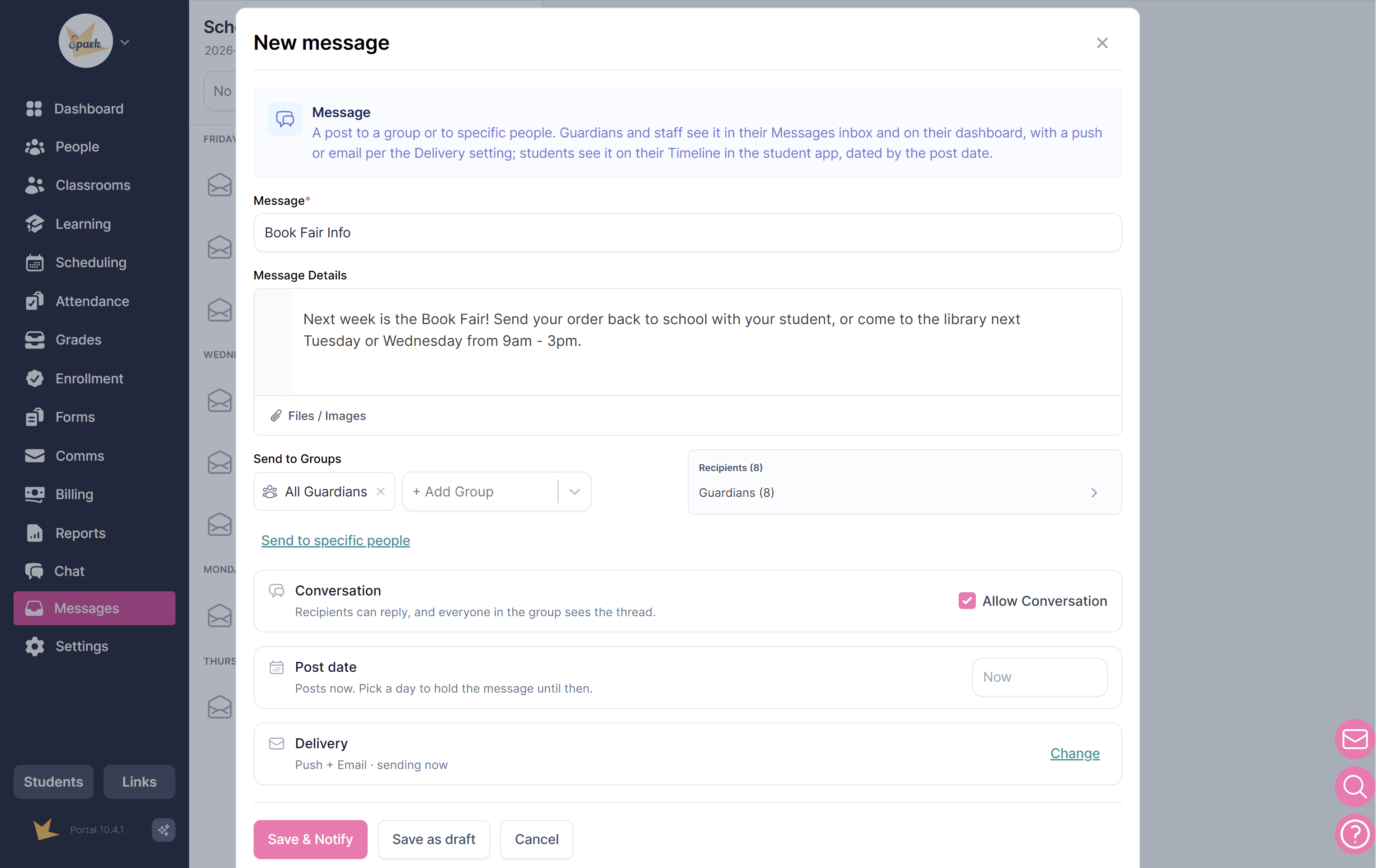
To create a message:
- Go to Messages in the left menu to access school-wide messages, or open a classroom and select the Messages tab to view classroom messages.
- Click the + at the top of the left column, then select New Group or New Message.
- If you create a New Group, you can create a message for the group once the group has been created.
- If you create a New Message, you can select an existing group or choose specific people as recipients.
- Enter your message and add any additional details or attachments.
- Choose whether to allow conversations on the message.
- Select a post date. If no post date is selected, the message will be posted immediately.
- Choose the delivery settings to determine how recipients will be notified.
- Select Save and Send Notifications to post the message and send notifications, or save it as a Draft to finish later.
Managing Messages
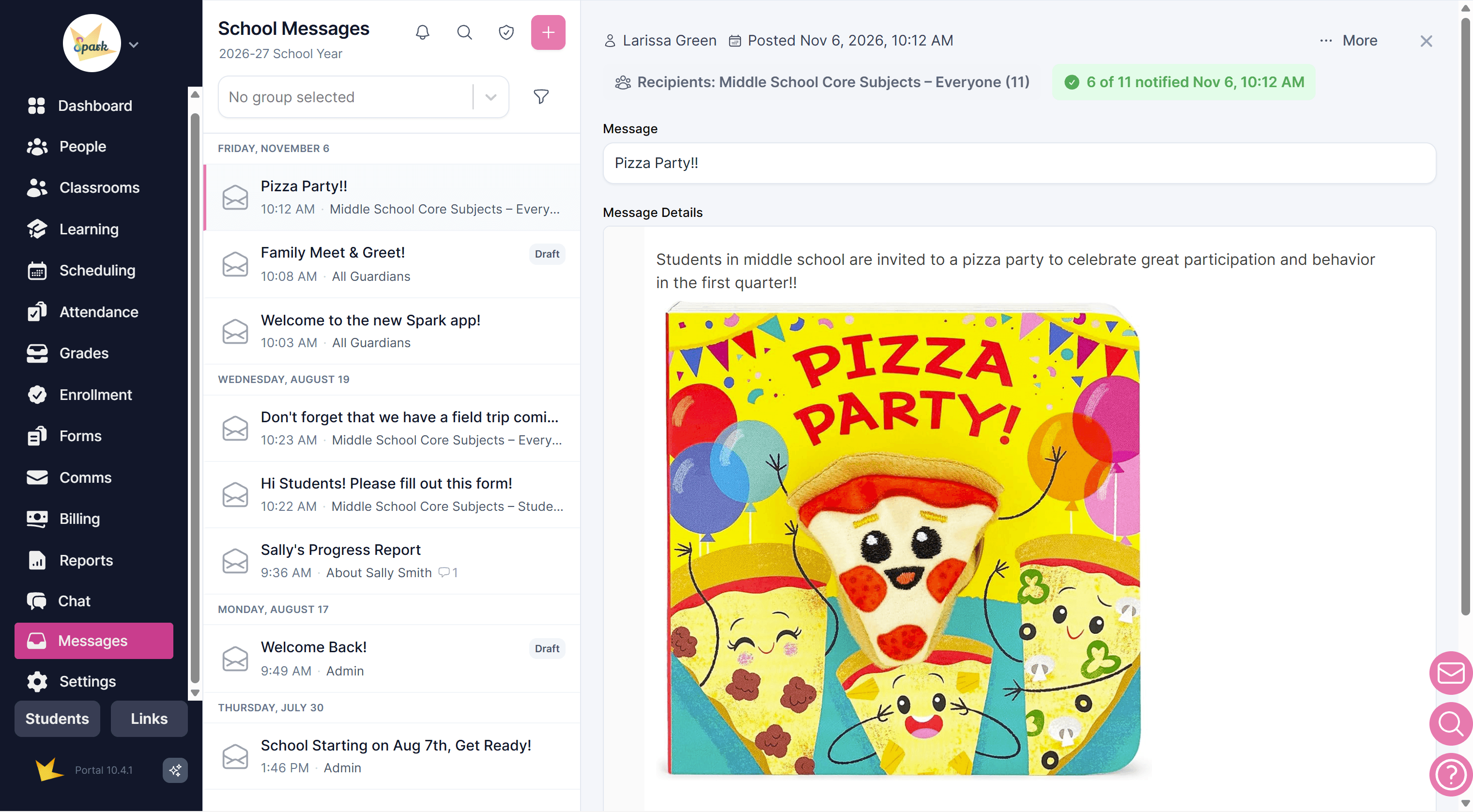
Previously posted messages appear in the left column of the Messages page. Select a message to open and view it.
If conversations are allowed, new replies will be indicated on the message. Open the message to read and reply to comments.
You can also manage message recipients and notifications:
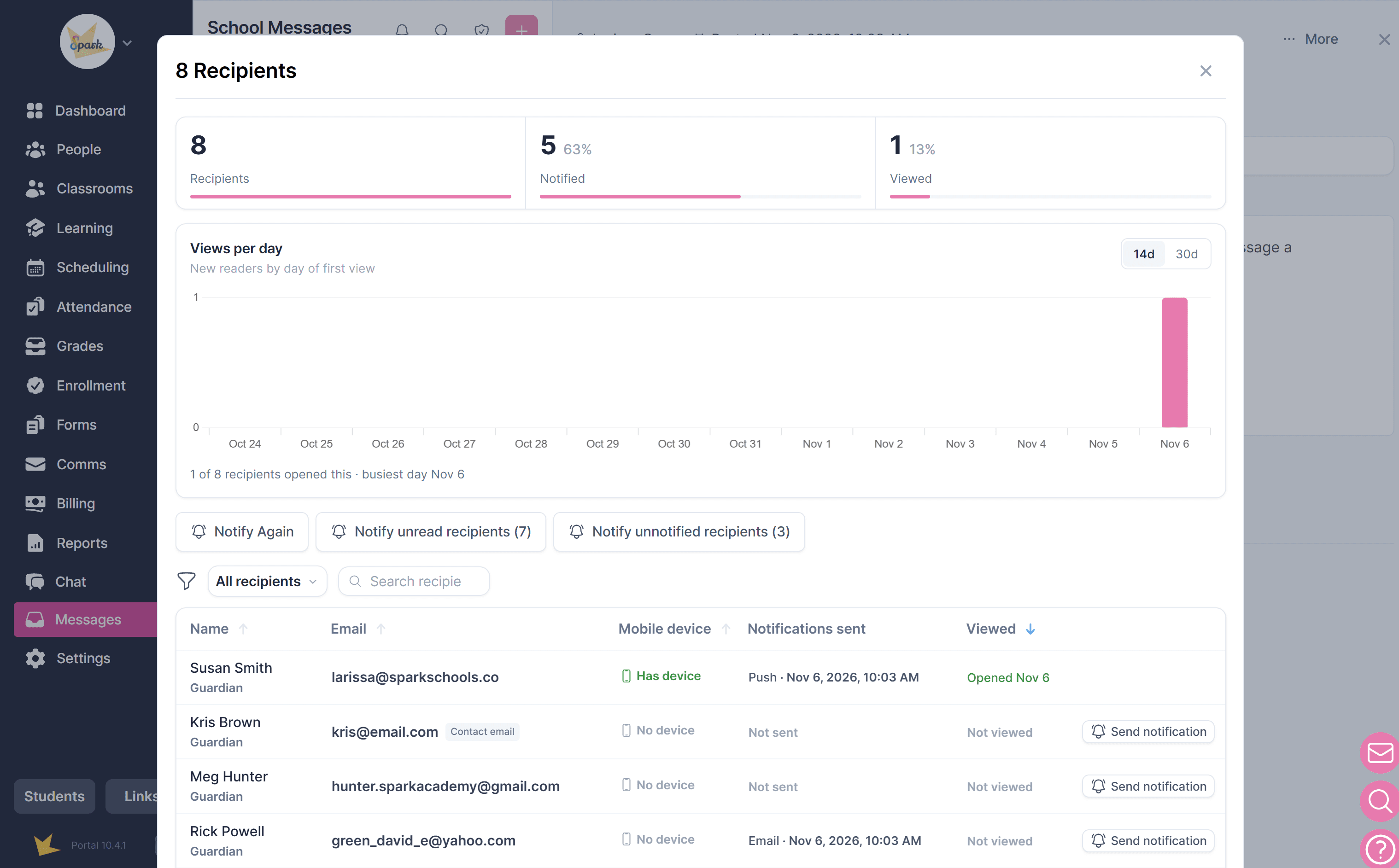
- Recipients: Click the Recipients indicator at the top of the message to view or edit who will receive the message.
- Notifications: Click the Notification indicator at the top of the message to see who was notified and when, and to manage notifications.
Message Groups
Message Groups allow you to quickly send messages to a predetermined audience and keep track of past messages sent to that group.
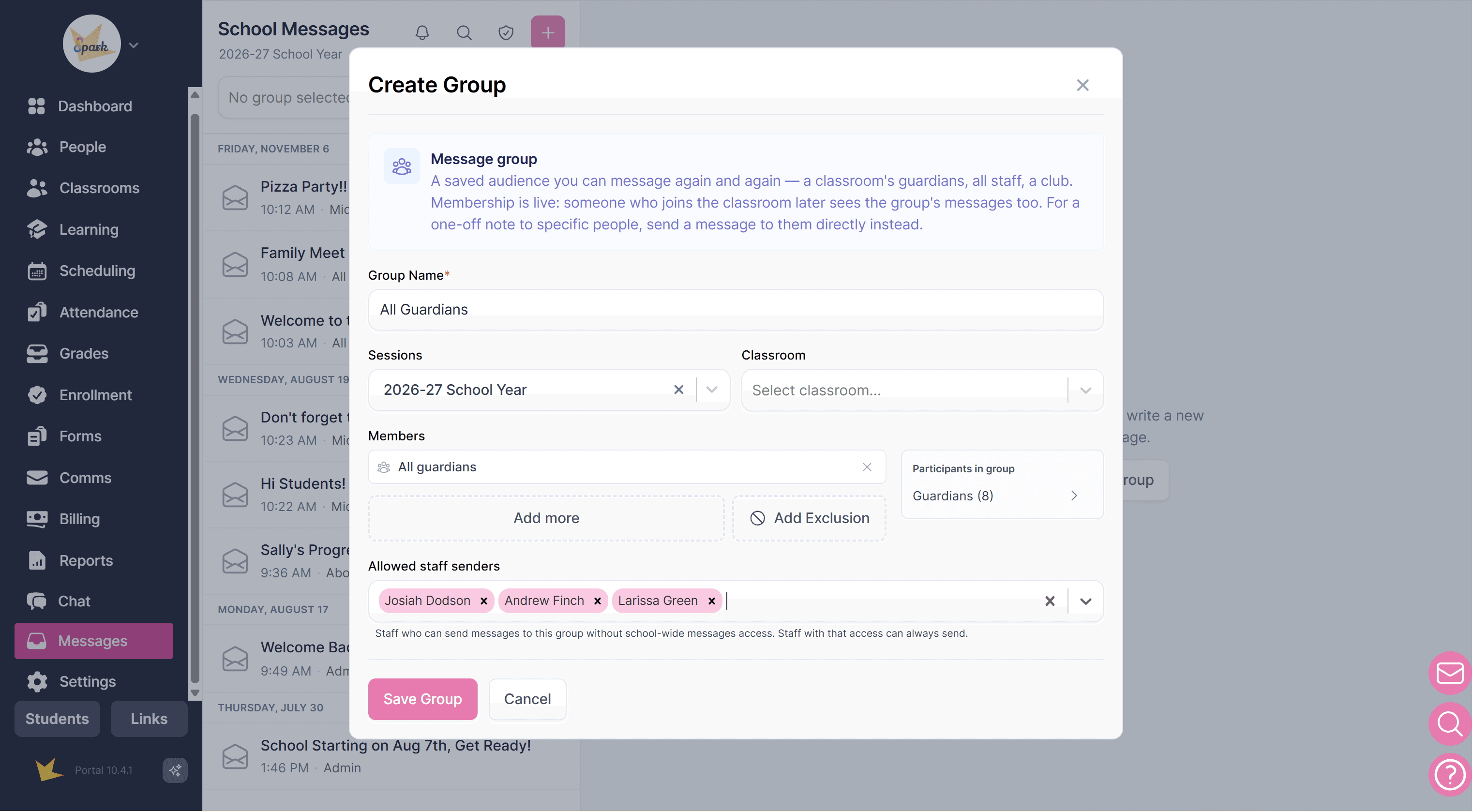
To create a message group:
- Go to Messages in the left menu to access school-wide messages, or open a classroom and select the Messages tab to view classroom messages.
- Click the + at the top of the left column and select New Group.
- Enter a name for the group.
- Select the members of the group.
- Select the staff members who should be able to view and create messages for the group.
- Save the group.
Groups can be assigned to a Session and filtered by changing the Session at the top of the left column. To make a group available in all Sessions, leave the Session field blank when creating the group.
Group settings can be edited at any time.
- Select the group from the dropdown.
- Click Group Settings in the right section.
- Make your changes and save.
Message Notifications
Notification settings can be managed for all message groups or for individual groups.
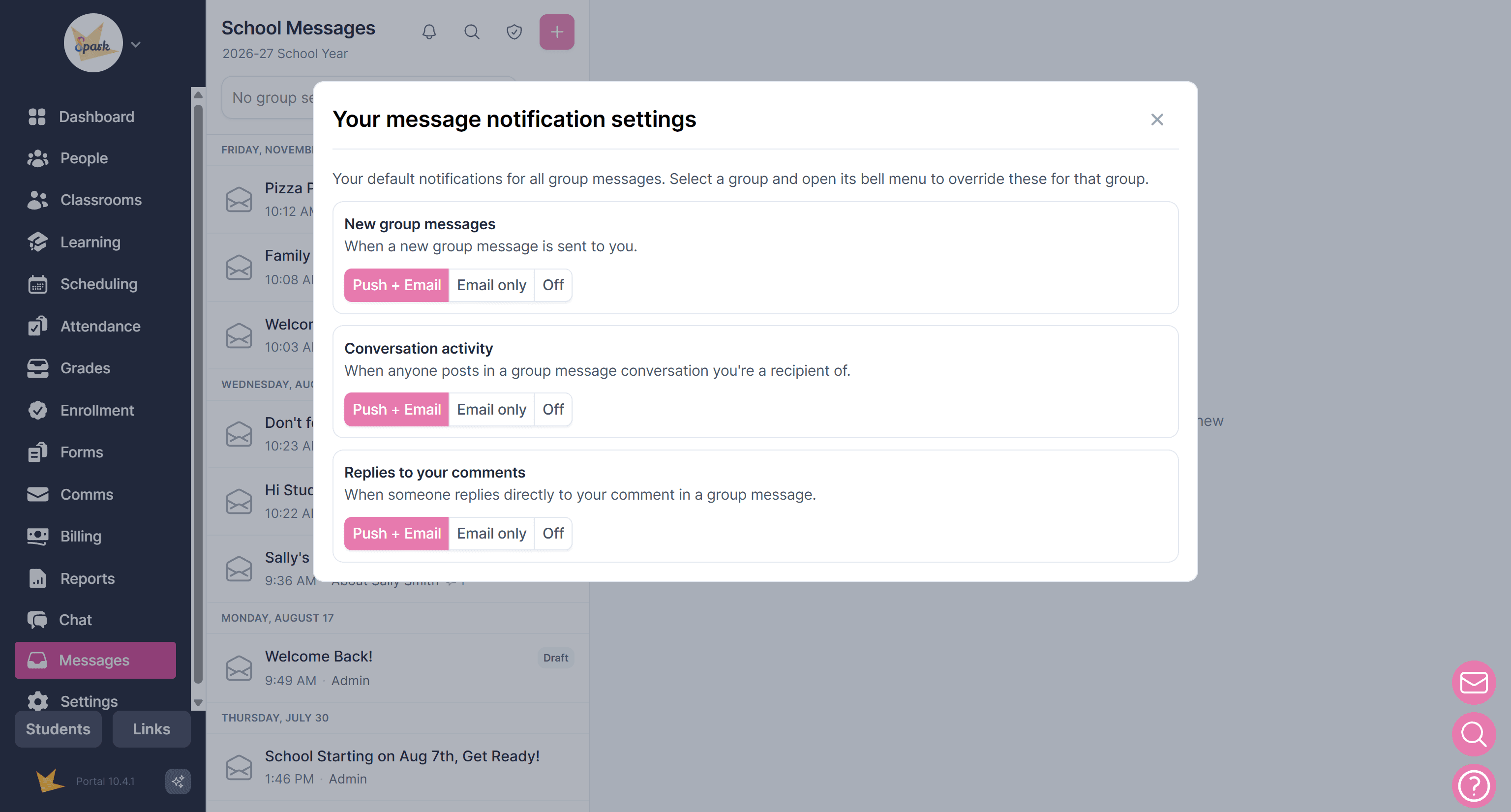
To manage notifications for all message groups, click the bell icon at the top of the left column.
To manage notifications for a specific message group, select the group and click its bell icon.
Notifications can be managed for:
- New messages
- Conversation activity
- Replies to your comments
For each type of notification, you can choose whether to send:
- Email notifications
- Push notifications to the Guardian app
App notification settings are managed on your mobile device.