- Help
- Spark Users
User Sections
Accessing You Spark User
Your Spark User section is separate from your school portals. Your Spark User may not be linked to any school, or it may be linked to multiple schools.
When you log in to Spark, where you land depends on your school connections:
- One school: If you have a role in only one school as an owner, staff member, guardian, or student, you'll go directly to that school's portal.
- No schools: If your Spark User isn't linked to any schools, you'll go directly to your Spark User section.
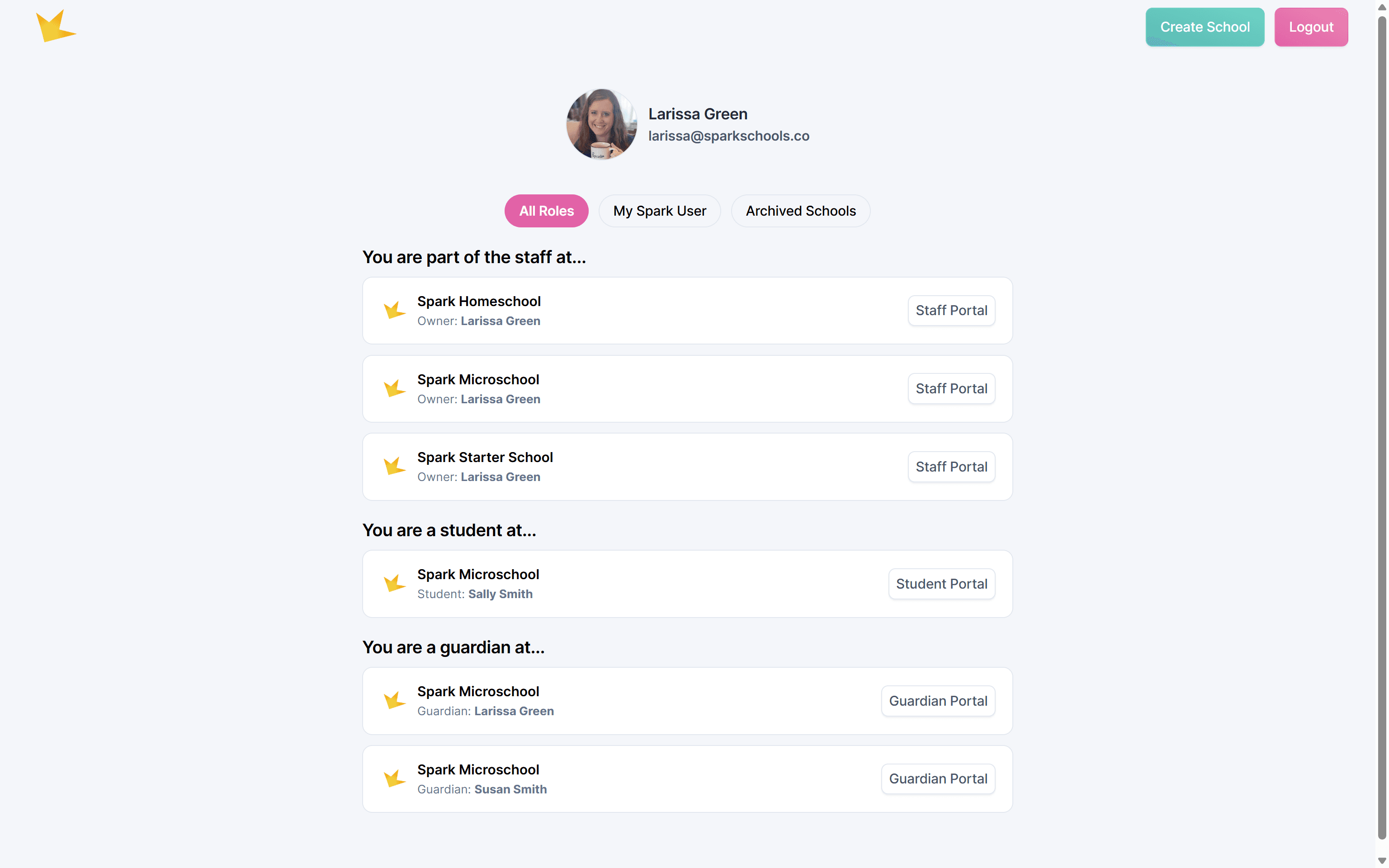
- Multiple schools: If your Spark User is linked to more than one school, you'll see a list of your schools. Click the Portal button next to a school to enter that school's platform.
To access your Spark User while in a Spark school platform,
- Click on the school's logo at the top of the left navigation bar.
- Click My Spark User in the dropdown menu. You will enter your user profile section.
Use the tabs across the top to access other areas of your Spark User account:
- My Portals: View all school portals where your Spark User has a role.
- My Applications: View enrollment applications you've submitted or are still completing.
- Form Submissions: View all forms you've submitted.
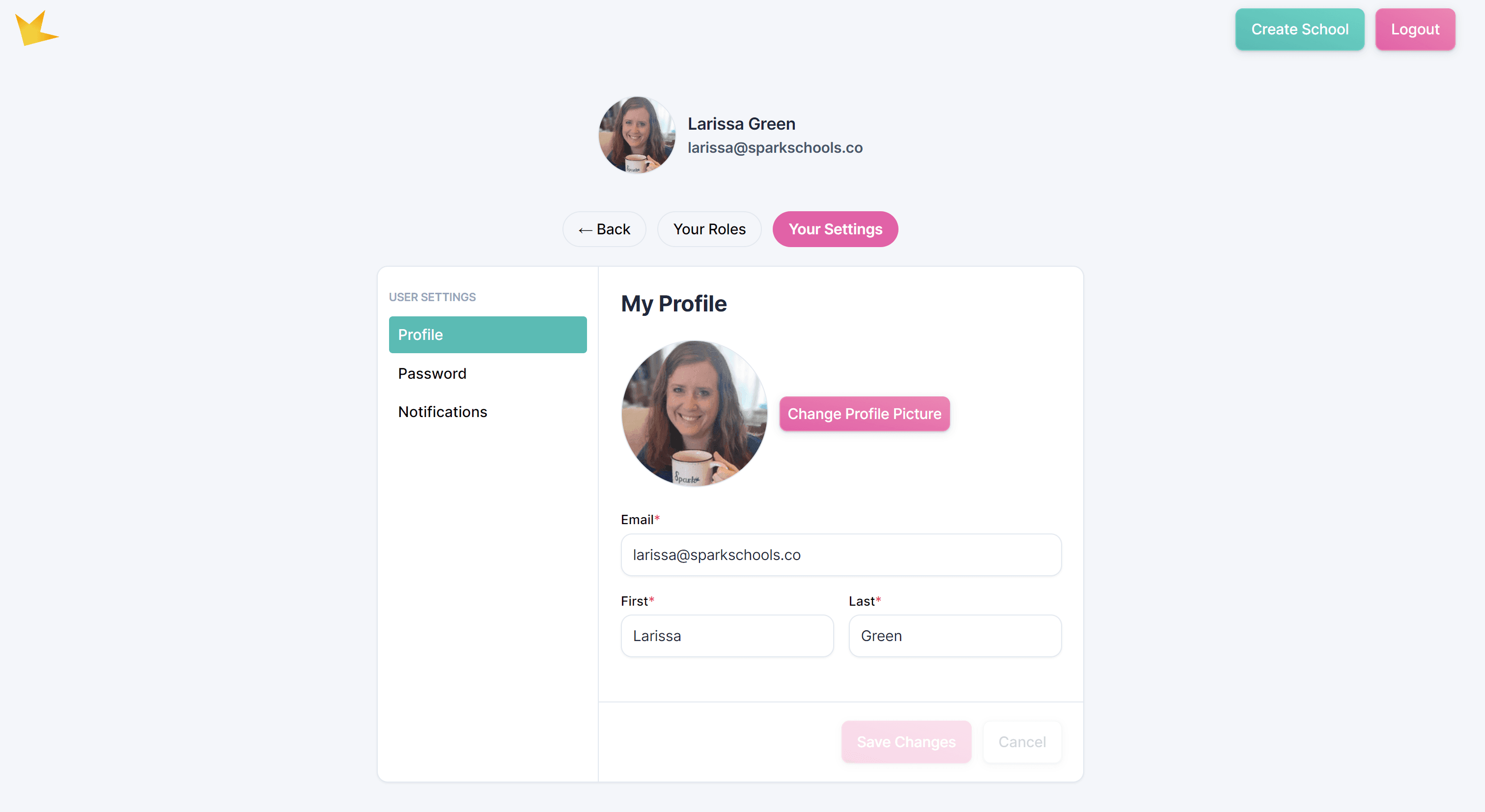
- Spark User: View and manage your Spark User settings, including your profile picture and password.
- Archived Schools: View schools you've archived and unarchive them if needed. You can restore all data from an archived school once its subscription is active again.
User Settings
Profile & Login Settings
Go to the Spark User tab to make changes to your Spark User profile and login settings.
Email: Contact us at hello@sparkschools.co to update the email linked to your user account.
Password: Go the Password section and follow the prompts.
Profile Picture: Go to the Profile section, click Change Profile Picture, and select a new photo from your device.
Deletion: Delete your Spark User here - this cannot be undone.