- Help
- Students
Student Management
Students in Your Spark Platform
Students are an important part of your Spark school. You can
- Create assignments, goals, and events for your students.
- Link students to their own portal, where they can view and submit assignments and goal progress.
- Chat with students through their portal.
- Store student information for your records.
- Keep attendance and grade records for students.
- Generate reports for students.
- Create guardians for students.
- Share vital information through the guardian portal, such as reports, forms, announcements, emails, and invoices.
Adding Students
Students can be added manually (one at a time or in bulk), or through an enrollment application.
Adding Students Manually
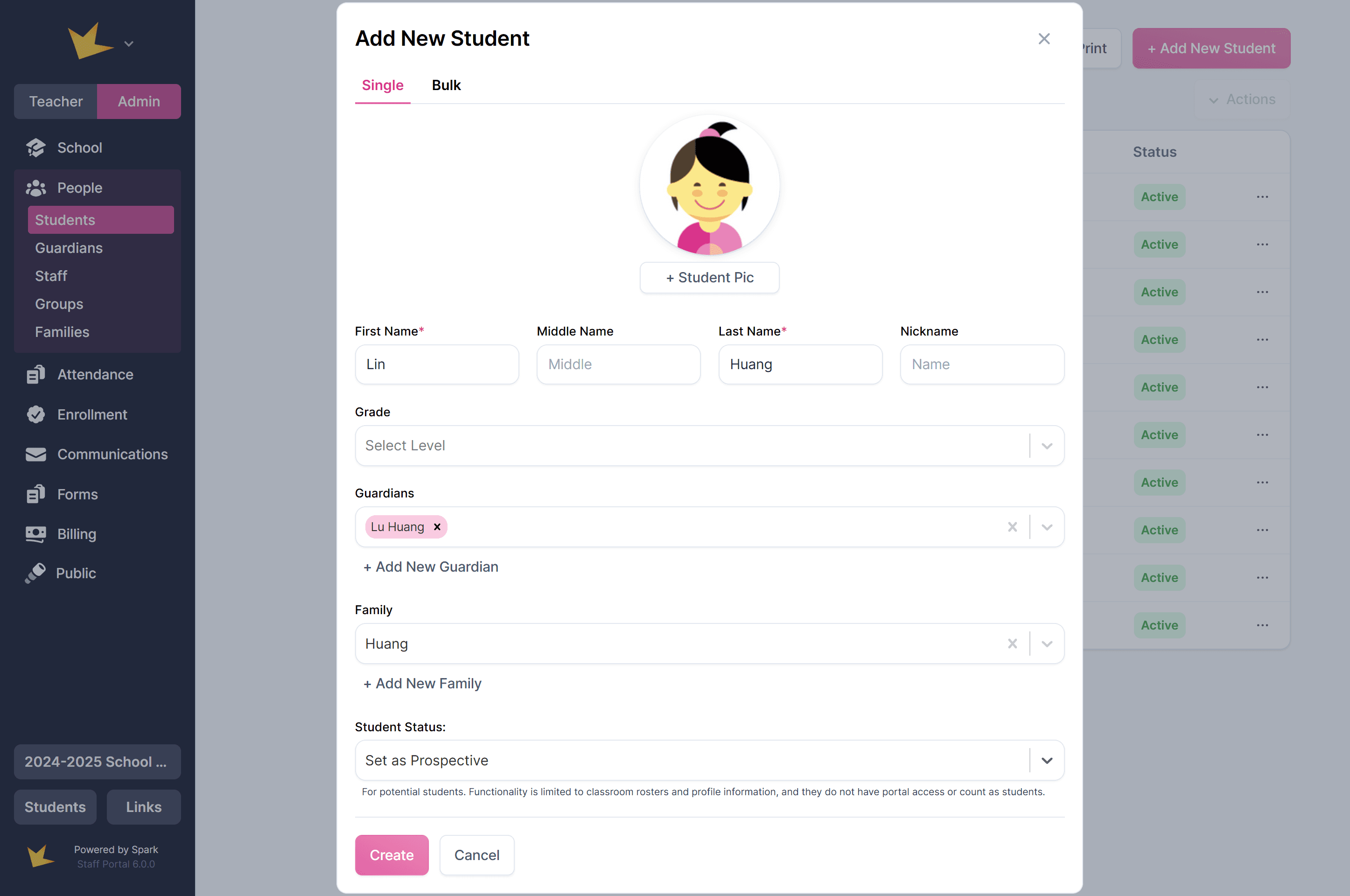
To add students one at a time:
- Navigate to People → Students.
- Click +Add Student, enter the required information.
- Determine the student's status.
- Click Create Student.
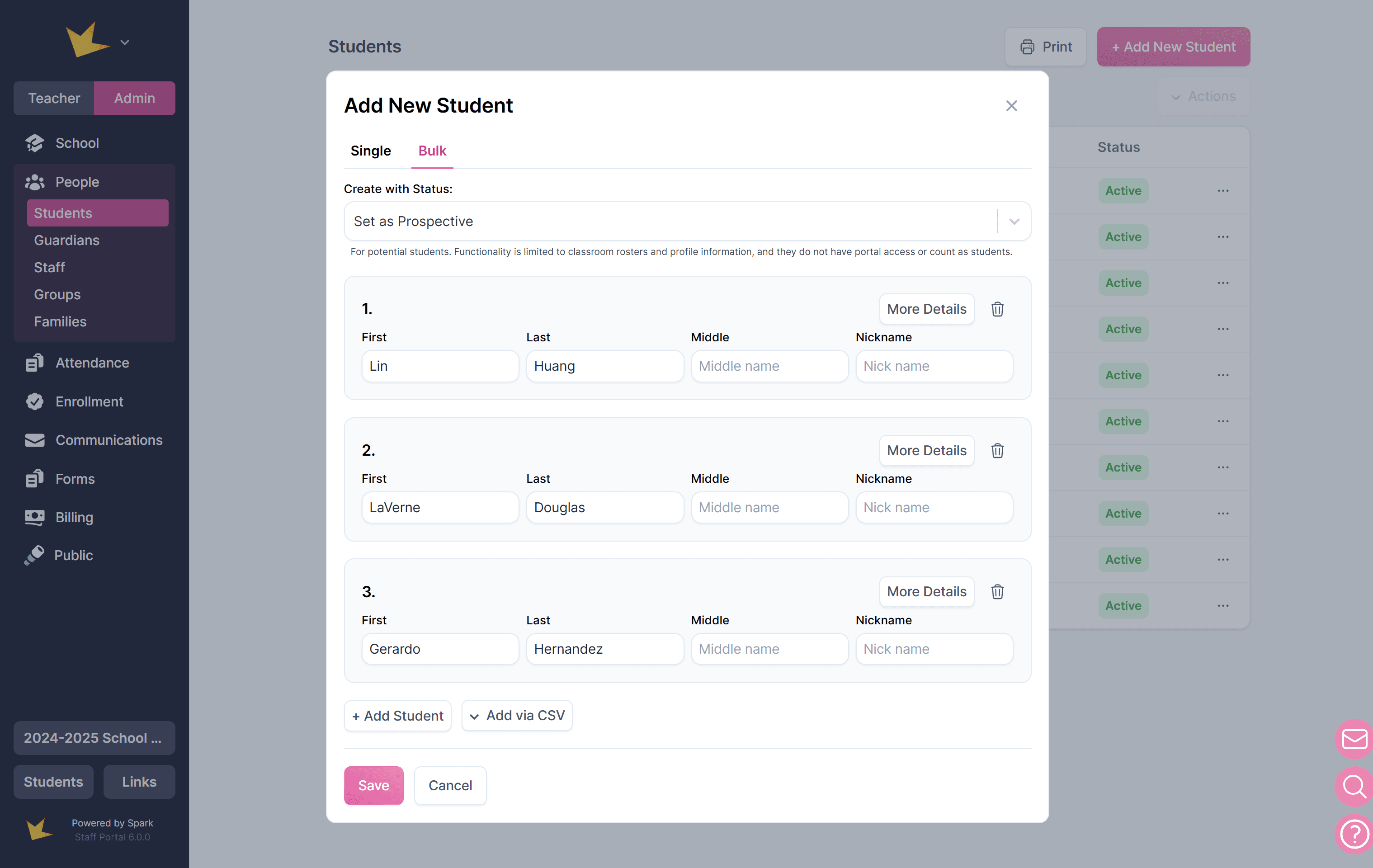
To add many students at once:
- Navigate to People → Students.
- Click + Add Student.
- In the modal, switch to the Bulk tab.
- Select the student status.
- Choose + Add Student to enter details manually or Add via CSV to upload a file.
- Click Save when finished.
Additional student information can be added to the student profile after creation. See the Student Information page for more information.
Adding Students through Enrollment
To create students through an enrollment application:
- Set Up Enrollment – Create an enrollment program and start receiving applications (see the Enrollment help docs for details).
- Open an Application – Once applications are received, navigate to the Program Funnel, and open the application.
- Create the Student – In the Student section of the application, either click +New Student to create new, or select a student in your Spark platform and click Sync to update the information.
Student Statuses
Students can have different statuses based on their enrollment status in your school. These statuses determine their access and functionality within Spark. Only active students count toward your subscription cost and have full access, including the student portal.
Active:
- Students currently active in your school.
- Count in the subscription cost.
- Have access to the Student Portal.
- Appear on all lists (for new assignments, grade entries, etc).
- All data is editable.
Prospective:
- Potential students.
- Do not count in subscription cost.
- Functionality is limited to classroom rosters and profile information.
- Have no Student Portal access.
- Do not appear on lists (for new assignments, grade entries, etc).
Inactive:
- Students who were once active but are now inactive in your school.
- Do not count in subscription cost.
- Information is saved but read-only.
- Have no Student Portal access.
- Do not appear on lists (for new assignments, grade entries, etc).
Alumni:
- Students who have completed your program.
- Do not count in subscription cost.
- Information is saved but read-only.
- Have no Student Portal access.
- Do not appear on lists (for new assignments, grade entries, etc).
Changing Student Statuses
- Navigate to People → Students and select the appropriate status list.
- Select the students you want to update.
- Click Actions at the top of the table.
- Choose the new status from the dropdown.
- Or, find an individual student and select a new status from the three-dot menu next to that student.
- If changing a non-active student to Active, you may be prompted to adjust your subscription’s student count.
To delete a student, click the three-dot menu next to the student and select Delete.
Student Enrollments
Students can be enrolled in specific Sessions (formerly called Terms), Programs, or Academic Years. This allows schools to keep accurate historical records of when students were enrolled, along with the student’s level at the time of enrollment.
There are several ways to enroll students into Sessions.
- Through the Enrollment Application
- Directly on the Enrollments page
- On the People → Students page
- Within a Session
To enroll students in a session from the Students page,
- Go to the Enrollments tab
- Select the session, program, or academic year
- Click Enroll Students
- Select the students to enroll
- Make grade level selections and Enroll
Grade levels can be selected for each student from the Enrollments list, either individually or in bulk. Students' current grade levels (recorded in their profiles) can also be optionally synced from the session grade level, enabling you to keep their profile record up-to-date.
Adding Students to Your Spark Subscription
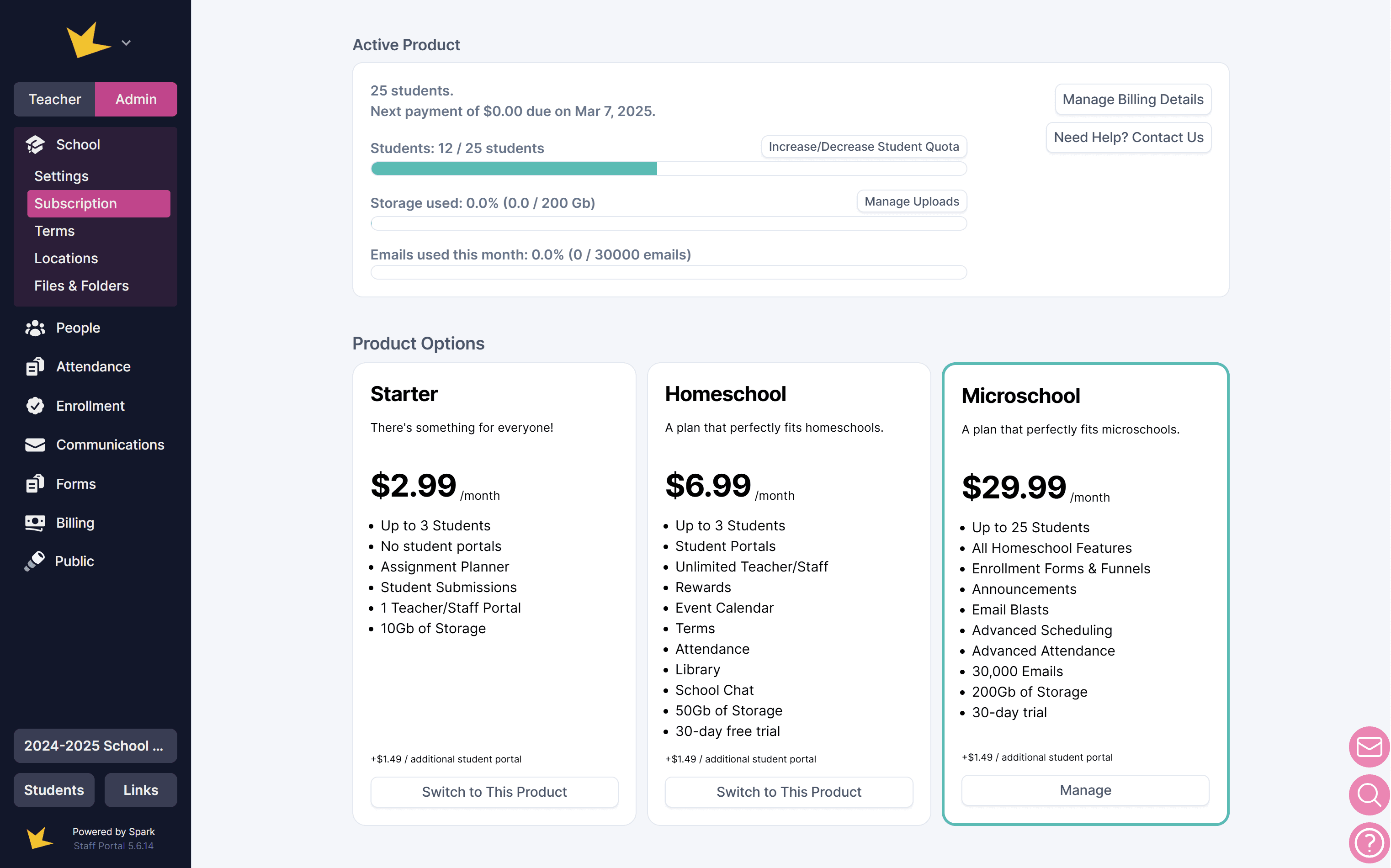
- To change the number of students on your plan, go to School, click Manage Billing Details, and select Update Subscription. Adjust the number of students and confirm your changes.
- The Microschool plan includes 25 students, with additional students costing $1.49 each. For 50 or more students, contact hello@sparkschools.co for custom pricing.
- The Homeschool plan includes three students, with the option to add more for $1.49 each.
- Non-active students are not included in your subscription student count.