- Help
- Staff
Staff Portals
Staff Portal Access
Portal access can be granted to individual staff members from their profile or to multiple staff members at once from the Portal Access page.
Granting Portal Access
To grant access to multiple staff members:
- Go to People → Portal Access.
- Select the Staff tab.
- Make sure each staff member has an email address on file. Add one if needed.
- Click Send Portal Invites to send each staff member an access email.
To grant access to an individual staff member:
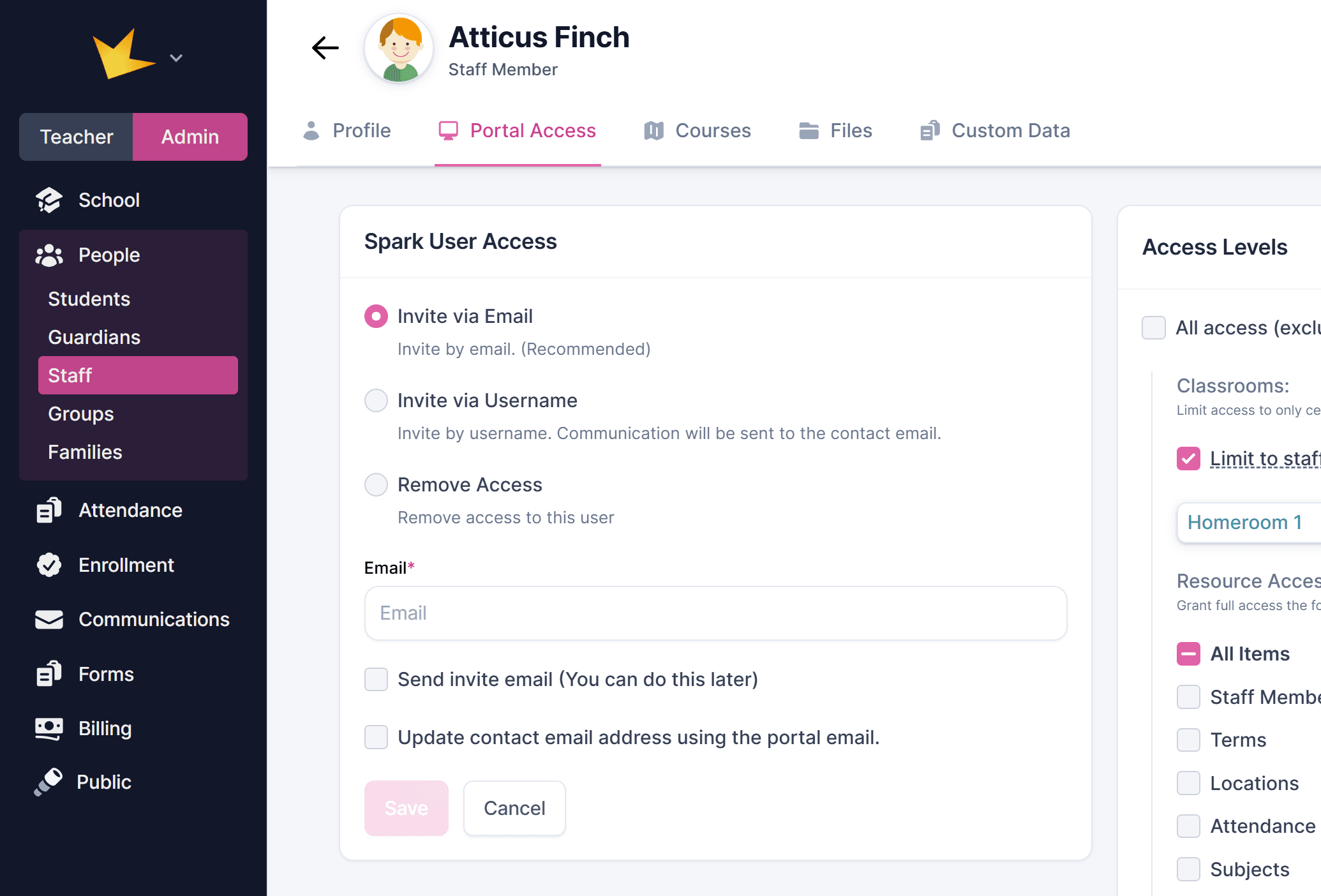
- Open the staff member's profile and go to the Portal Access tab.
- In the Spark User Access section, invite the staff member using either their Username or Email.
- Choose whether to send the invitation email immediately or later.
- Click Save to finalize the access invitation.
Invitation Acceptance
- The staff member must accept the email invitation to access your Spark school.
- After accepting, they’ll be prompted to create a password and enter a verification code sent by email.
- Once these steps are done, they can log in to the Spark portal and perform tasks according to their assigned permissions.
Logging In to the Spark Platform
Once a staff member has accepted the invitation to the Spark portal, they can log in at any time from www.sparkyourschool.com.
Staff Access Levels
Staff members can only view and edit the features and resources you grant them access to.
- All Access: This is the default setting and provides the staff member full access to all features and information within your Spark school. To customize access, uncheck this box.
- Limit to Classrooms: Restrict the staff member’s access to only the classrooms where they are listed as a teacher.
- Custom Access: Select specific resources and features the staff member is allowed to access.
Managing Staff Access Levels
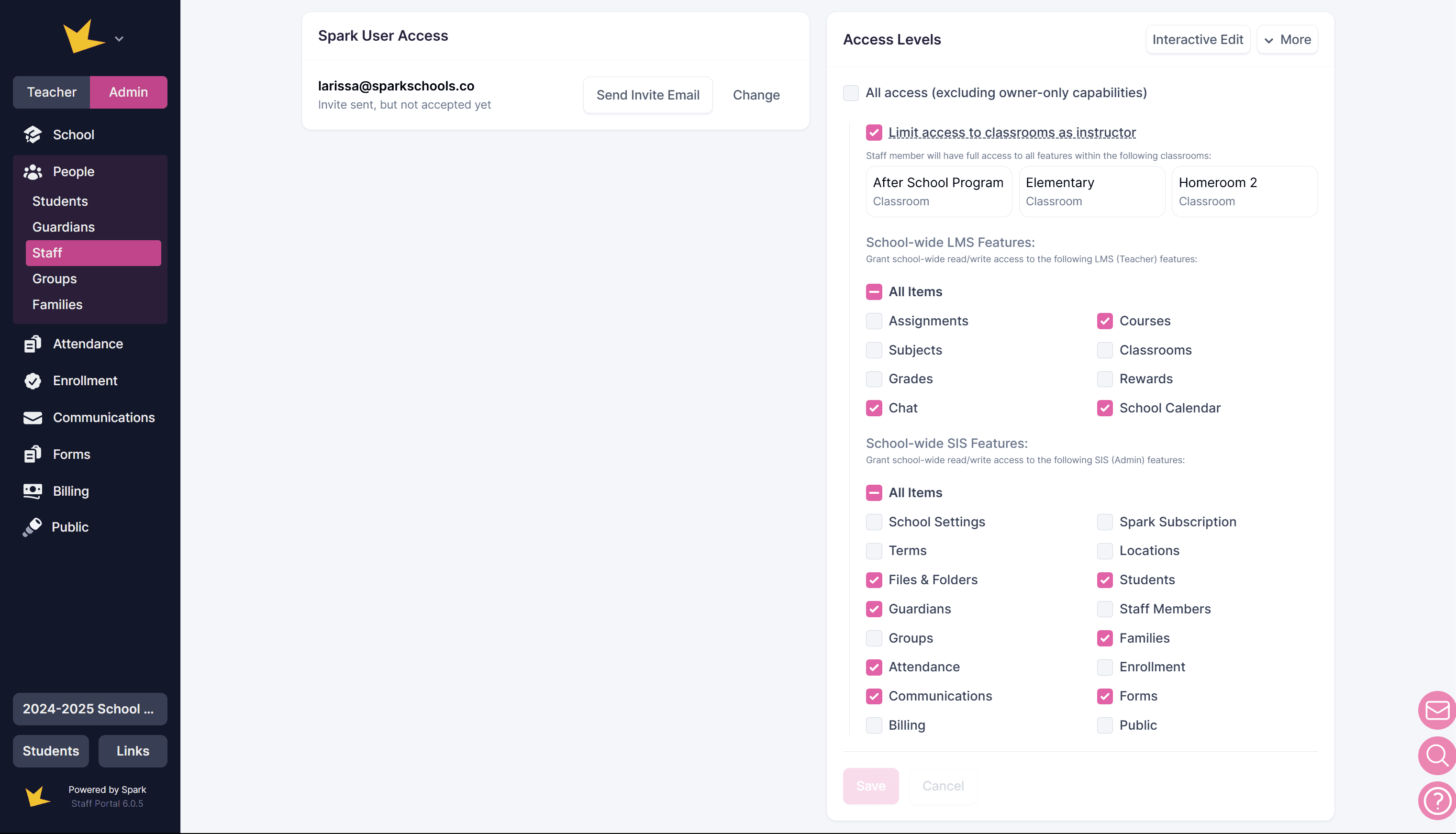
- Navigate to the Staff section and click on the staff member.
- Locate the Access Levels section.
- If desired, uncheck All Access, then select the access given.
- To edit access while viewing how the staff member's platform will appear, use the Interactive Edit button.
Previewing Staff Access
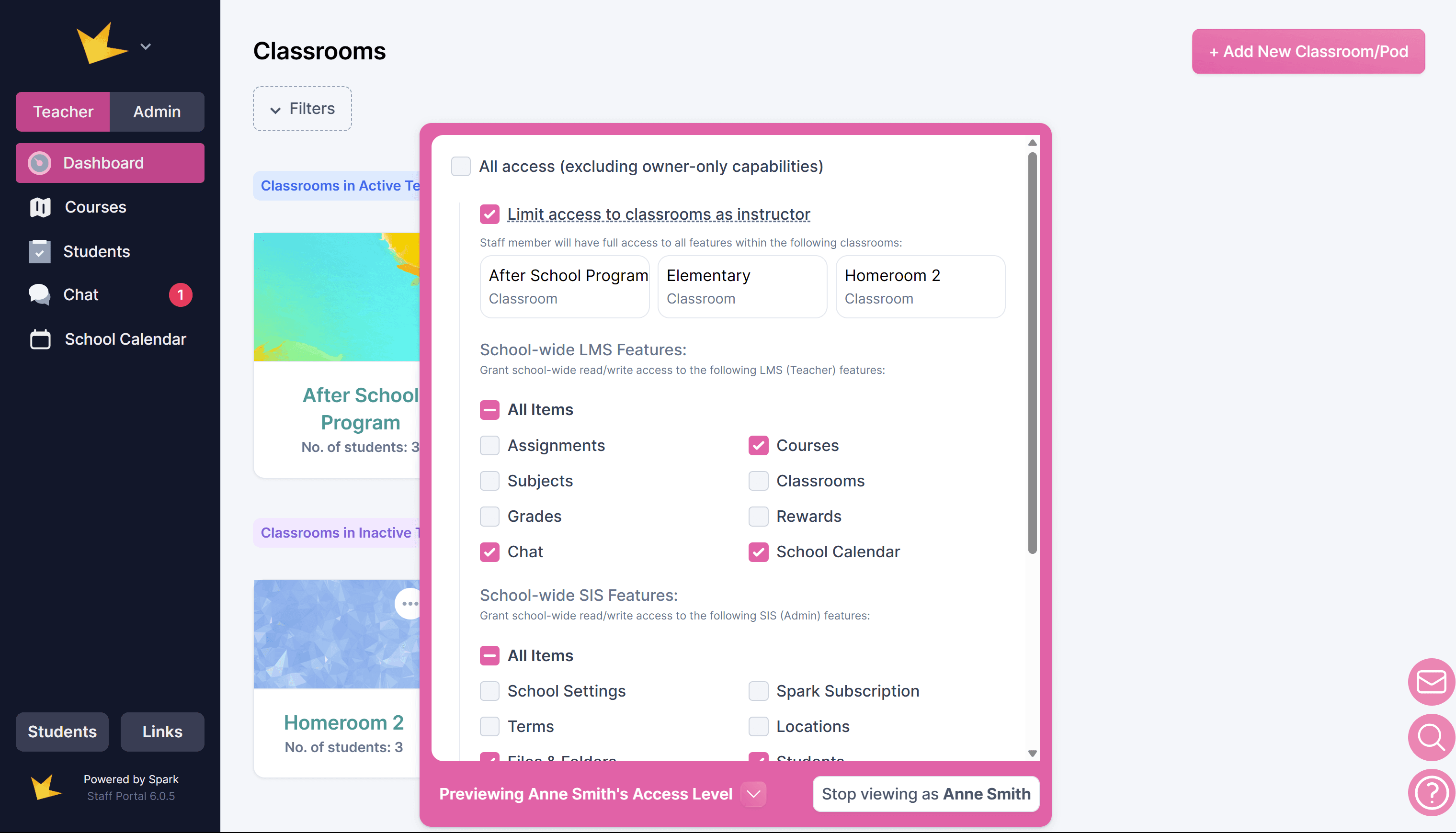
Use Interactive Edit to simulate the staff member’s view of the Spark portal, and edit access levels at the same time.
- Go to the staff member’s profile and click View Staff Portal.
- Or, go to the Portal Access tab and click Interactive Edit.
- A pink Preview bar will appear at the bottom of the screen. You can make changes directly from this view.
- Click Stop Viewing to exit.
Spark Admins and Owners
A Spark school can have only one owner, but you can designate other staff members as admins and grant them full access to all features.
To assign admin status:
- Add the word Admin to the staff member’s name (optional for identification purposes).
- Ensure their access is set to All Access under the Portal Access section.
To transfer ownership:
- Ensure the person you want to transfer ownership to is already a staff member.
- Contact the Spark team with the name of the new owner.
Only Spark support can complete the ownership transfer once the request is submitted.