- Help
- Attendance
Attendance Reports
Creating Attendance Reports
Attendance reports provide a structured way to track student attendance over a selected period. These reports help schools maintain accurate records, identify attendance patterns, and communicate attendance information to guardians. With Spark's reporting features, administrators can generate, share, and update attendance reports efficiently.
Report Types
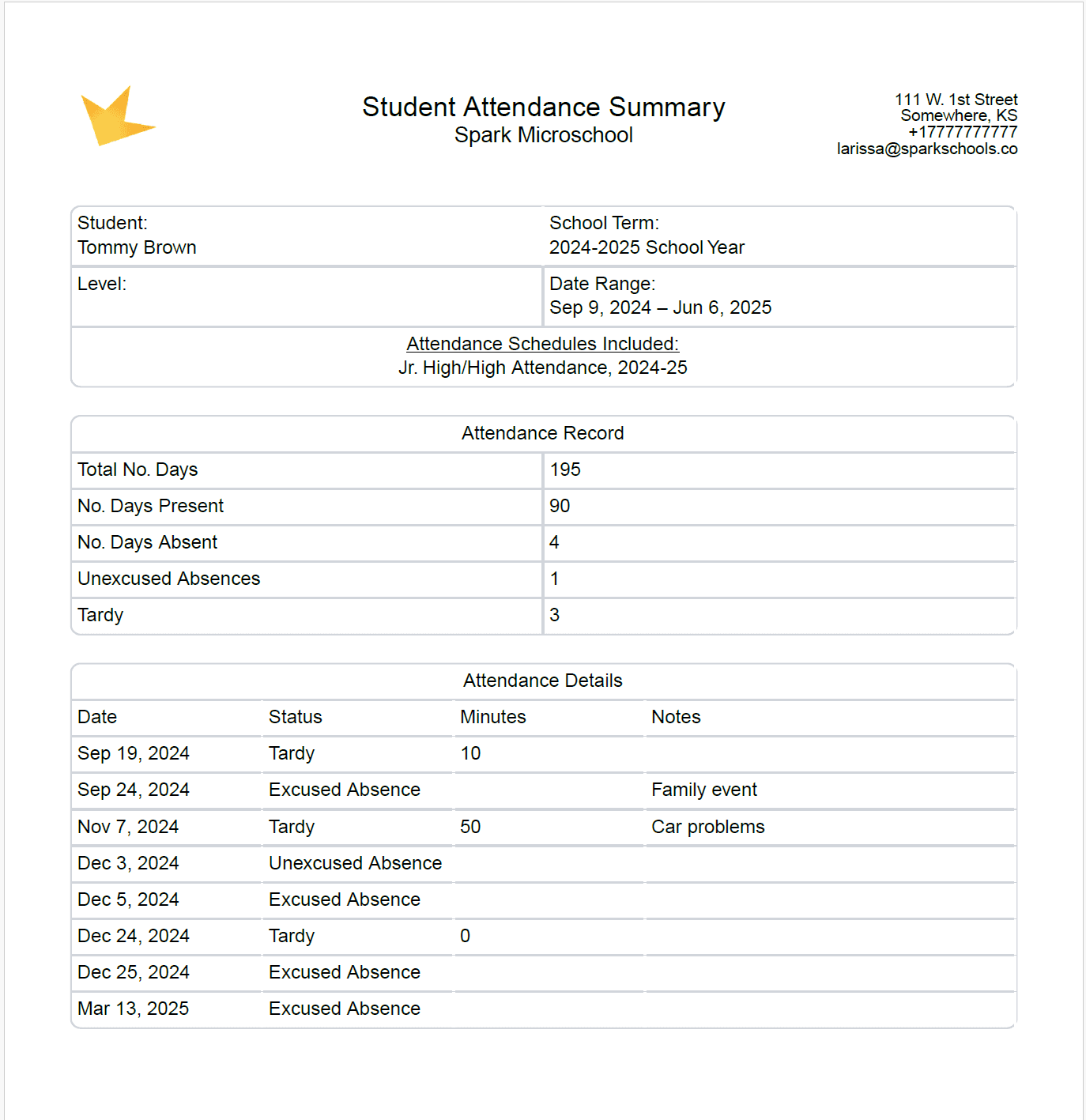
Student Attendance Summary: This report provides a concise overview of each student's attendance record, with a separate page for each student. It is ideal for sharing with guardians, as it presents a high-level summary without listing specific dates.
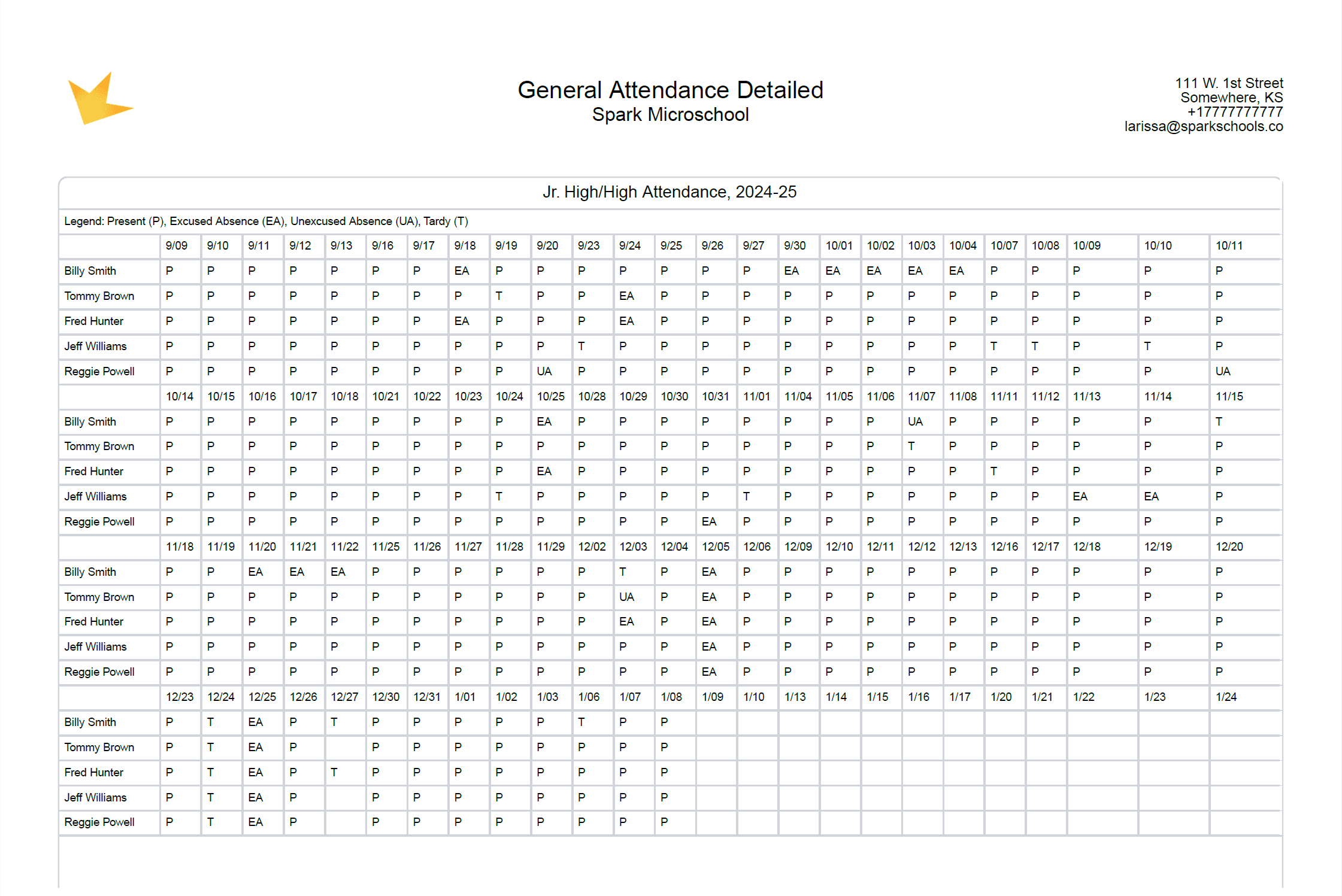
General Attendance Detailed: This report offers a comprehensive, date-specific record of each student's attendance. It generates a chart displaying attendance by student and date, with totals calculated at the end.
How to Create an Attendance Report
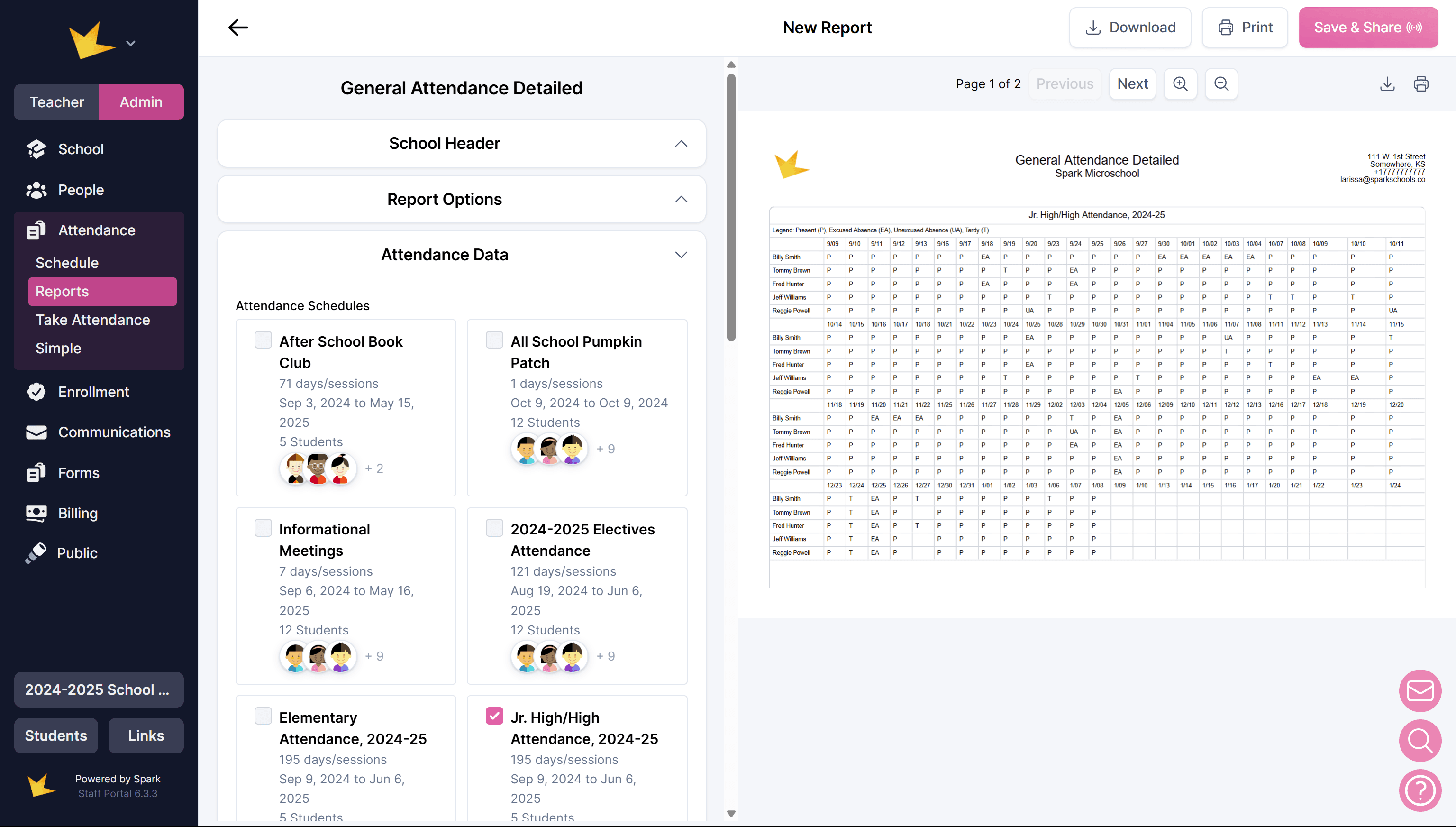
- Navigate to Reports.
- Choose the Report Type you want to generate.
- Select the Attendance Data (term and attendance schedules) to include. A preview will appear in the right column.
- Customize the School Header as needed.
- Select details to include or add necessary notes in the Report Options section.
- Review the report preview. Use the Next and Previous buttons to scroll through students.
Saving & Sharing Attendance Reports
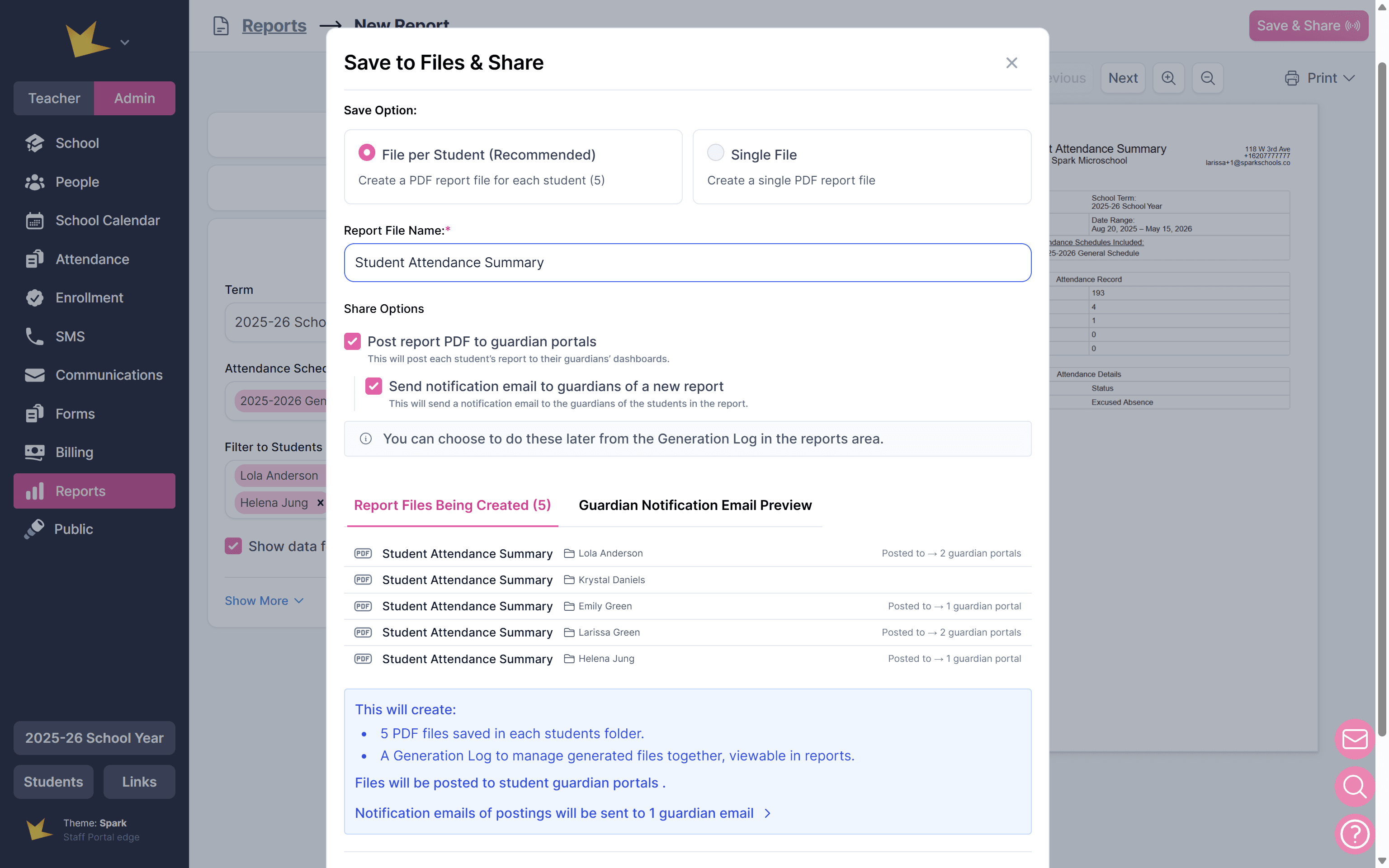
Once a report is generated, it will appear in a list as a Report PDF on the Reports page. It can also be saved to your Spark platform, shared with guardians, or downloaded and saved to your device.
Sharing with Guardians
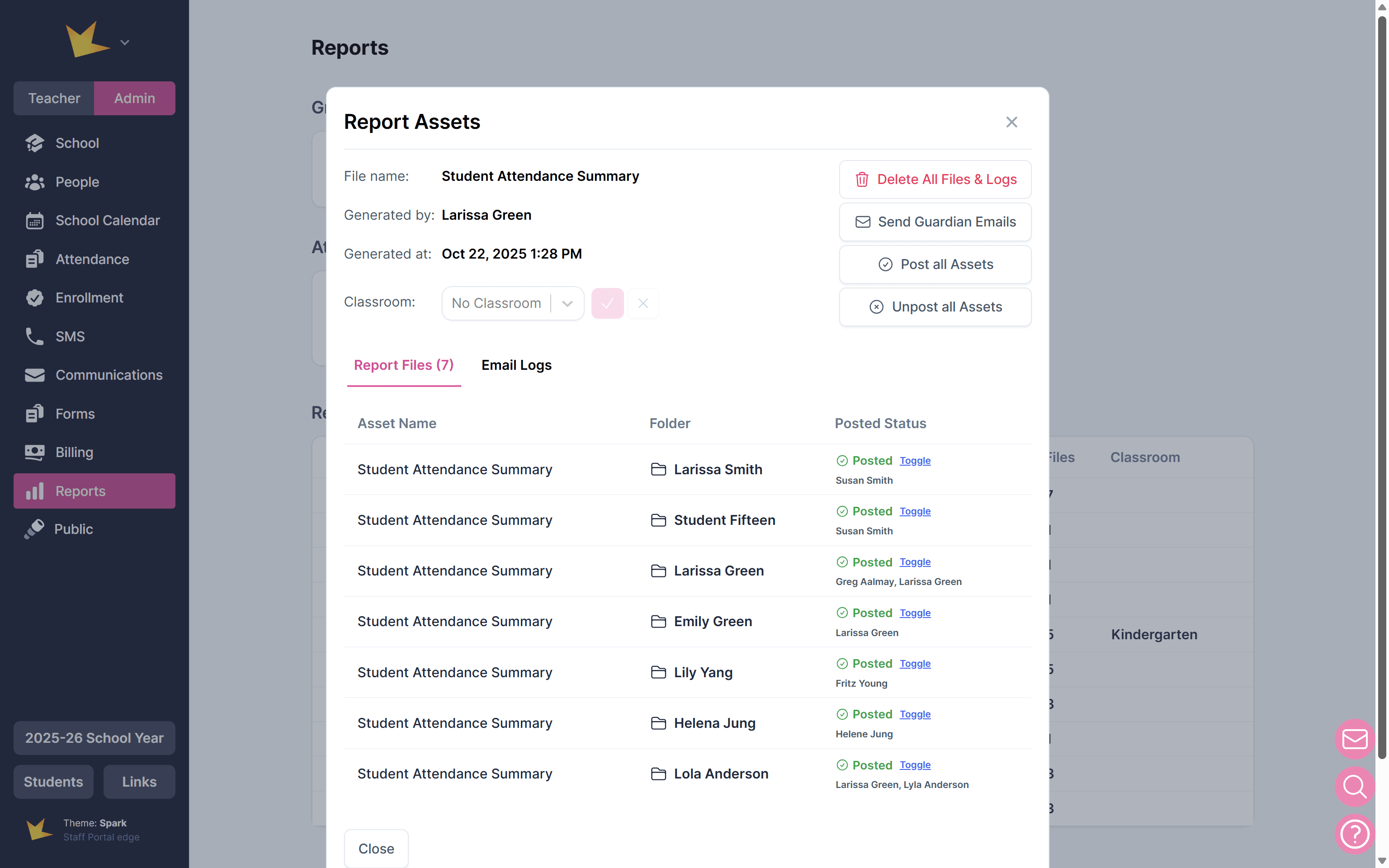
Reports can be posted to guardian portals and will appear on each guardian’s Reports page. Only reports for the students linked to that guardian will posted.
To share a report with guardians:
- Click Save & Share in the top-right corner.
- Select the save option, "File per Student."
- Confirm the file name is accurate.
- Check the box "Post report PDF to guardian portals."
- Click Save Files & Share to finish.
To post an updated report for guardians, first remove the outdated report, then create and post a new one.
To remove a report from guardian portals:
- Locate the report in the Report PDFs list on the main Reports page.
- Open the report.
- Click Unpost Assets to remove the shared files from guardian portals.
Saving to Spark
- Click Save & Share in the top-right corner.
- Choose whether to:
- Create one file per student, or
- Create a single file containing all reports.
- Confirm the file name is accurate.
- If creating a single report, select the folder where it will be saved.
- Click Save Files & Share to finish.
Note: Report files will be saved on the Files & Folders page under School.
Downloading or Printing
To download and/or print your report, first generate the report as outlined above. Then, click Print in the top right corner and select from the options.