- Help
- Settings
School Settings
School Settings
The Settings section lets you manage your school's contact information and configure default settings across several areas. Here's what you can do in the various Settings tabs:
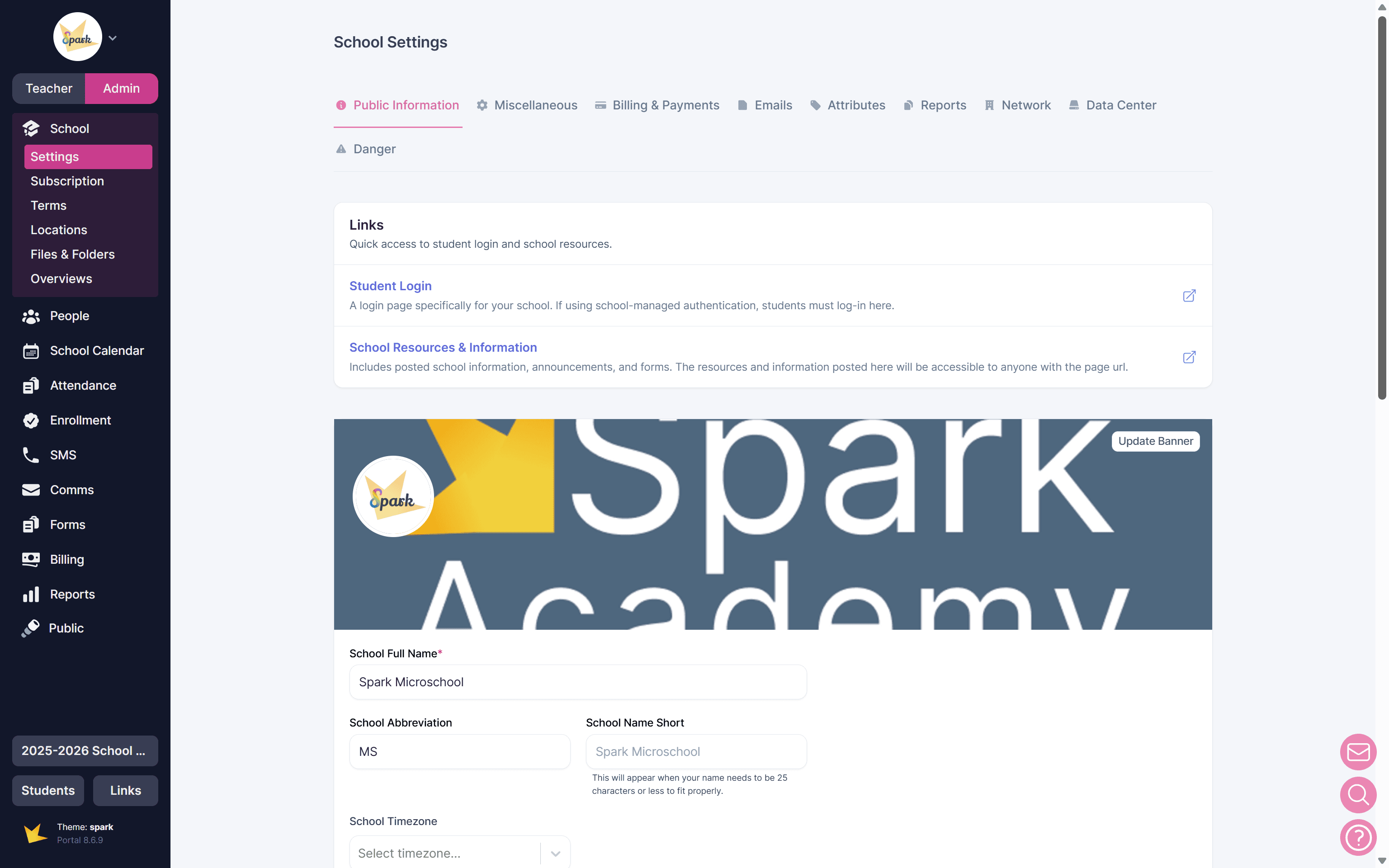
- Public Information: Update your school's name, logo, banner, contact info, and billing details (used on invoices and billing emails).
- Branding: Create a theme for your Spark portals based upon your school's colors, and add your school logo.
- Portals: Manage settings for the staff, student, and guardian portals.
- Chat: Control guardian and student chat settings.
- Notifications: Manage who will be notified of certain things, such as reward redemptions.
- Billing & Payments: Access your Stripe integration, set default payment methods available to payers, and add invoice logo and instructions.
- Emails: Customize global email defaults for the various emails sent from your Spark platform.
- Attributes: Create custom information fields to store additional info in user profiles.
- Reports: Create templates for report cards and transcripts.
- Grade Levels: Customize the grade levels that can be selected for students.
- Network: Join your school’s network for collaboration or oversight.
- Data Center: Download your school’s data for backups or records.
- Restore Data (Owners only): Restore data that has been deleted on your Spark platform.
- Setup Guide: Access information on how to set up your Spark platform.
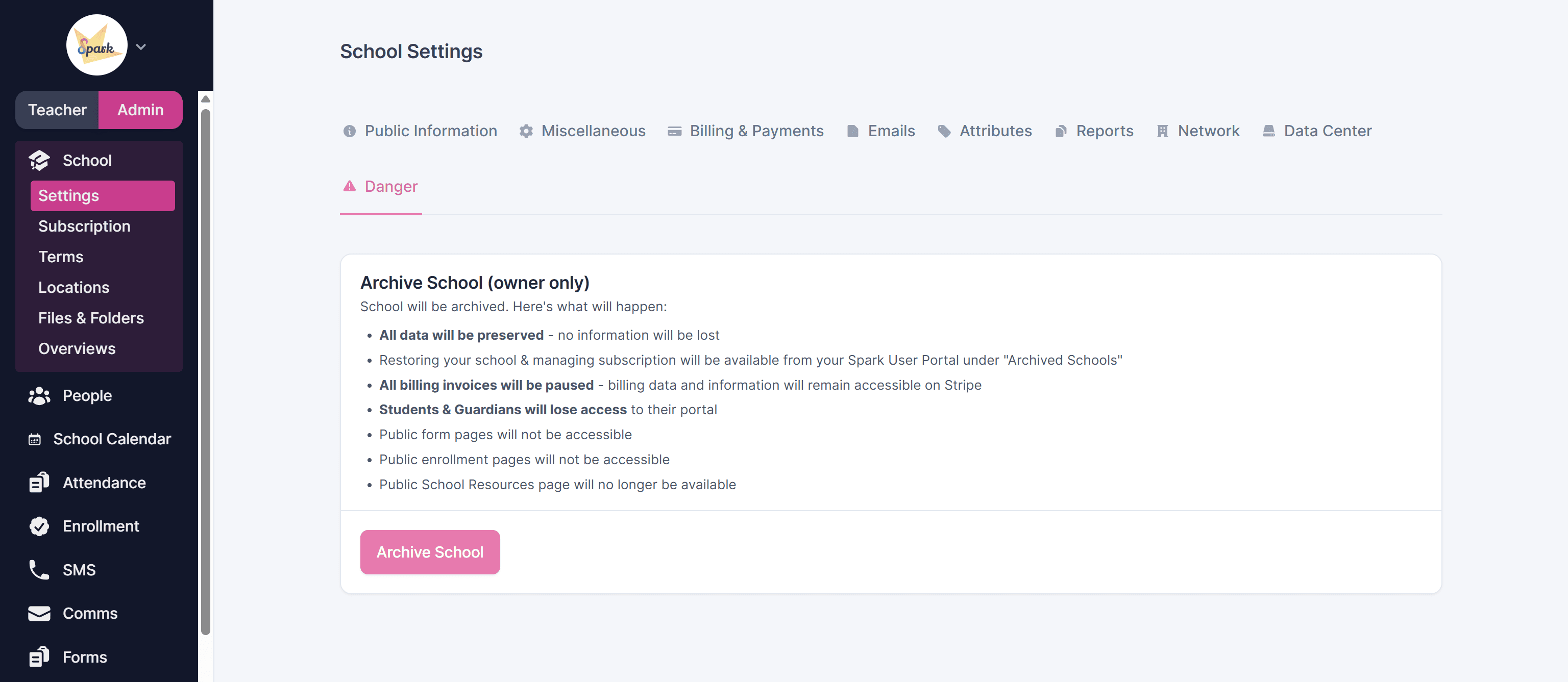
- Danger (Owners only): Owners can archive the school under Settings → Danger.
Note: Many of these settings are only available in the Microschool version.
Public Information
In Settings → School, there is a tab titled Public Information. Here, you can enter information that will appear in several places:
- School name, banner, and icon: these will personalize and brand your Spark platform.
- School name and icon: appear on your School Resources and Information page and in certain emails sent from Spark, including invoice and portal invitation emails.
- School Public Information will be shown on your School Resources and Information page.
- Basic Billing Info appears on invoices, emails, and other billing-related correspondence.
To enter or edit, simply click on the field, enter the information, and click Save.
Branding
Customize your Spark portal with your school's logo, colors, and fonts to match your school's branding. Choose from pre-designed color and font combinations, or create your own custom theme.
To customize your Spark portal:
- Upload your school's logo.
- In the Theme selection box, select Custom Branding.
- Choose one of the pre-designed font and color combinations, or select your own fonts and colors.
- To apply your theme to all of your school's portals, select Make Theme Exclusive. This will lock the theme for all Staff and Guardian Portals associated with your school.
Settings
Portals
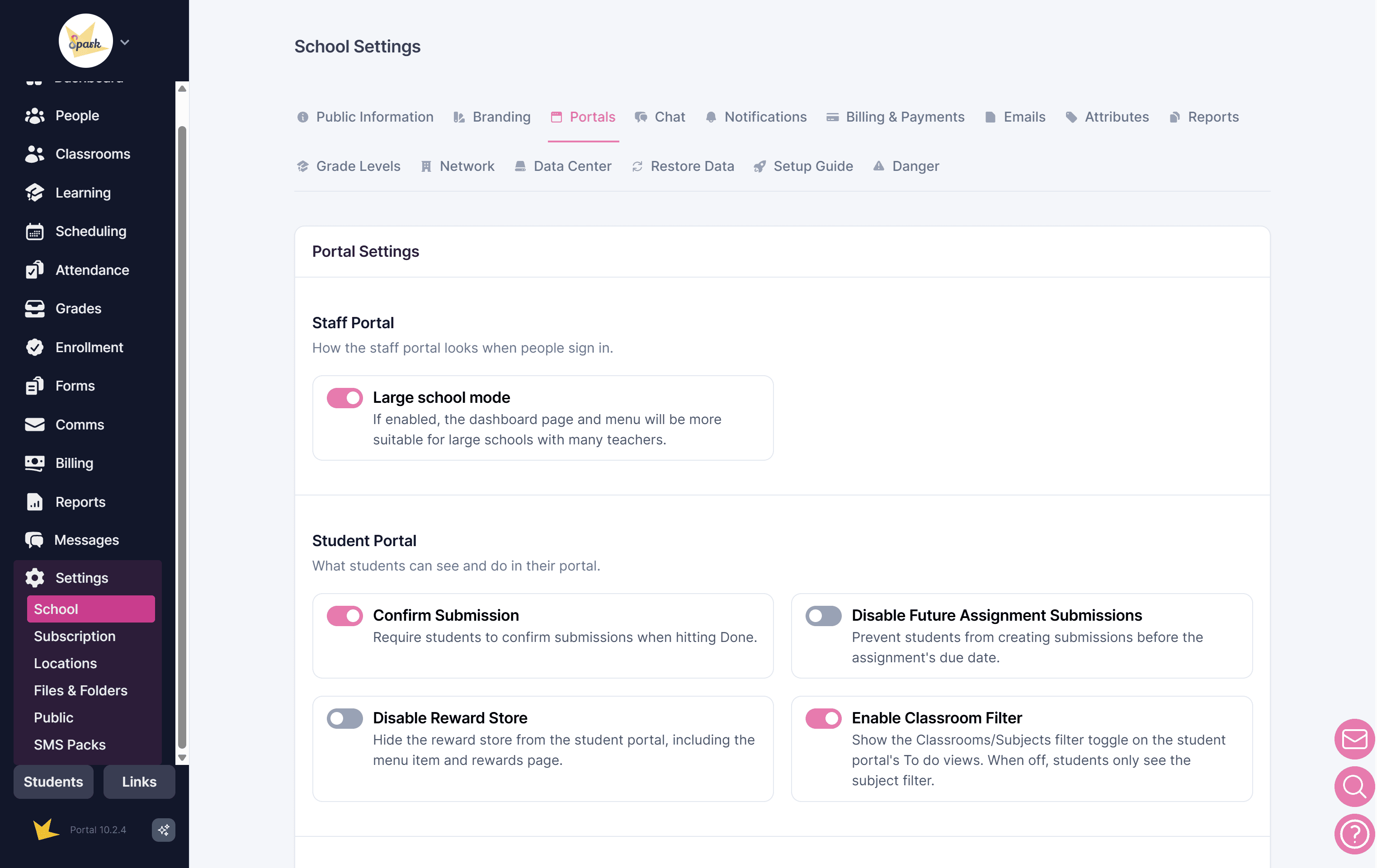
In the Portals tab under Settings → School, you can set the following:
Staff Portal: enable the large school dashboard to provide admin with a more comprehensive view of data. This view is suitable for schools with multiple staff members.
Student Portal:
- Submission Confirmation: require students to confirm their assignment submissions, preventing accidental submissions.
- Future Assignment Submission: disable student submission of future assignments.
- Reward Store: hide the reward store from the student portal, including the menu item and rewards page.
- Classroom Filter: show the Classrooms/Subjects filter toggle on the student portal's To do views. When off, students only see the subject filter.
Guardian Portal:
- Allow Guardian Editing: allow guardians to edit personal information on their guardian portal.
- Allow Student Editing: allow guardians to edit student information on their guardian portal.
- Show Statement & Balance Info: Show guardians their current balance on the dashboard and billing page, plus the “View Statement” button on the billing page.
Chat
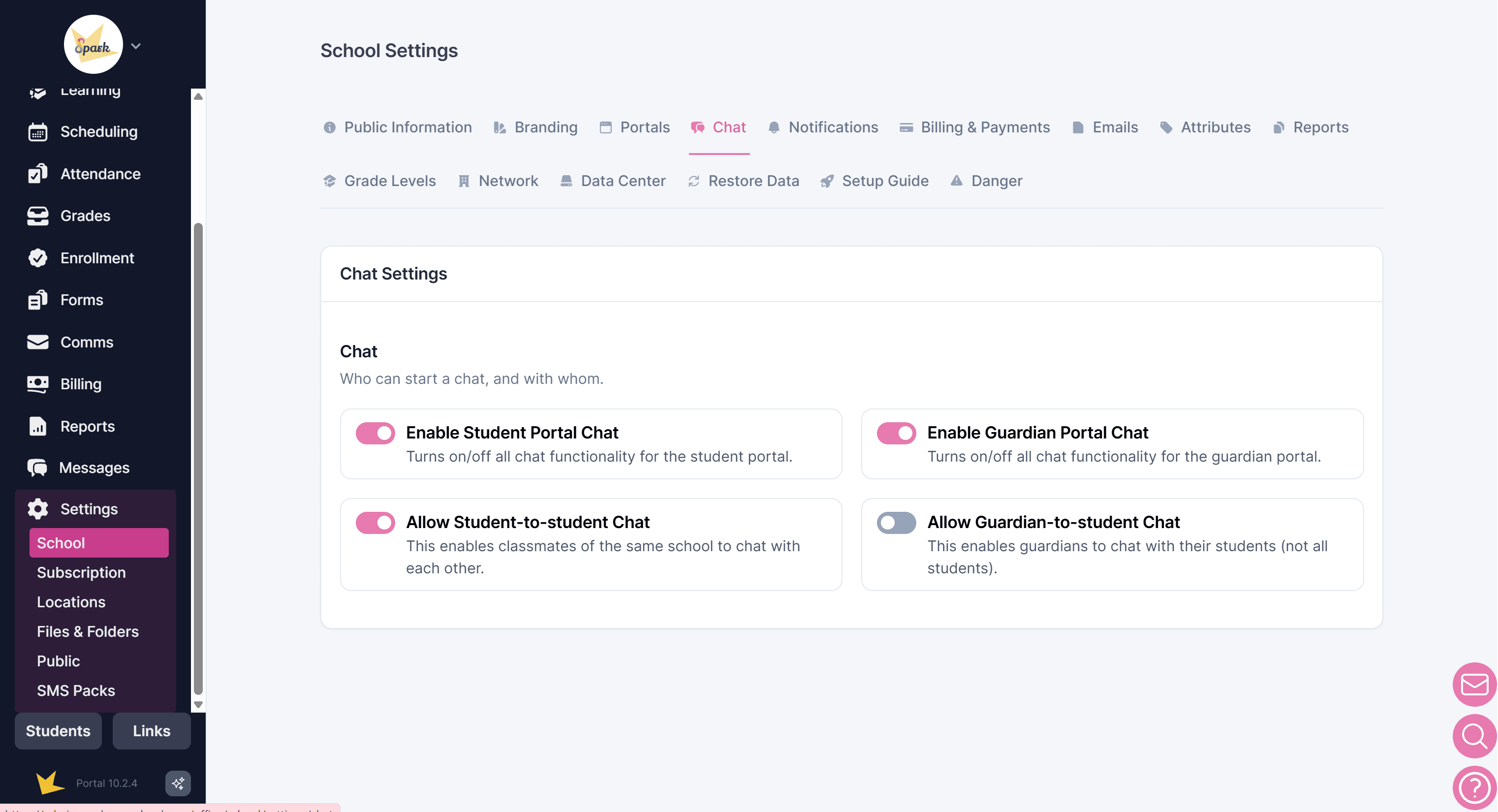
In the Chat tab, you can control which chat features are available in the Guardian and Student Portals:
- Enable or disable chat in the Guardian Portal and Student Portal
- Allow or prevent guardians from chatting with their students
- Allow or prevent students from chatting with other students
When chat is enabled, guardians and students can still chat with teachers, even if guardian-to-student or student-to-student chat is disabled.
Notifications
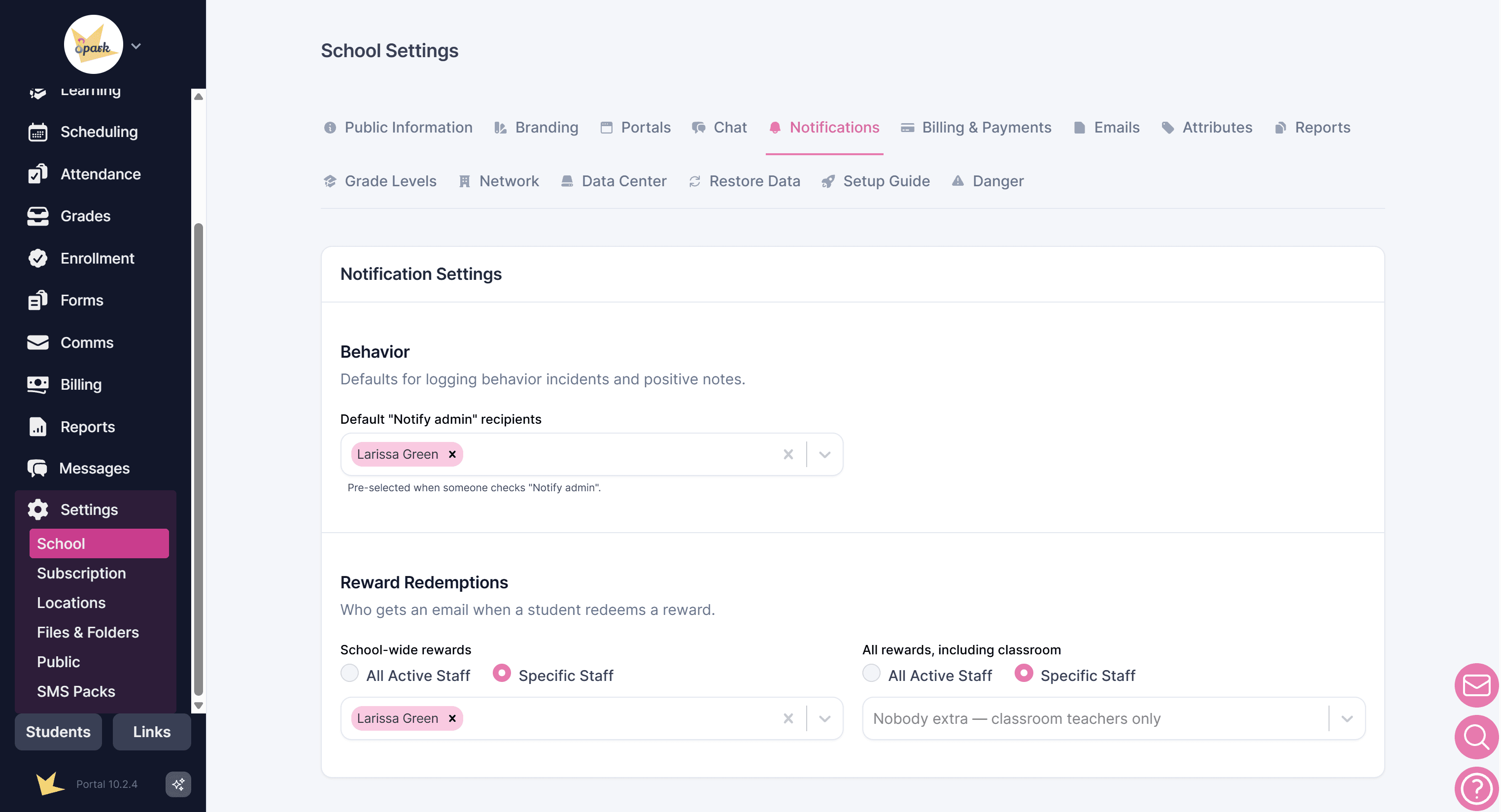
Manage notification settings on the Notifications tab. Additional notification settings will be added as they become available.
Currently, the following settings are included:
- Behavior: Set the default admin who will receive notifications when a behavior log is recorded.
- Reward Redemptions: Choose which staff member(s) will receive notifications when rewards are redeemed, either school-wide or within a specific classroom.
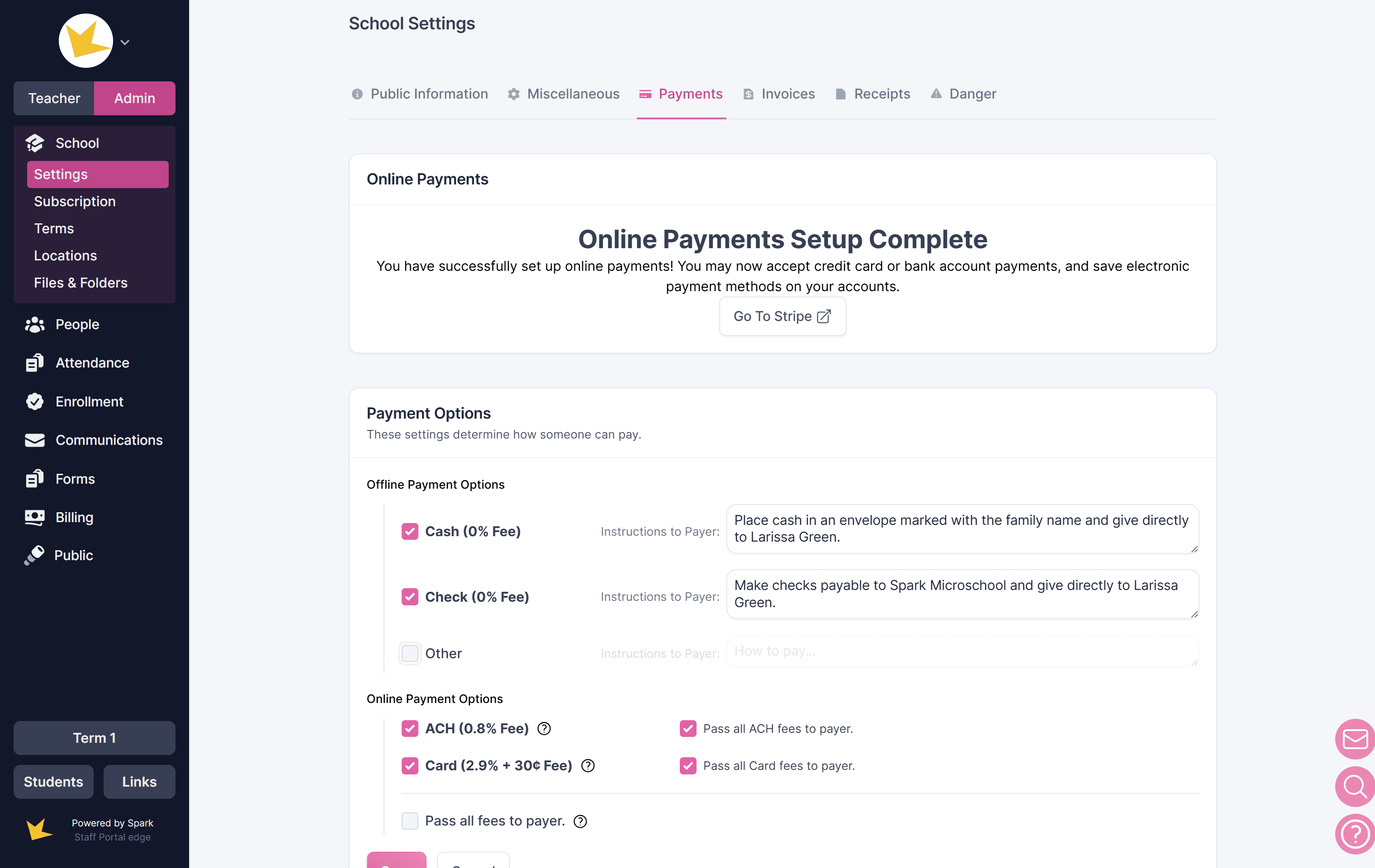
Billing & Payments
Manage payment options for guardians and others who pay through Spark in the Billing & Payments tab in Settings → School. These settings can also be managed in the Billing → Settings page.
To learn more about these payment settings, see the help doc Billing Settings.
Emails
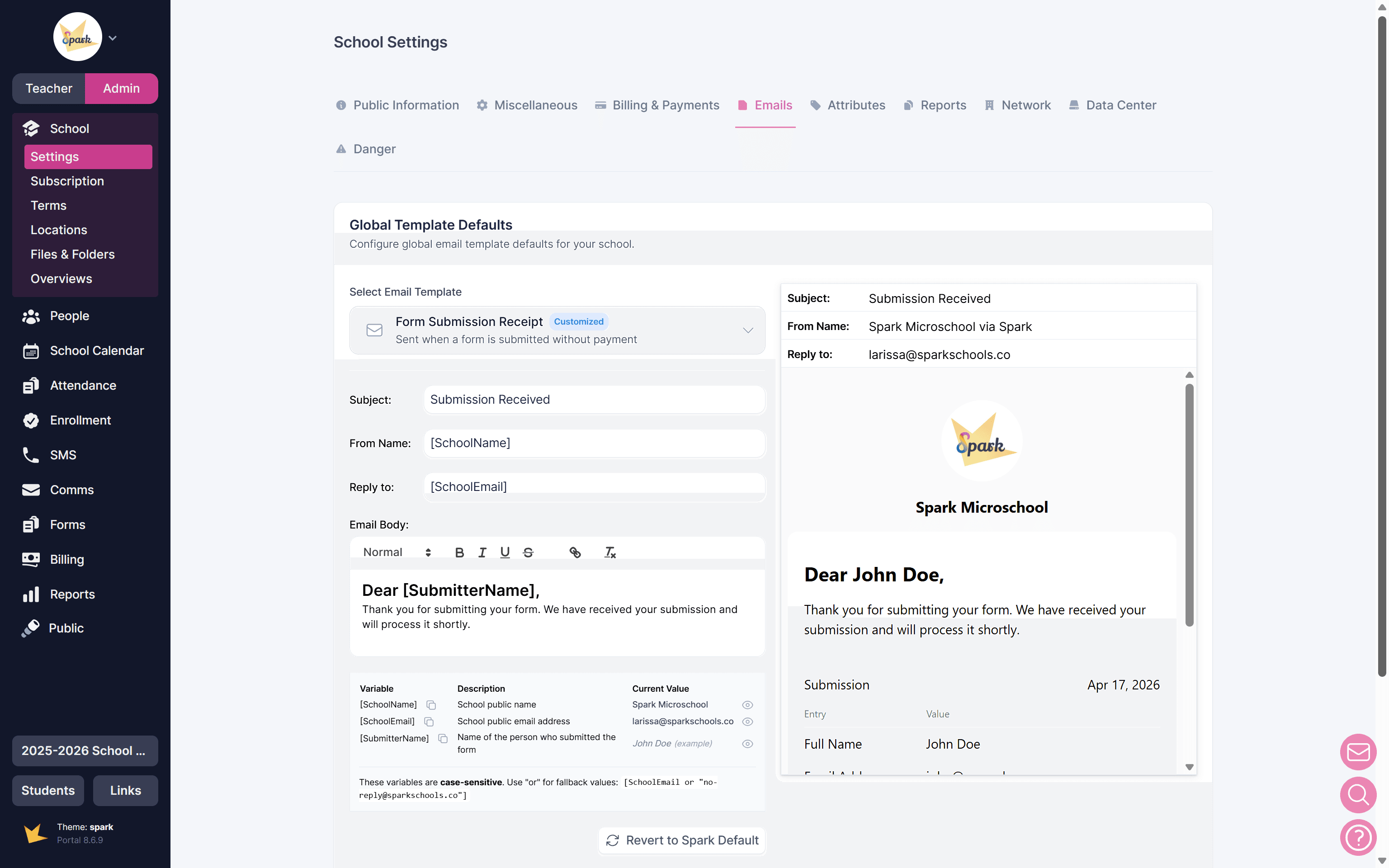
Manage the content of emails that are sent automatically from your school in Settings → School → Emails.
The following emails may be sent from Spark:
- Form Submission Confirmation – Sent to the form submitter to confirm their form was successfully submitted.
- Form Submission with Receipt – Sent to the form submitter when an online payment is collected through a form.
- Enrollment Submission Confirmation – Sent to an applicant to confirm their enrollment application was successfully submitted.
- Enrollment Submission with Receipt – Sent to an applicant when an application fee is included and paid during enrollment submission.
- Enrollment Status Change – Sent to notify an applicant when their status changes (e.g., Under Review, Accepted, or Waitlisted).
- Portal Invites - Sent to invite staff, guardians, or students to create their Spark portal.
- Guardian Student Access Information – Sent from the Portal Access page to guardians, providing school-managed login details for student portal access.
- Announcement Email – Sent to notify recipients of a published announcement.
- Invoice Receipt – Sent to the payer when an invoice payment is received.
- SMS Consent Request – Sent to request SMS consent, which is required before text messages can be sent.
- Report Notification – Sent to notify a guardian that a student report has been posted to the Guardian Portal.
- ESA/Voucher Submission Reminder - Sent to a billing account/guardian whose ESA/Voucher request is due to be submitted.
- Late Fee Notification - Sent to a billing account when a late fee has been added to an invoice.
Each email type in Spark includes a pre-built default subject line and email body. These defaults can be customized for each email type.
Customizing the global defaults in Settings applies your changes across your entire Spark platform. Emails can also be further customized within specific areas of Spark—such as Form Settings or Enrollment Settings—before they are sent.
The following parts of an email can be customized:
- Subject line
- From name – The sender name shown to recipients (will always include “via Spark”)
- Reply-to address – The email address that receives replies
- Email body – The main content of the email
Spark emails also support variables. Variables are placeholders that can be inserted into the subject line or email body. When the email is sent, these placeholders are automatically replaced with real data (such as names, dates, or program details).
Attributes
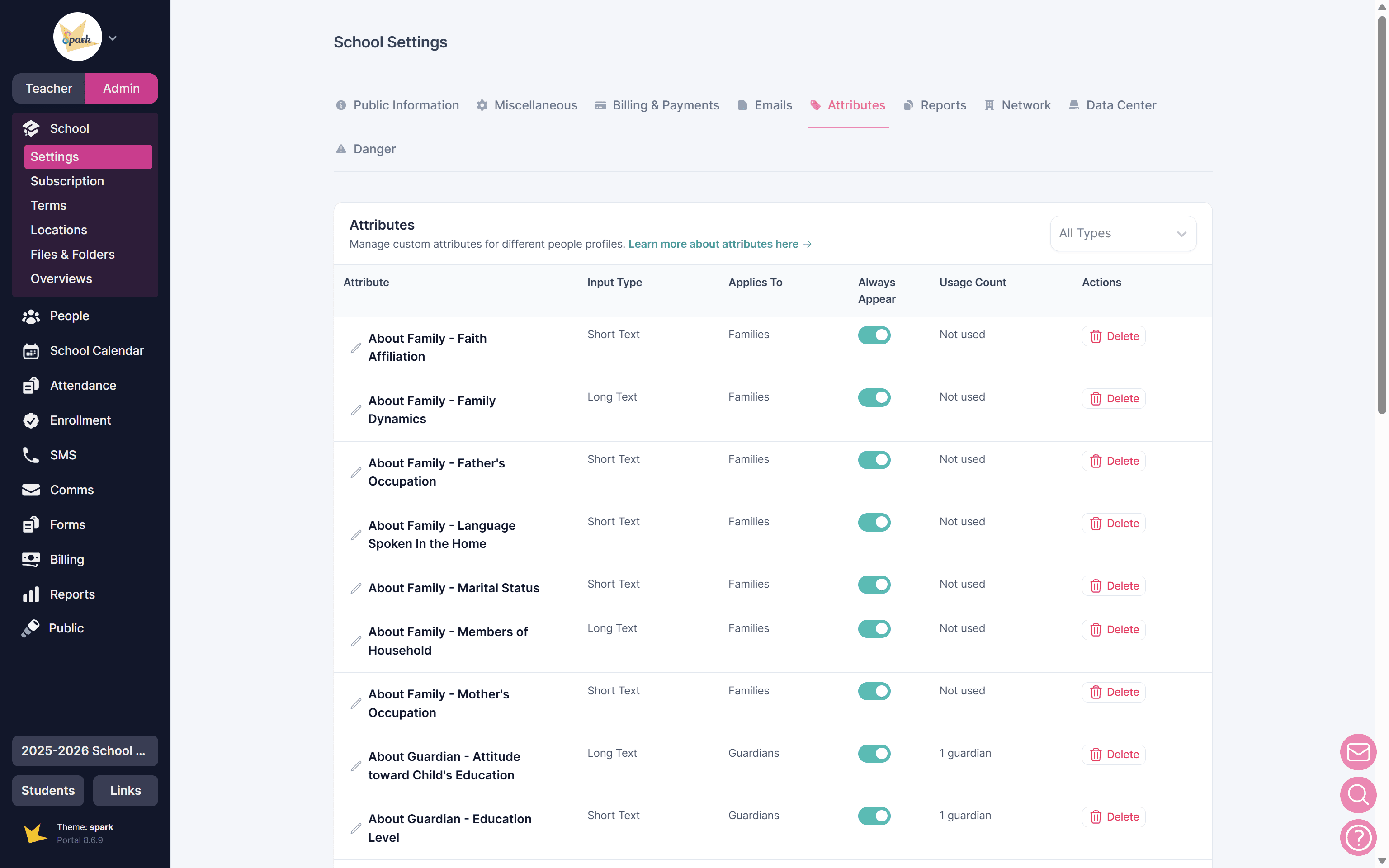
Custom Attributes let you add personalized fields to the profiles of people, families, groups, and contacts in your school. You can choose from several input types—such as short text, long text, email, phone number, select one, and select many—to capture exactly the information you need.
Custom Attributes can be created here for school-wide use, or directly on the person's profile.
Reports
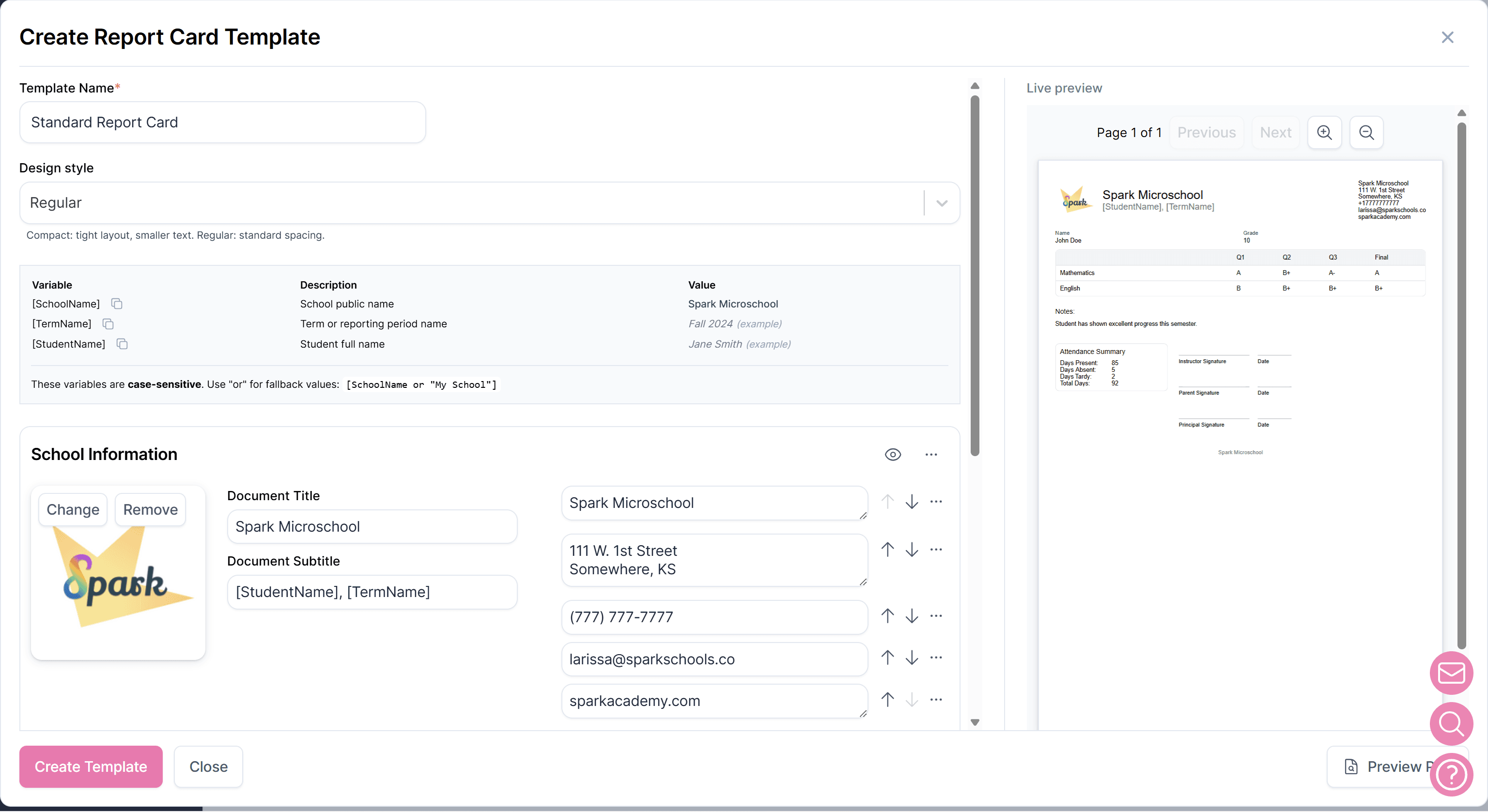
In Reports, templates can be created and managed for report cards and transcripts. These templates can be applied when creating a report card or transcript.
Grade Levels
Set up your program's grade levels in the Grade Levels tab. These will appear in lists where grade level can be selected, such as on enrollment applications and in student profiles.
Network
If your school is part of a larger network that uses Spark for network management, you can join the network by entering the code in the Network tab.
Danger
School owners can archive their school in the Danger tab. Archived schools can be restored at any time with all data intact. To permanently delete a school, contact us at hello@sparkschools.co.
Downloading Data
School data can be downloaded in the Data Center tab. Types of data that can be downloaded include
- Student Information
- Classroom Rosters
- Classroom Information
- Invoices
If you need data that isn’t available in this section, please contact the Spark team at hello@sparkschools.co with your request.
Setting Up Your School
We offer a guide to walk you through the setup of your Spark school in the Setup Guide tab. Begin by taking a quick survey to help Spark discover the needs your school or program has. Once finished, walk through each step that Spark recommends