- Help
- Core Concepts
Student Planner
About the Student Planner
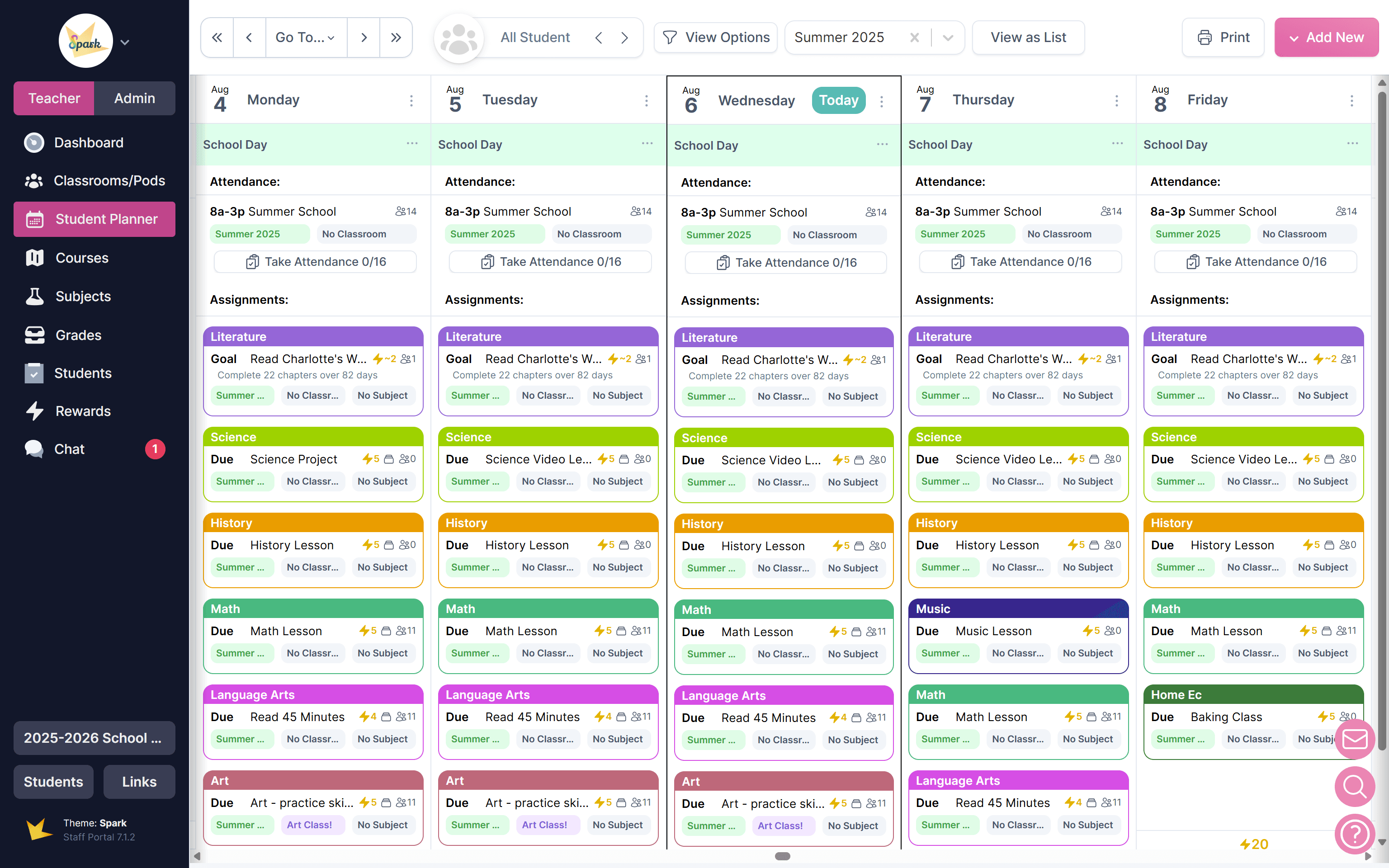
The Student Planner in Spark is the central hub for organizing assignments, goals, events, and attendance. Everything created here appears on the student’s Student Portal.
You can access the Student Planner either from the left navigation bar or within a classroom under the “Student Planner” tab.
Using the Student Planner, you can both create new items and manage existing ones — including assignments, recurring assignment sets, long-term goals, student submissions, events, and attendance.
What You Can Do on the Student Planner
Once you’re in the Student Planner, you can create and manage various tasks related to assignments, goals, events, and attendance. Here’s an overview of what you can do:
- Create and Edit Assignments, Assignment Sets, and Goals
- Modify Assignments, Sets, and Goals
- Print Assignments, Sets, and Goals
- Manage Student Submissions
- Create Events
- Record Attendance
View the Student Planner help pages for more information about these tasks.
Customizing and Navigating Your Student Planner
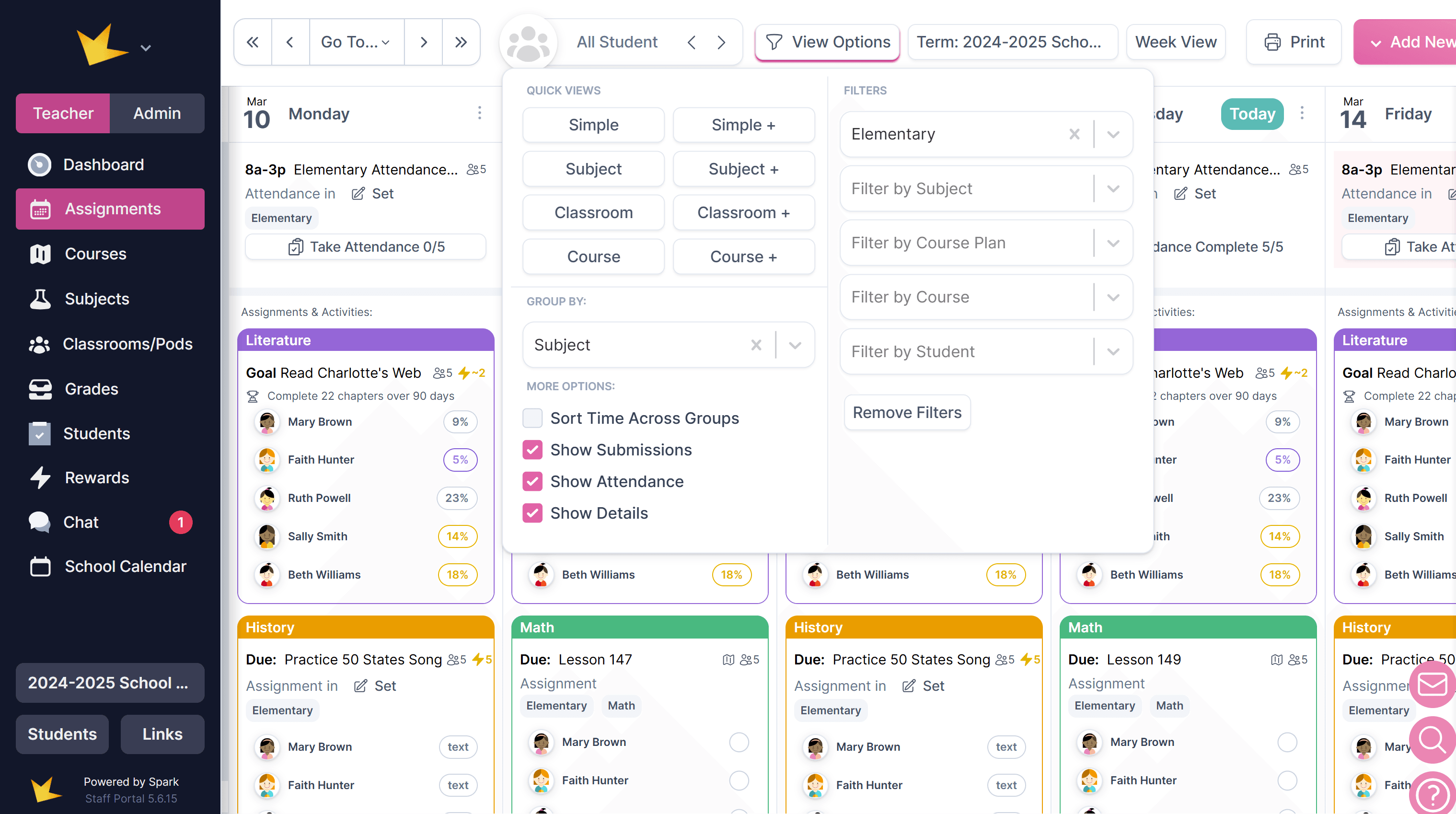
Various buttons at the top of the Student Planner allow you to filter and organize your planner to suit your needs.
- View Options: This dropdown allows you to filter assignments in various ways and make other viewing selections.
- "Go To" Buttons: To jump between weeks and months in your calendar, use the Go To dropdown and arrows at the top of the page.
- Term Dropdown: Your assignment calendar will display the term currently active in your Spark platform. You can switch to view other terms using the Term dropdown at the top of the page.
- Week View/List View: Assignments, activities, and attendance can be viewed in the calendar format (Week View) or in a list (List View).