- Help
- Core Concepts
Classrooms
What is a Classroom?
Classrooms (or Pods) are organizational groups of students and teachers that can function independently. They can serve different purposes based on your school's structure:
- Traditional Classroom Model – Students study the same course or subject together.
- Self-Directed Learning Model – Students work independently, with the teacher acting as an overseer.
Teachers can manage assignments, attendance, grades, and more within their classroom. Note: For more information on these features, see the relevant Help Docs.
Creating a Classroom
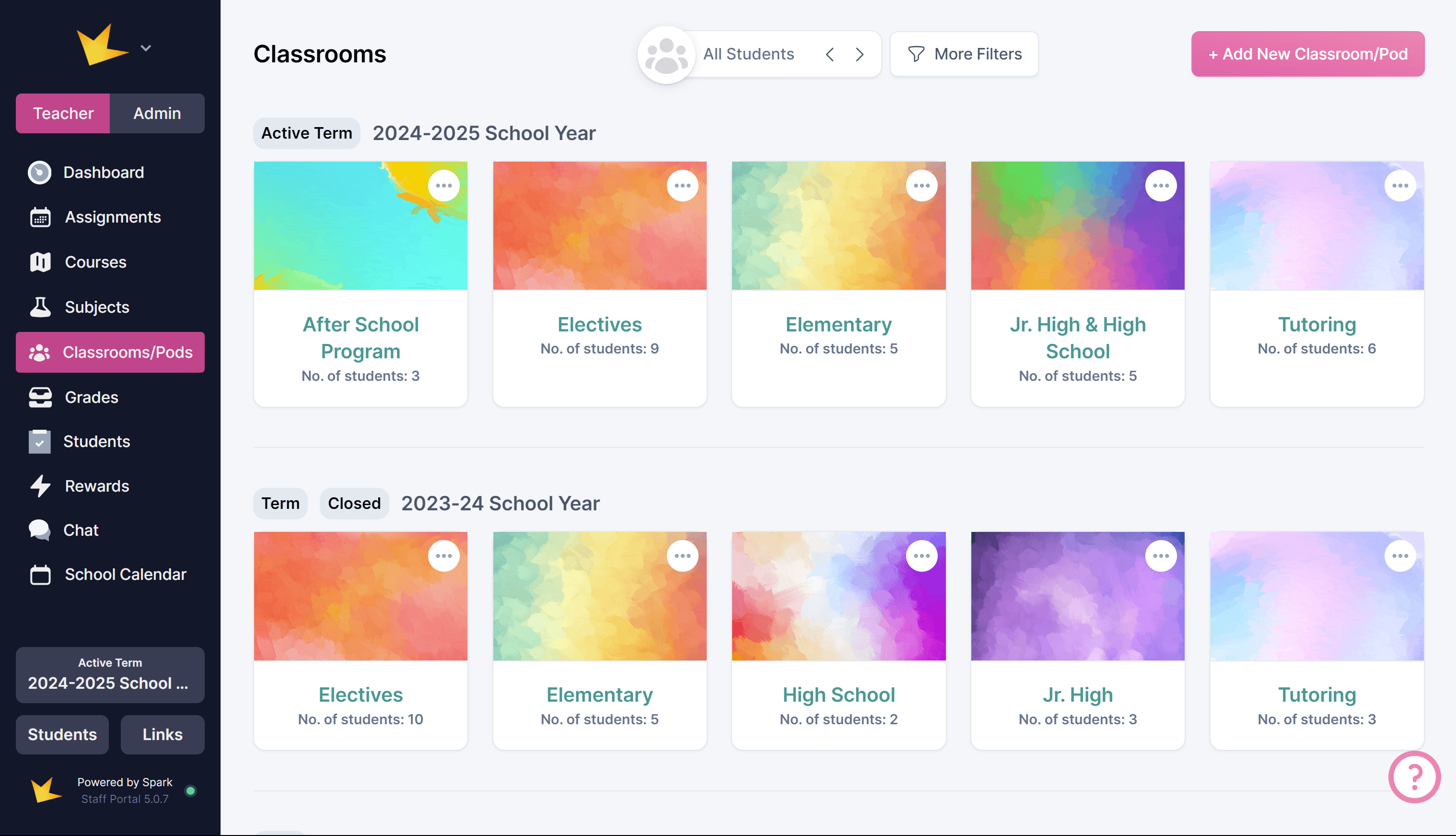
- Go to Classrooms on the left menu and click +Add New Classroom/Pod.
- Complete the details and enroll students.
- Click Create to access the class’s assignment calendar and other tools.
You can customize your classroom/pod by:
- Changing the Picture: Click the classroom name at the top left to upload an image.
- Assigning a Color: Colors help color-code assignments on the calendar.
Adding People to a Classroom
Teachers
- Add a staff member to your school and give them portal access (see help docs under Staff).
- Assign the teacher to the classroom in Classroom -> Roster. Once they accept their portal invitation, the teacher will be able to view and manage their classroom.
Students
- Add a student to your school and give them portal access (see help docs under Students).
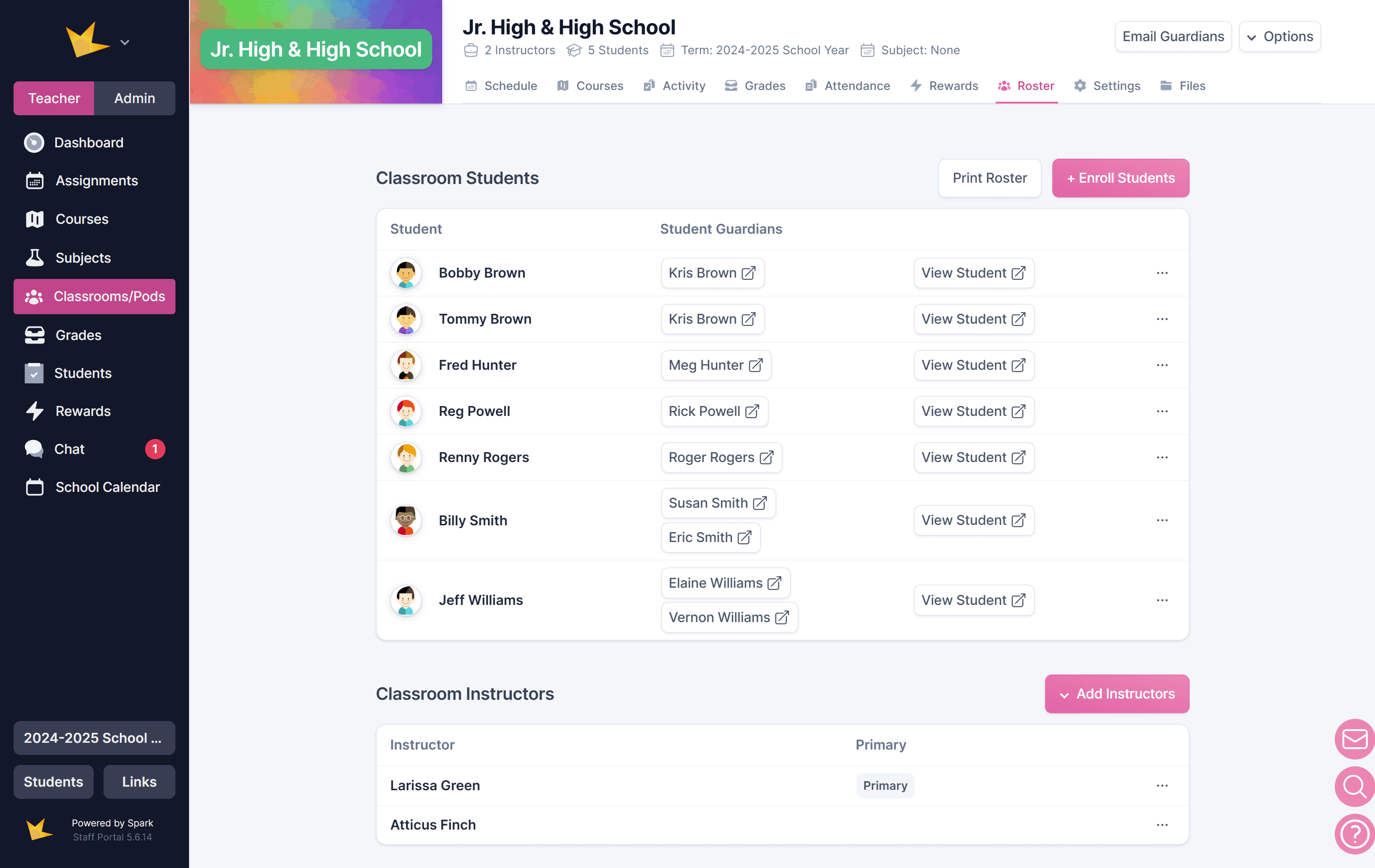
- In Classrooms, select the classroom and go to Roster.
- Use +Enroll Students to add students.
- To remove a student, use the three-dot menu next to their name and click Un-Enroll.
Using a Classroom
Staff members can use their classroom as a self-contained unit to manage students' assignments and submissions, grades, attendance, rewards, and more.
As an admin, you can restrict staff access to their assigned classrooms, keeping other parts of your Spark school private while still providing teachers with essential LMS tools. The LMS tools available within a self-contained classroom include:
- Student Planner
- Announcements
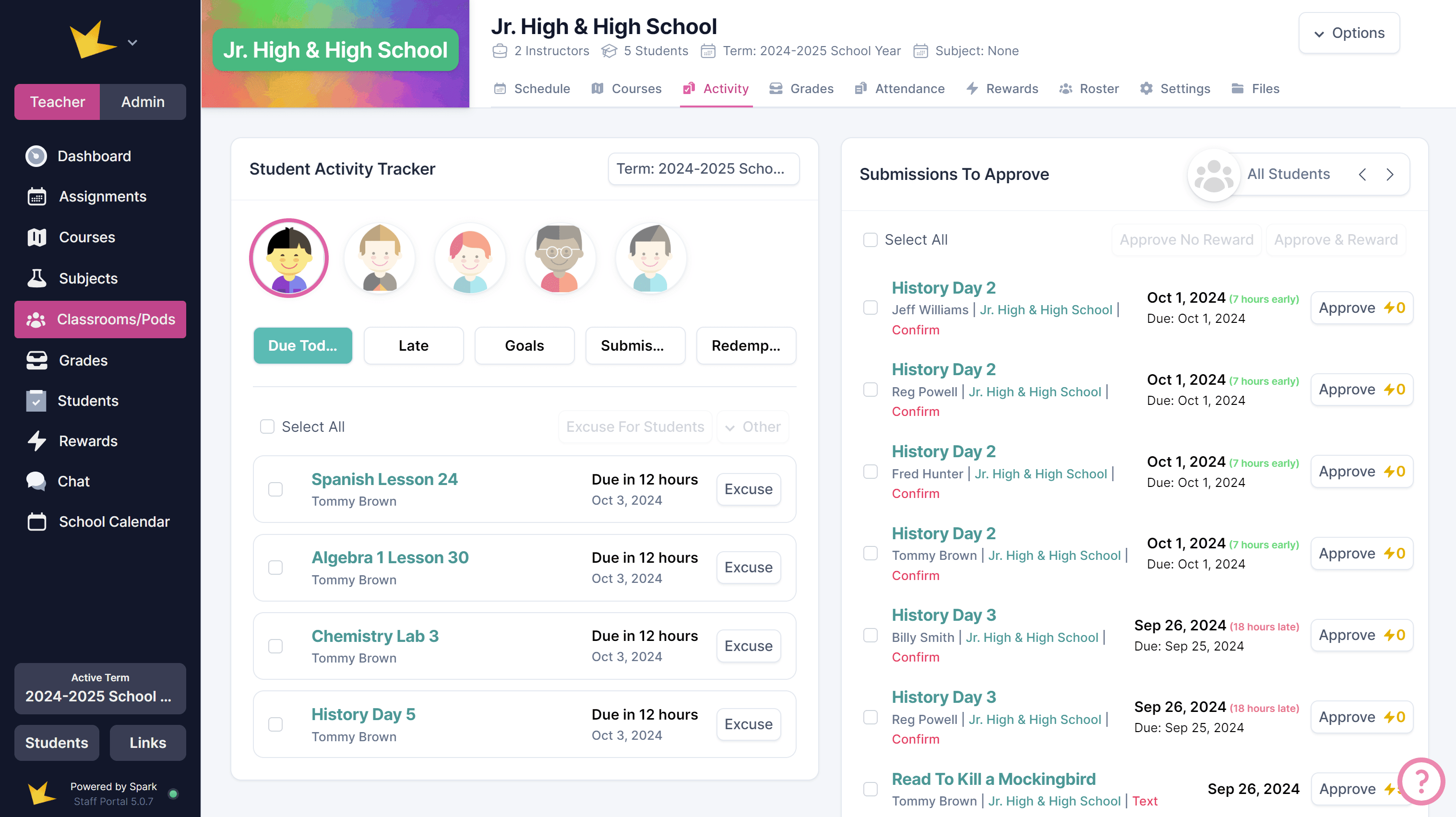
- Activity tracker
- Gradebooks
- Attendance
- Rewards
- Student Information
- Student Behavior
- Courses
- Files
- Forms
For more information on these features, go to the Classroom help docs.