- Help
- Reports
PDF Reports
The Reports section is where you can manage several types of school reports, including:
- PDF Grade Reports
- PDF Attendance Reports
- School Data Overviews
- School-wide Behavior Reports
You can also set up Reporting Periods here.
Additional grade reports (transcripts and report cards) can be found in the Grades section.
This help doc outlines the PDF Reports. See other help doc pages in this section for information on other Report tools.
PDF Reports
The PDF Reports page allows you to:
- Generate new PDF reports (such as Grade Reports or Attendance Reports)
- View previously generated reports
- Post or unpost reports to guardian and student portals
- Download or print reports
Each report you create is saved to your school’s Report PDFs list, allowing you to review or reprint it at any time.
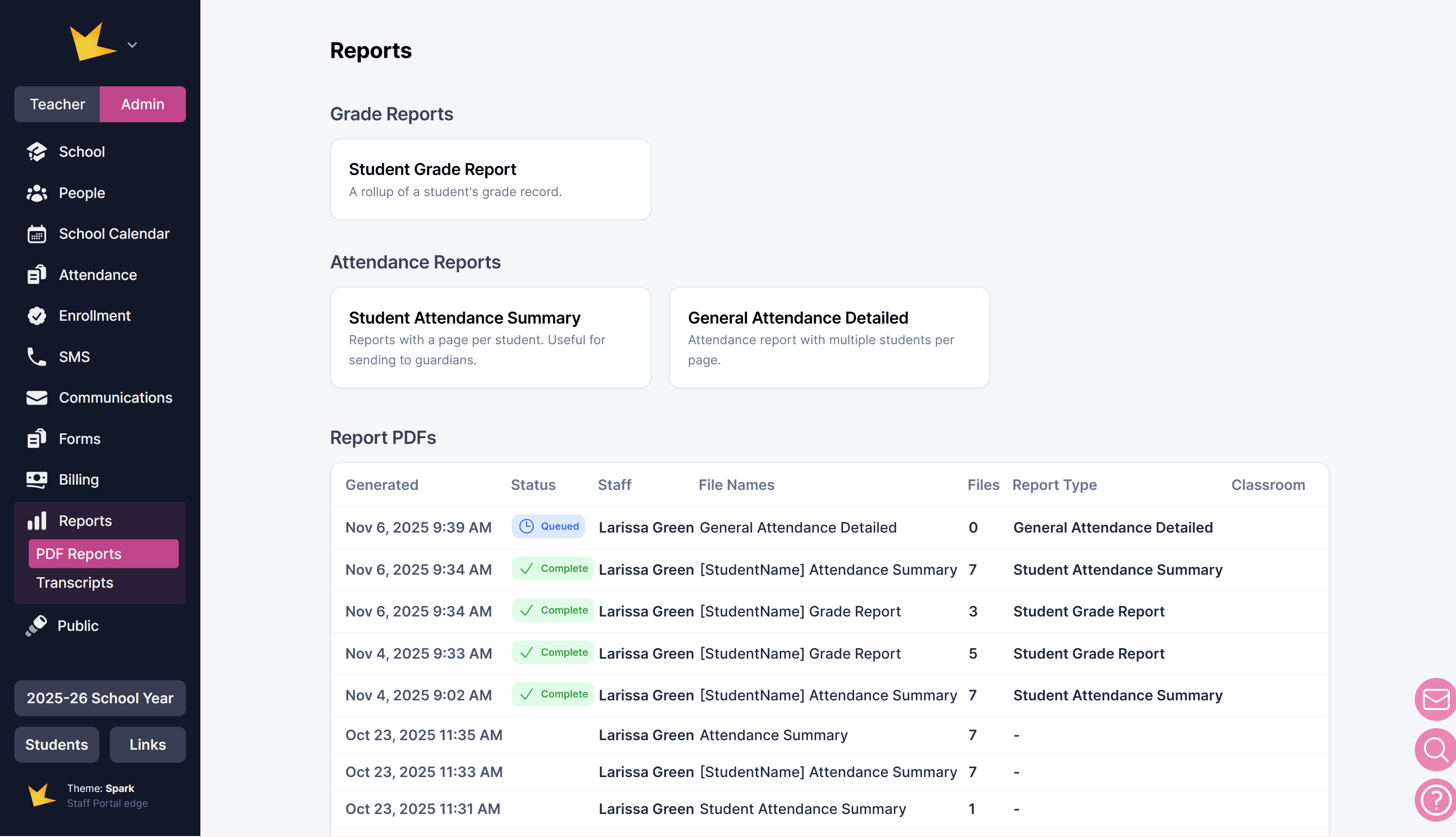
Generating Reports
- On the Admin side, go to Reports.
- Select the report type you’d like to generate:
- Grade Report – Summarizes student grades for a selected grading period or range.
- Attendance Report – Displays attendance records for students over a chosen date range.
- Follow the on-screen prompts to configure report settings (data, heading, and options).
- Choose to save, share, or print the report.
When complete, your report will appear in the Report PDFs list, where you can open, download, or post it.
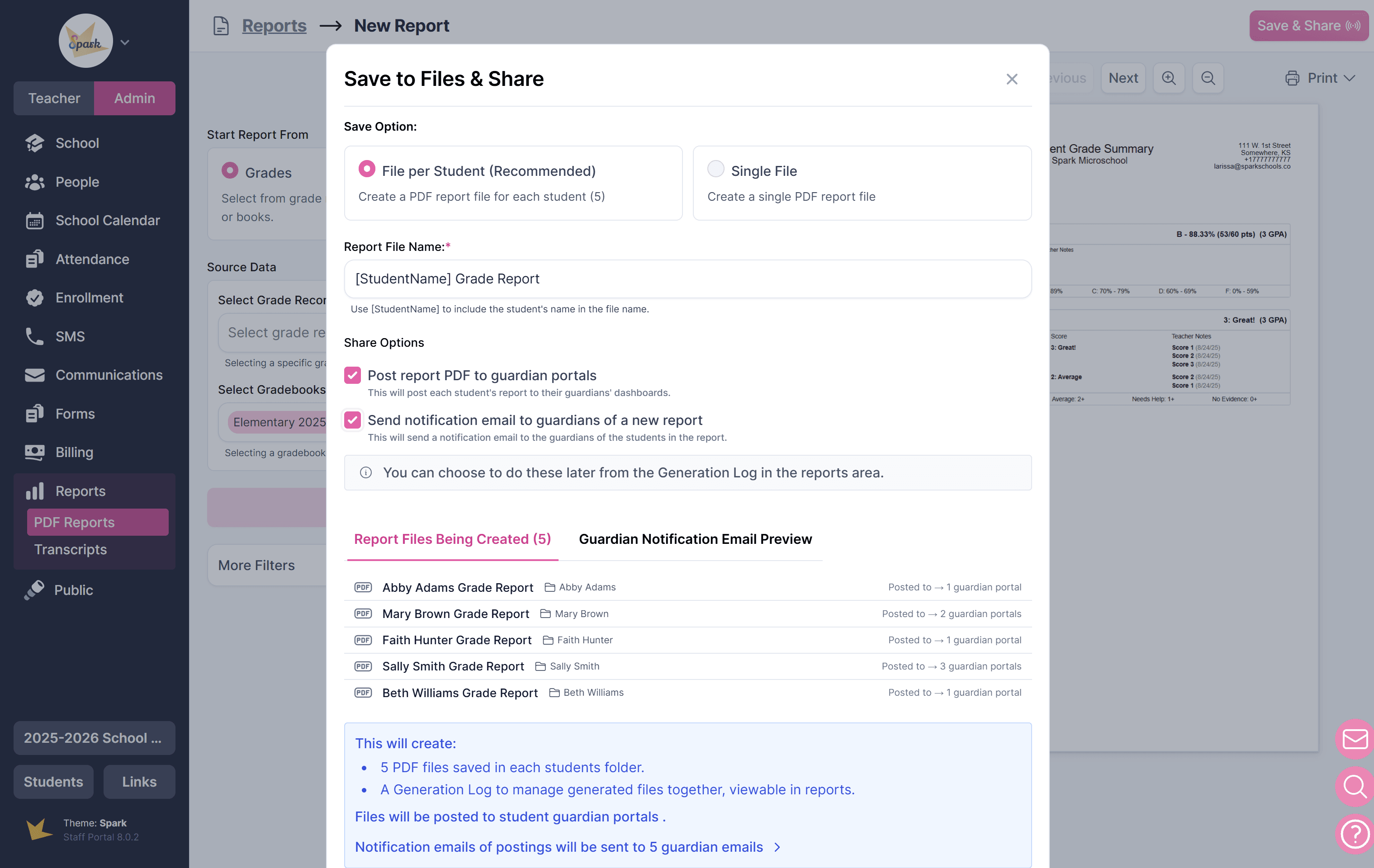
Viewing and Managing Reports
All generated reports are stored in the Reports section and can be accessed at any time.
Each report includes:
- Report Name
- Generated By
- Generated Date
- Posted Status
You can:
- Open a report to preview, download, or print it.
- Post or Unpost reports to guardian portals.
- Email notifications to guardians.
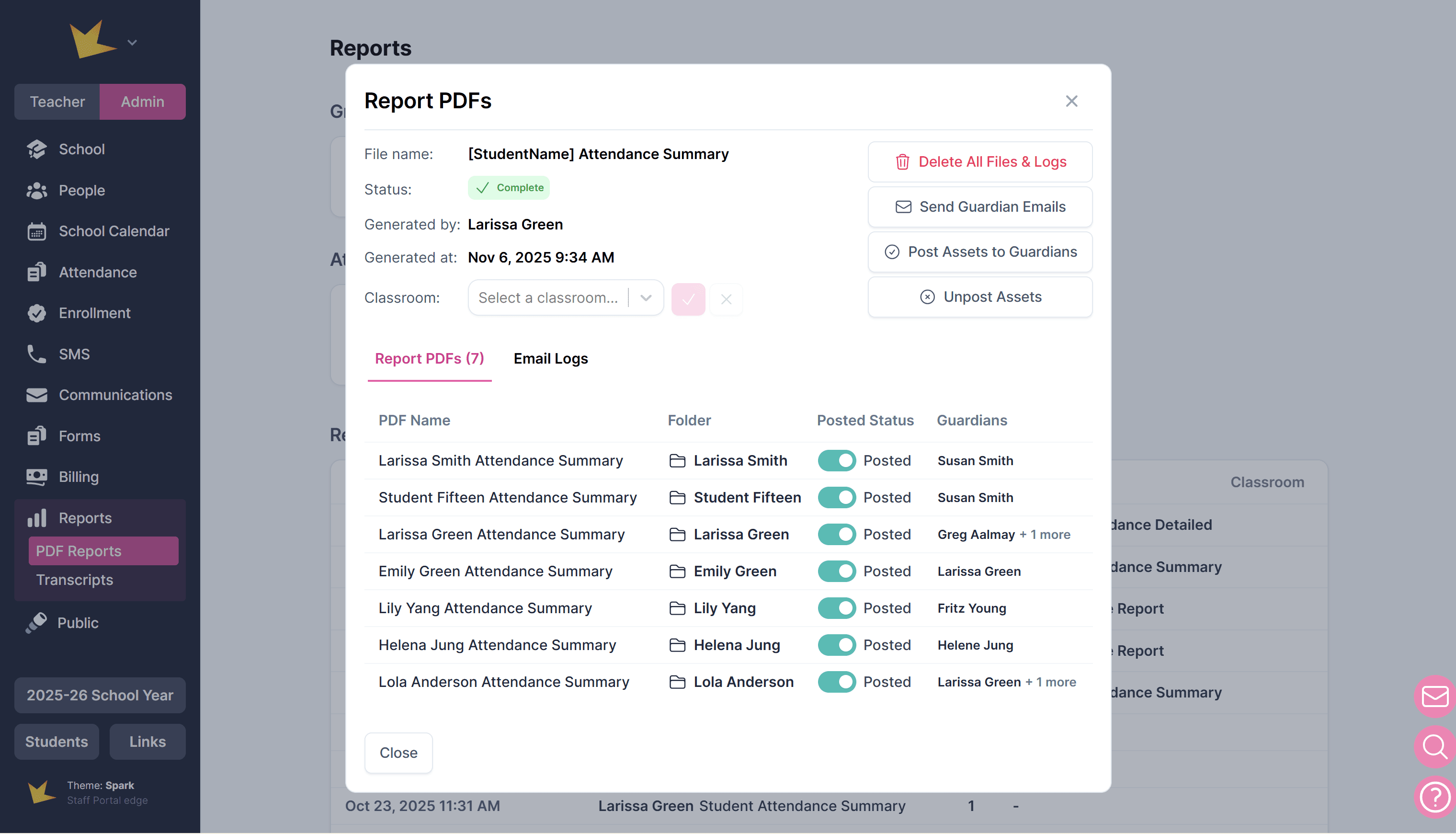
Posting Reports to Portals
When posting reports:
- Posted reports appear on each guardian’s Reports page in their portal.
- Guardians only see reports for students they are linked to.
- To remove access, simply toggle the report’s status to Unposted.
An email can be sent to guardians to notify them that the report was posted. This email can be customized when sending.
Tips for Staying Organized
- Use folders to separate reports by term, classroom, or type.
- Include the report type and date in your file names (e.g., Q1 Grade Reports – 2025).
- Regularly clean up old drafts or test reports to keep your list tidy.