- Help
- Communications
About Communications
About the Communications Feature
The communications ("Comms") feature allows you to send announcements, custom emails, and quick emails to guardians, staff, contacts, or others. You can also create and manage a contact list and view a record of sent emails.
Methods of Communicating
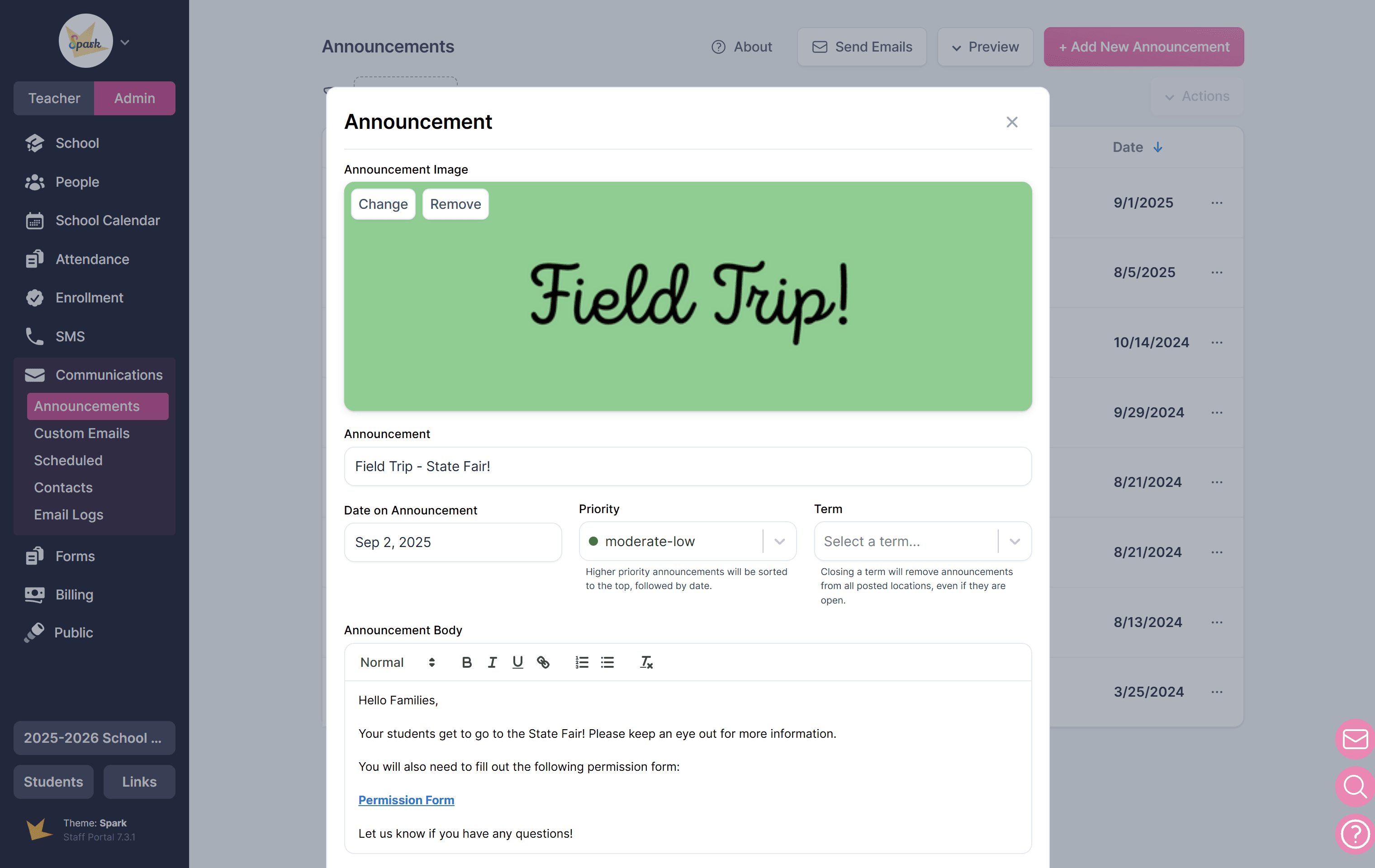
Announcements
Announcements are designed for important school announcements such as:
- Tomorrow is our First Day!
- Snow Day – No School
- Reminder: Please return the field trip permission slip
Announcements can be emailed to contacts directly or posted to the Guardian Portal and/or your School Resources & Information page.
To learn more about the Announcement feature, see this Help Doc →
Custom Emails
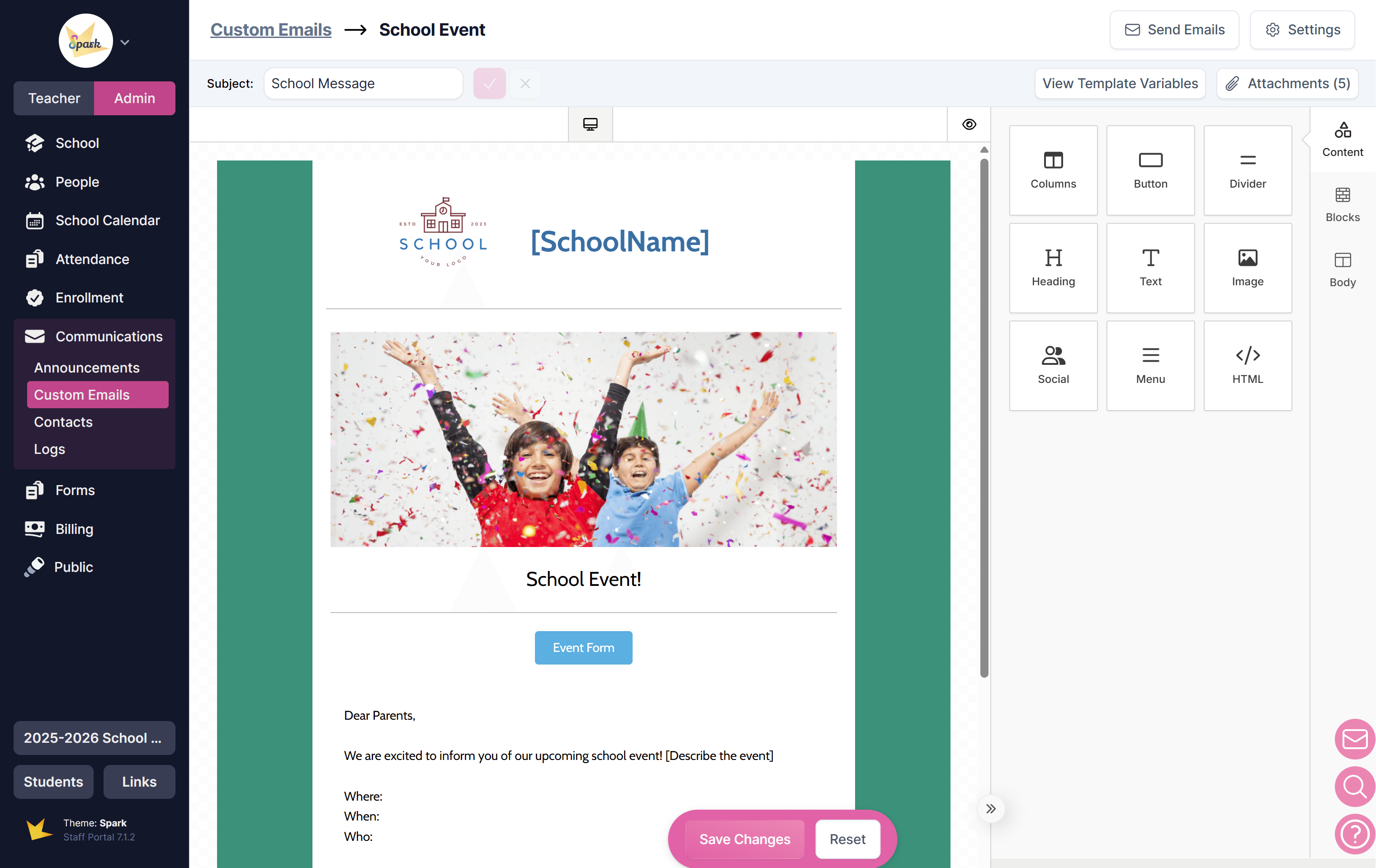
Custom emails are visually engaging and information-rich messages, offering more detail than announcements. You can create and save templates for reuse as needed.
Examples include:
- School Event Information
- Marketing Emails
- School Newsletter
Custom emails can be emailed to anyone inside or outside of the Spark school.
To learn more about the Custom Email feature, see this Help Doc →
Quick Emails
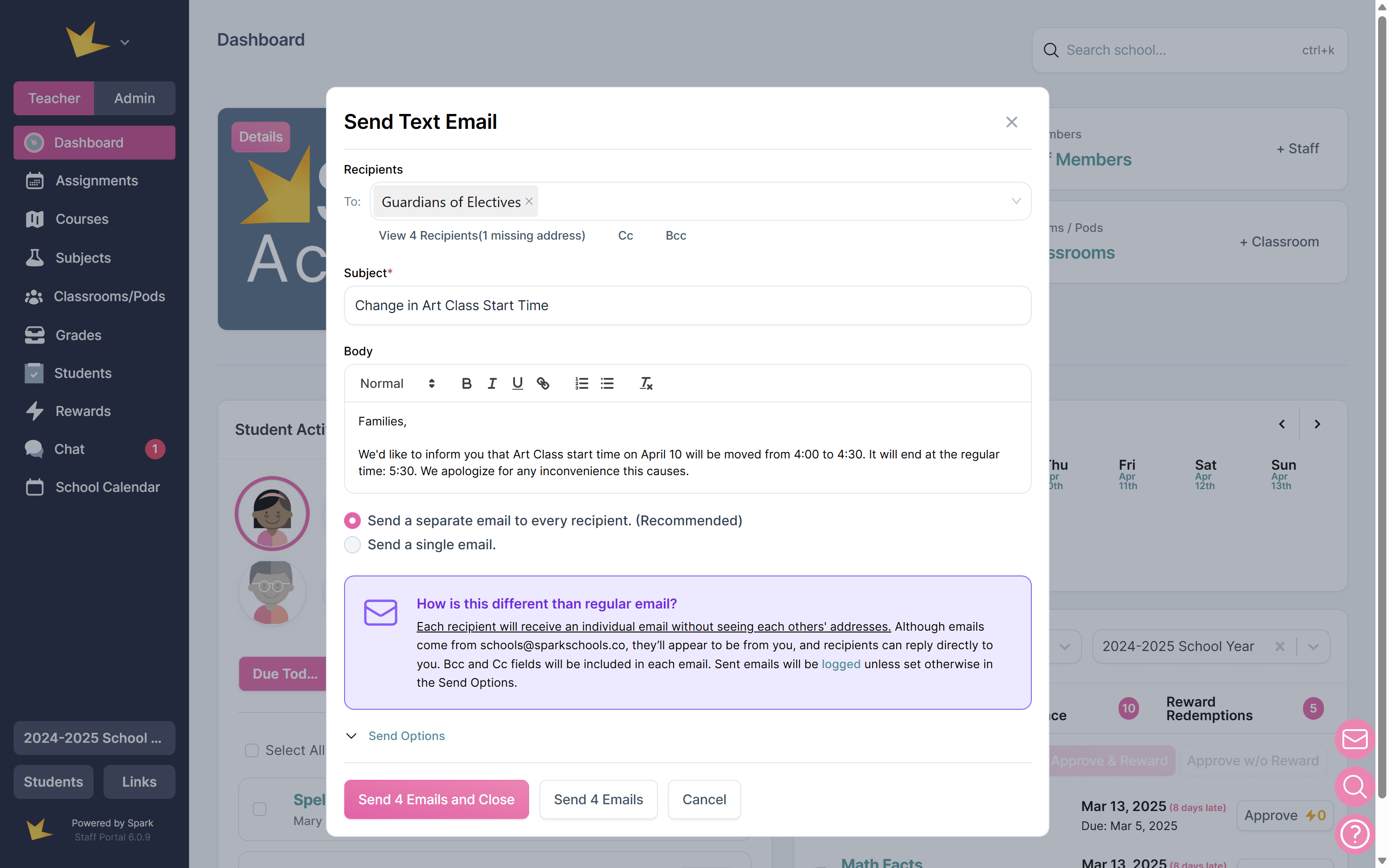
Quick emails can be sent from anywhere in the Spark platform, either to an individual or multiple recipients at once. A record of all sent quick emails is available in the Communications section under Logs.
To learn more about Quick Emails, see this Help Doc →
SMS
The SMS Center allows your school to send text messages to individuals who have given consent. It is best used for important announcements and alerts, such as school closures or transportation delays, rather than routine, day-to-day communication. Messages are one-way, so recipients cannot reply.
Text messaging requires the purchase of SMS Packs, which do not expire. Before sending messages, purchase SMS Packs and collect consent from recipients. You can also create message templates to save time. Access the SMS Center from the SMS section on the Admin side of the Microschool version.
To learn more about the SMS feature, see this Help Doc →
Chat
The Chat feature allows admins, staff, guardians, and students to send quick, internal messages within the school community. Who users can message depends on their role and school settings.
Users can manage email notifications, edit or delete their messages, and access conversations with archived users. School admins can manage chat availability and permissions in School → Settings → Miscellaneous.
To learn more about the Chat feature, see this Help Doc →
Messaging
The Messages feature allows you to send messages to individuals or groups through the Guardian Portal, Staff Portal, and Spark app. You can include attachments, allow conversations and replies, schedule messages, and choose how recipients are notified by email or push notification.
Messages can be organized into Message Groups for easy communication with specific audiences. Staff can manage recipients, notifications, and group settings. Admins can review message records in Comms → Logs.
Contacts
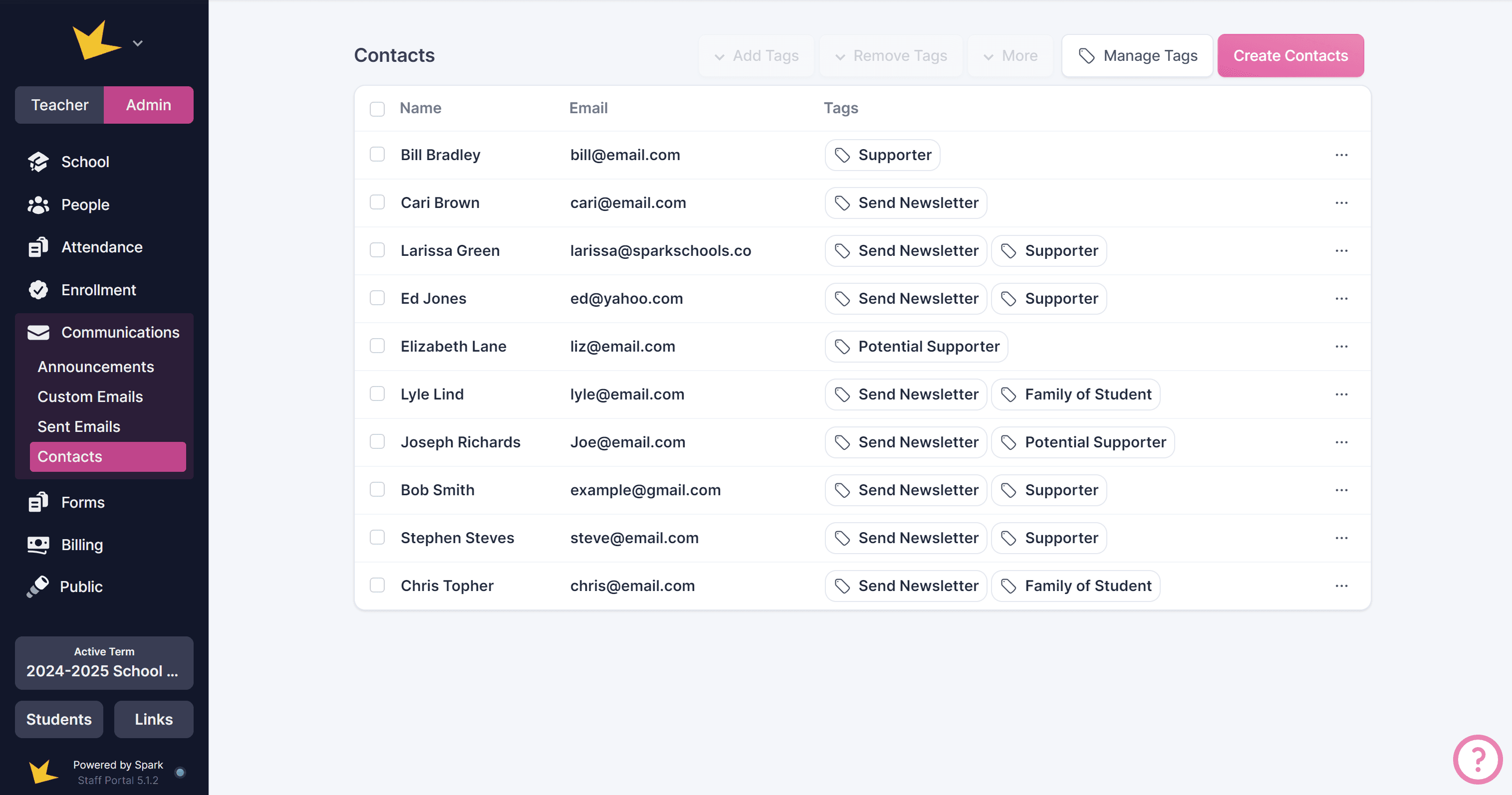
Create a Contact List with emails that are not already stored in your Spark platform (such as guardians or staff). Use tags to organize and filter contacts efficiently. You can then send custom emails or announcements directly to the emails in your contact list. For more information, see Contacts.
To learn more about Contacts, see this Help Doc →
Logs
The Logs page in the Communications feature provides two ways to review communication in Spark: the School-wide Communication Log and the Email Log. Use these logs to review communication records, find specific messages or emails, and download records when needed.
To learn more about Logs, see this Help Doc →
School-wide Communication Log
The School-wide Communication Log provides a record of communications and incidents recorded through Spark, including messages, chats, emails, logged interactions, and behavior or medical incidents shared with parents.
Use the available filters and search bar to find specific records by communication channel, sender, person involved, or date range. You can also download the filtered records for record-keeping or review.
Email Logs
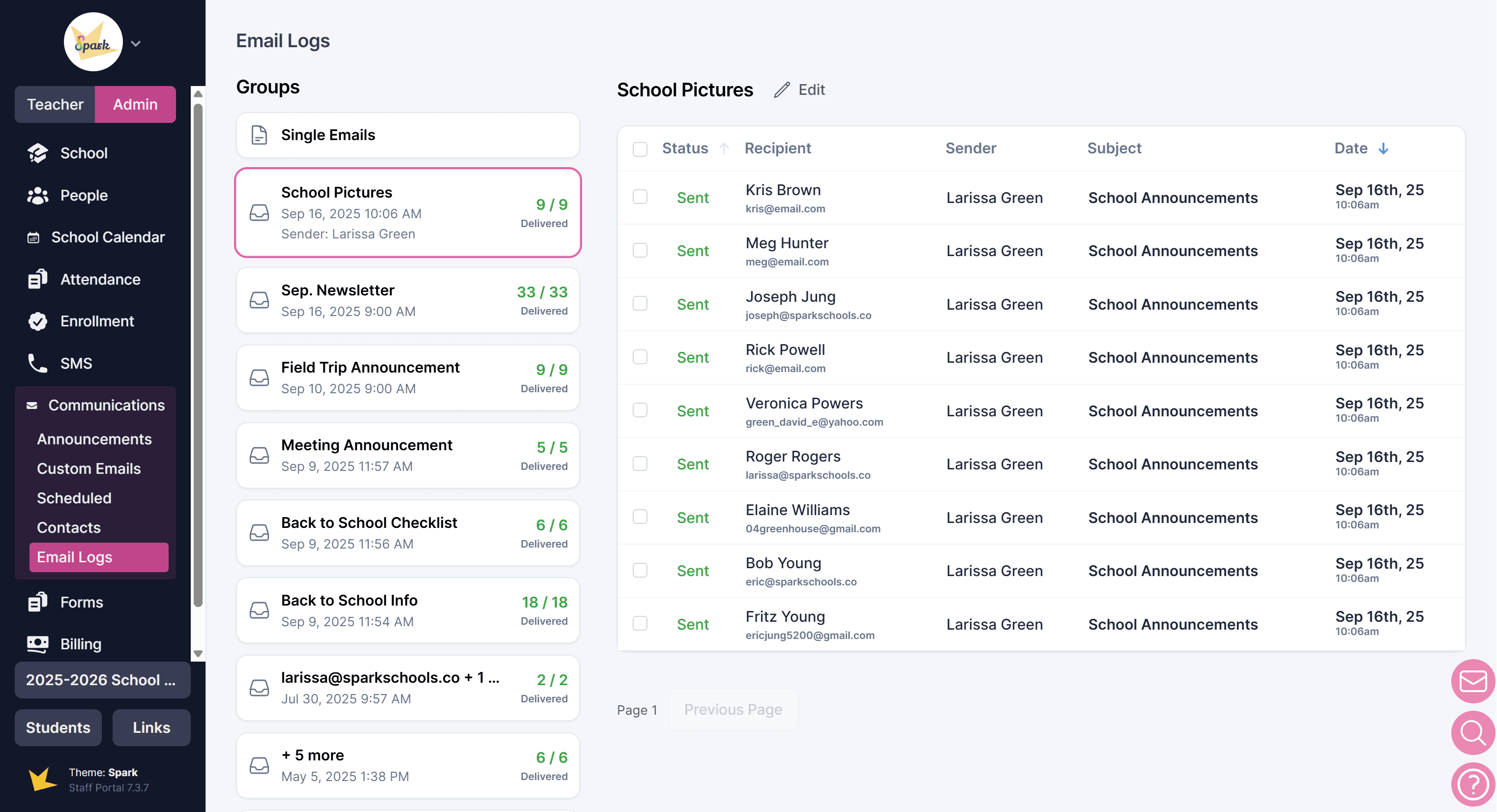
View a complete list of all emails sent through your Spark platform on the Communications → Logs → Email Logs page. Click on any email to review its contents.
Emails sent to multiple contacts at once are organized as Groups. You can assign a name to each group to make it easier to find and manage later.
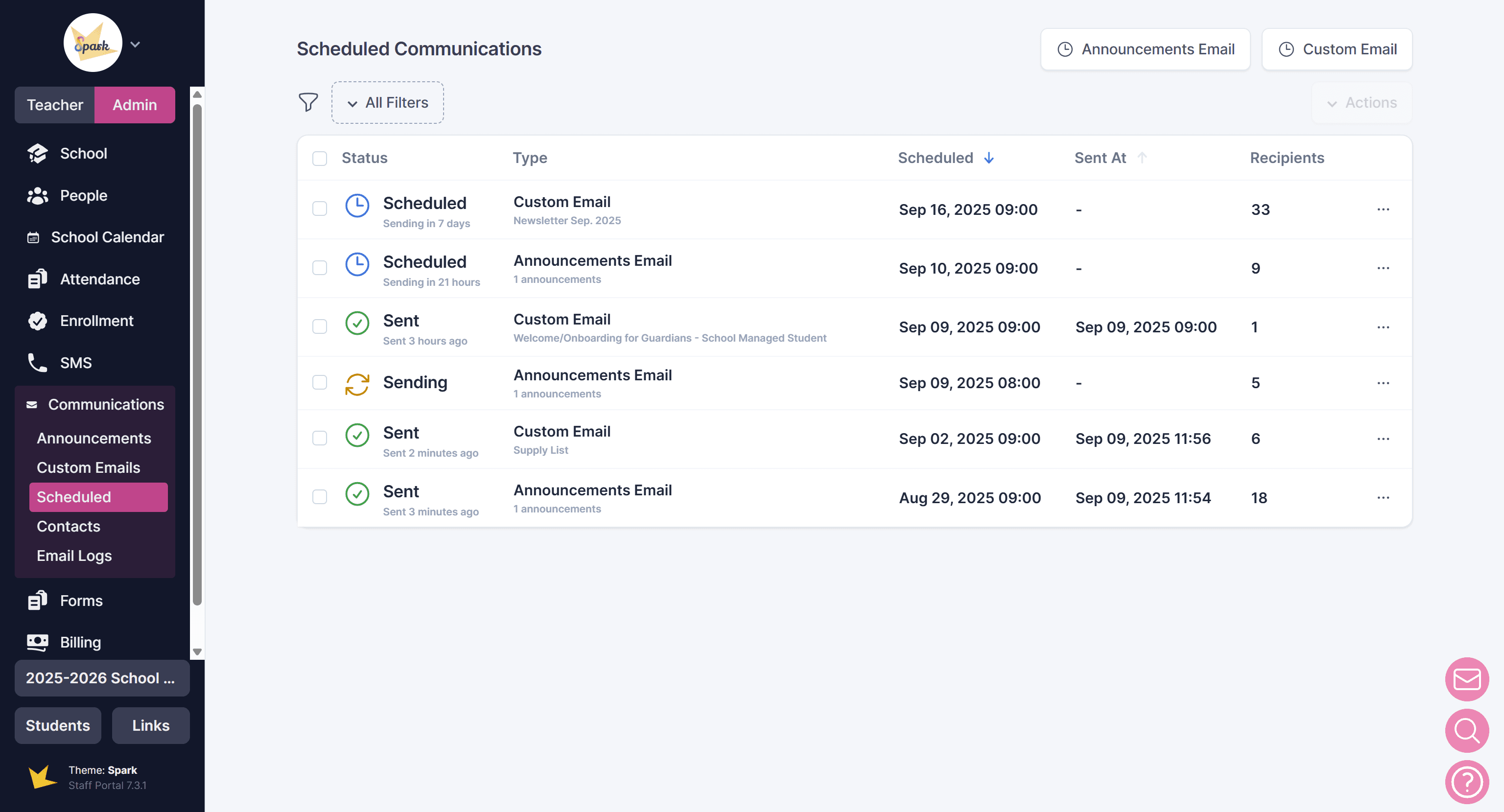
Scheduled
View a record of all announcements and custom emails that you have scheduled to be sent, or that were sent according to your schedule, on the Communications -> Scheduled page. Click on a scheduled email to review its contents, or to remove the scheduled send date.