- Help
- Forms
Sharing Forms
Sharing Forms
There are two primary ways to share a form with those who need to fill it out and submit it:
- Make it open to the public
- Send a form request via email
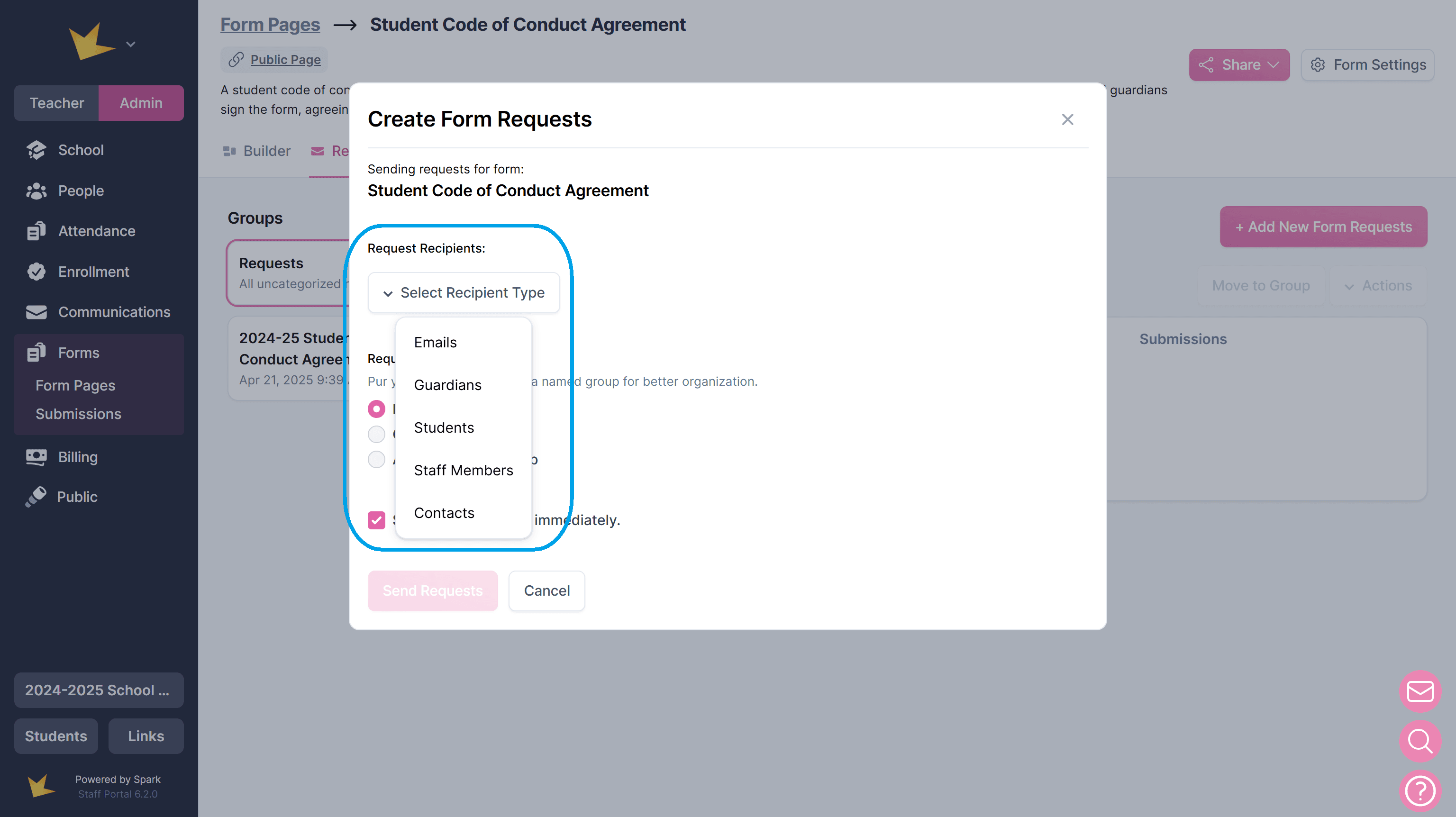
To share a form, open it and click Share in the top right corner. Then, choose how you want to share it.
Sharing Forms Publicly
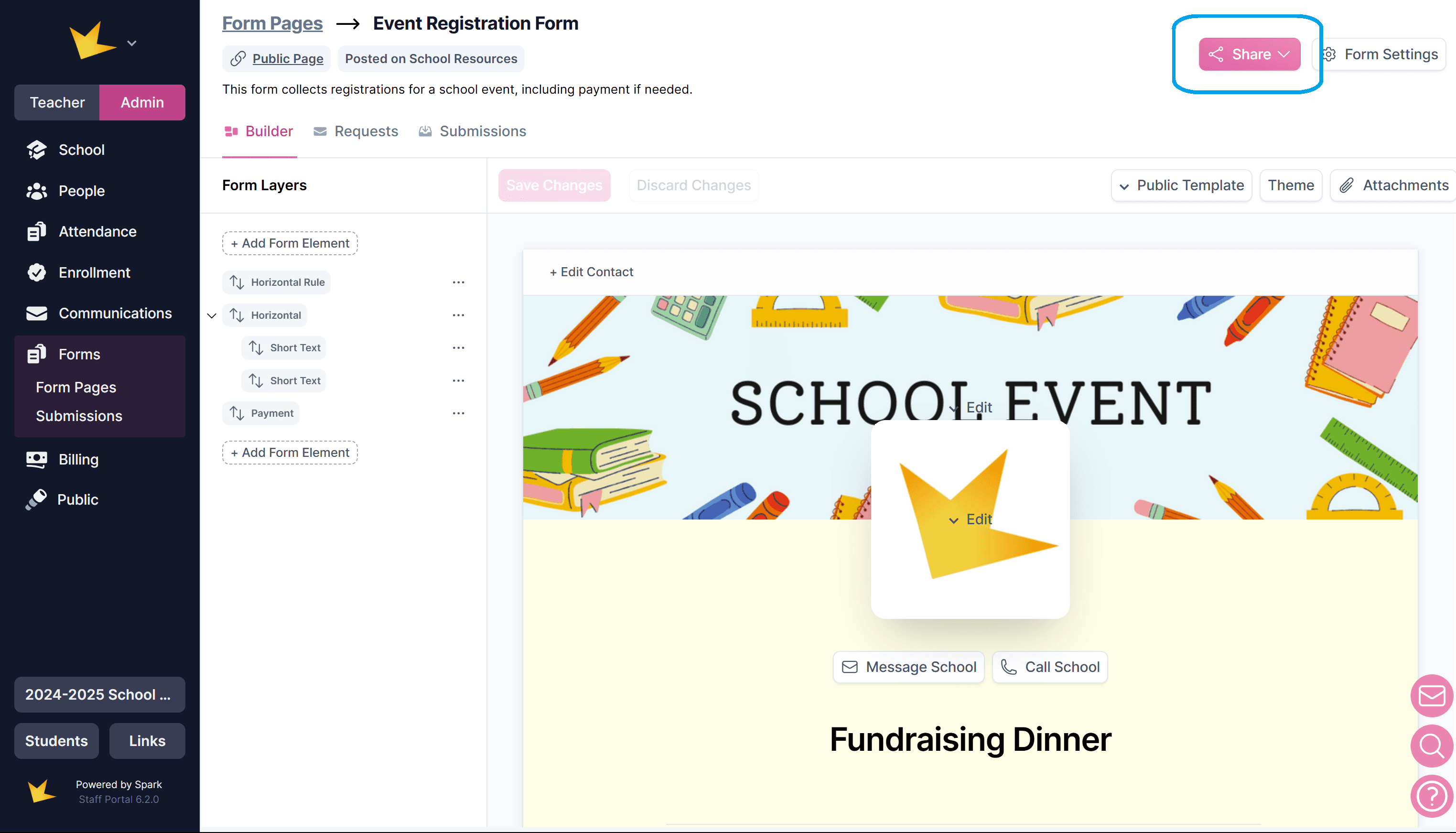
You can make a form available to anyone with the form link, even if they don't have access to your school's portals.
To share a form publicly:
- Open the form and click Share in the top-right corner.
- Check the Open to public box.
- Set the date range during which the form will be available.
- Choose whether to post the form on the School Resources page or in Guardian Portals. This step is optional; you can share the form link without posting it in either location.
- Share the form using the Copy Link button or the provided QR code.
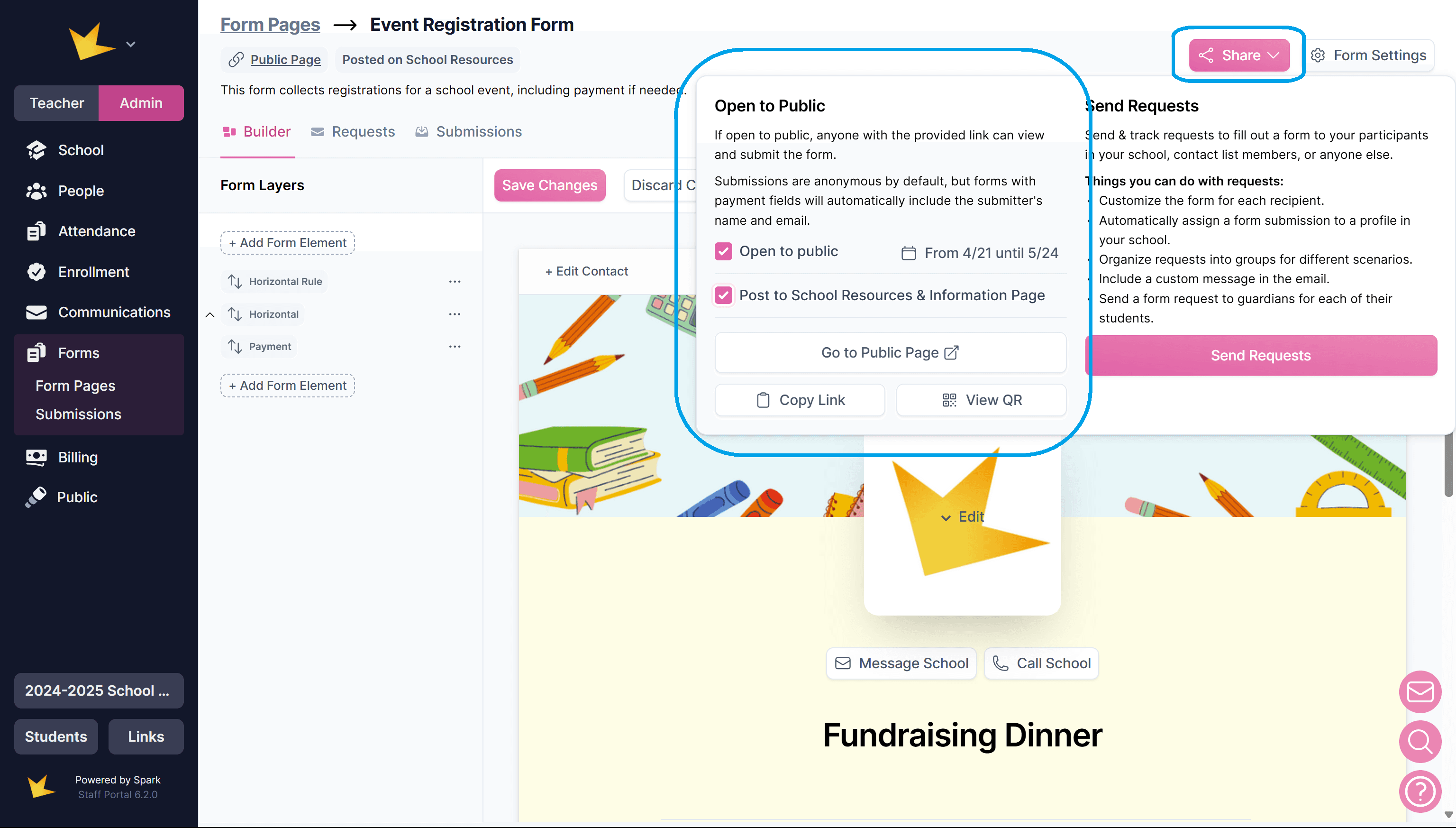
For forms that require a submission from specific recipients, or that should only be submitted once, send Form Requests rather than opening the form to the public.
Sharing Forms with Email Requests
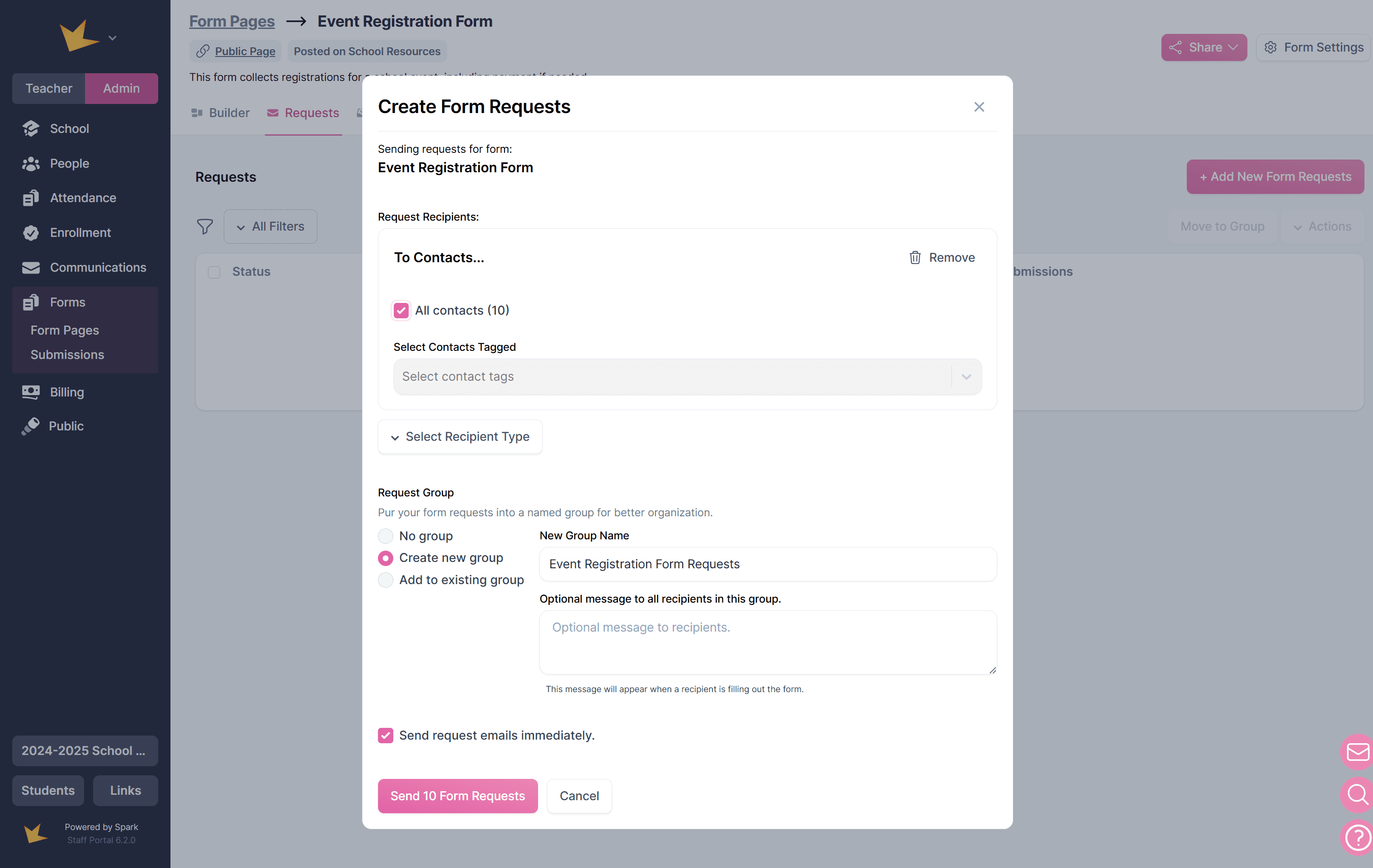
For forms that need to be filled out by specific individuals, send form requests:
- Click Send Requests to access the Requests tab.
- Click + Add New Form Requests.
- Choose the recipient type.
- (Optional) Create a Request Group to track the batch of requests.
- Decide when to send the requests:
- Send immediately
- Save for later (This allows time to add a message or customize the form for specific recipients before sending.)
This structured approach ensures that forms are shared efficiently and reach the right people.
Key Features of Form Requests
- Organize requests into Groups: Batch requests into Groups to manage requests by type or time frame and easily track requests and submissions.
- Link submissions to profiles: Automatically connect form responses to people profiles in your platform.
- Customize Requests: Tailor the form for specific recipients or groups, including custom messages and edits.
- Schedule Requests: Set up future delivery dates for form requests.
Recipients of Form Requests
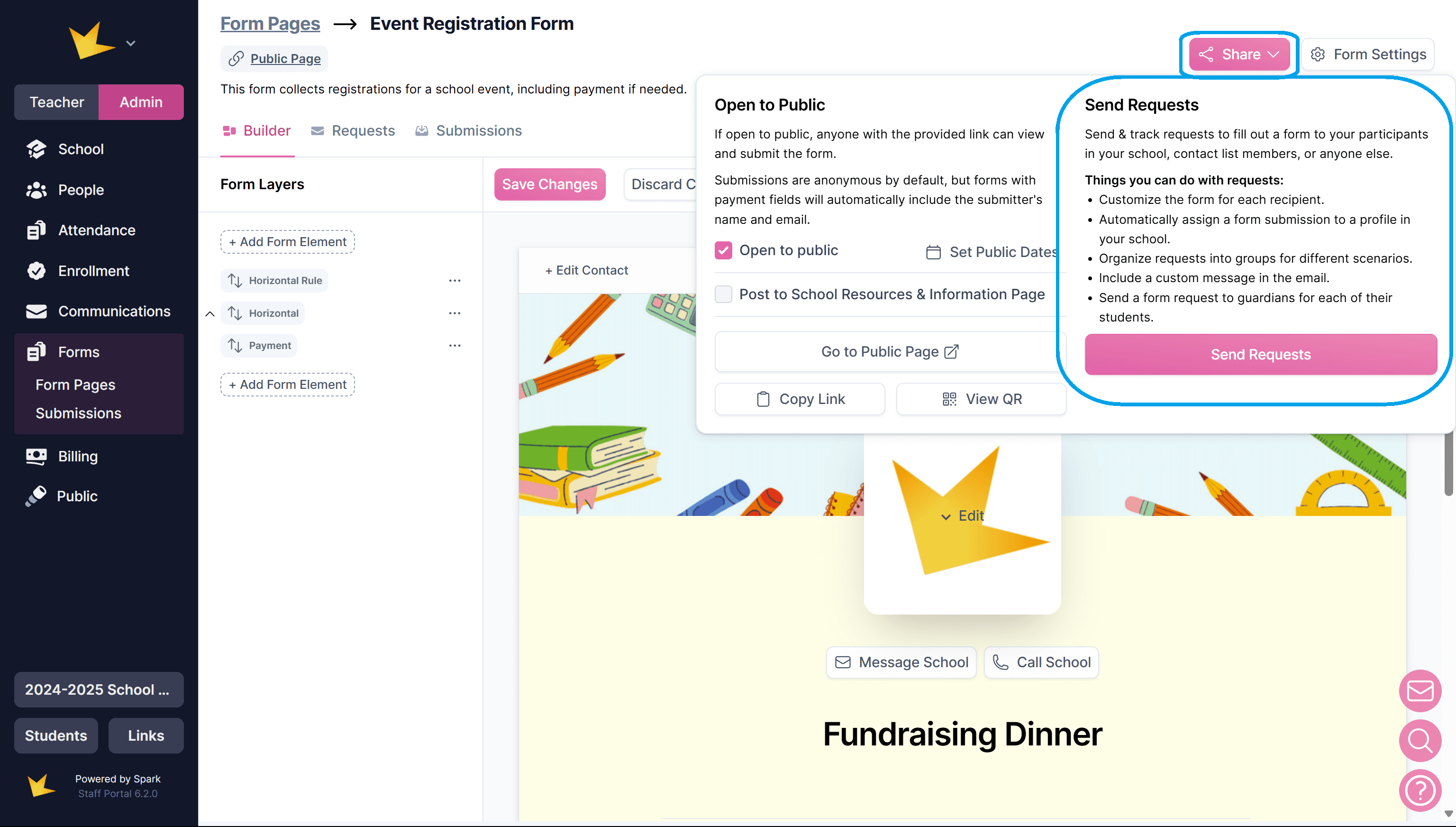
Select from several recipient types when creating a form request.
- Emails – Add recipients manually by entering email addresses.
- Guardians – Select guardians from your school. Forms can be requested for each guardian's student if needed. Primary guardians only can also be selected.
- Students – Select students from your school.
- Staff – Select staff members from your school.
- Contacts – Select contacts from your Communications contact list. To learn more about how to create a contact list, go to Communications -> Contacts.
For individuals not in the Spark platform, you can send forms via email by selecting the Emails option under recipient type.
All recipients will recieve an email requesting the form submission.