- Help
- Assignments
Goals
📣 Update Notice: The Student Planner was previously called "Assignments" or the "Assignment Calendar."
What are Goals?
Goals in Spark School are objectives that allow students to work at their own pace, as opposed to regular assignments, which are due on a specific day. Goals are useful for detailed, long-term projects or more flexible, individualized learning paths. Students can submit progress for their goals, and the teacher can monitor their pace and provide feedback until the goal is complete.
Key Differences Between Goals and Regular Assignments:
- Goals: Students complete them at their own pace, submitting progress regularly.
- Assignments: Scheduled with fixed dates and deadlines that are visible on the student's portal.
Creating a Goal
- Access the Goal Modal
- Navigate to the Student Planner via the left navigation bar or within a classroom.
- Click Add New at the top-right or hover over a date and press +Assignment.
- In the modal, choose the assignment type: Goal.
- Enter Goal Details:
- Goal name
- Session
- Classroom
- Subject
- Topic
- Students
- Response type
- Grades
- Reward points
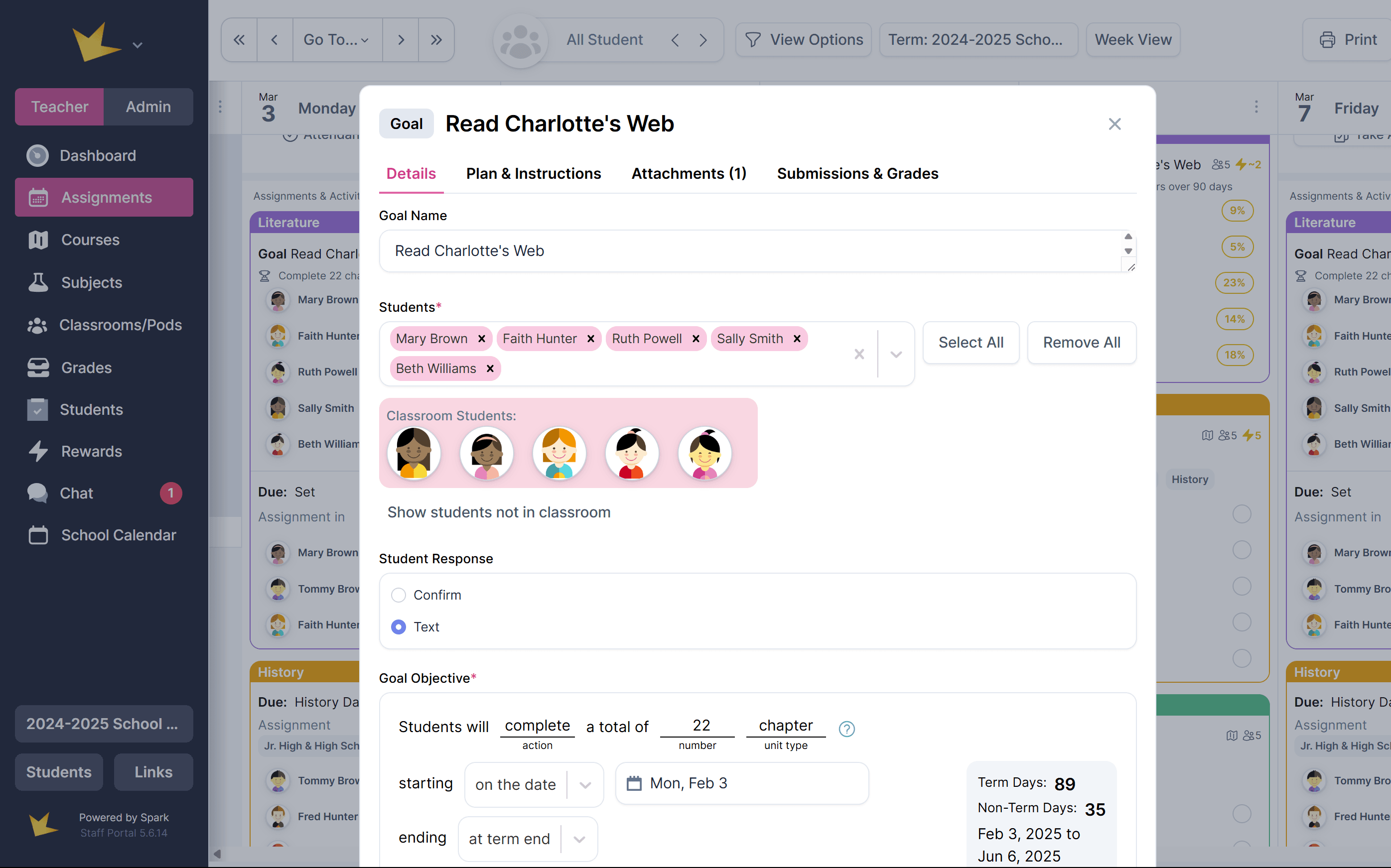
- Create the Goal Objective:
- Define the goal's objective and the timeframe in which it needs to be completed. This is where the teacher specifies the task (e.g., reading a book, completing a workbook) and the date range.
- Finalize:
- Click Create or Create & View Assignment to proceed. If you select the latter, a modal will appear, allowing you to add additional instructions, attachments, or details.
What is the Goal Objective?
The goal objective is the key task or achievement that the student is expected to complete, along with the timeframe for completion. Examples:
- Read a 20-chapter book over one month.
- Finish a 100-page workbook over the term.
- Write a six-paragraph essay in three days.
Spark School will automatically calculate the recommended pace for the student based on these parameters, adjusting as progress is made.
Editing a Goal
To make adjustments to an existing goal, navigate to the Student Planner, locate the goal, and click to edit. You can modify the details, such as the objective, students, grades, or response types, and save your changes.
Viewing Progress
You can monitor your students' goal progress through these locations:
- From the Dashboard (small school mode):
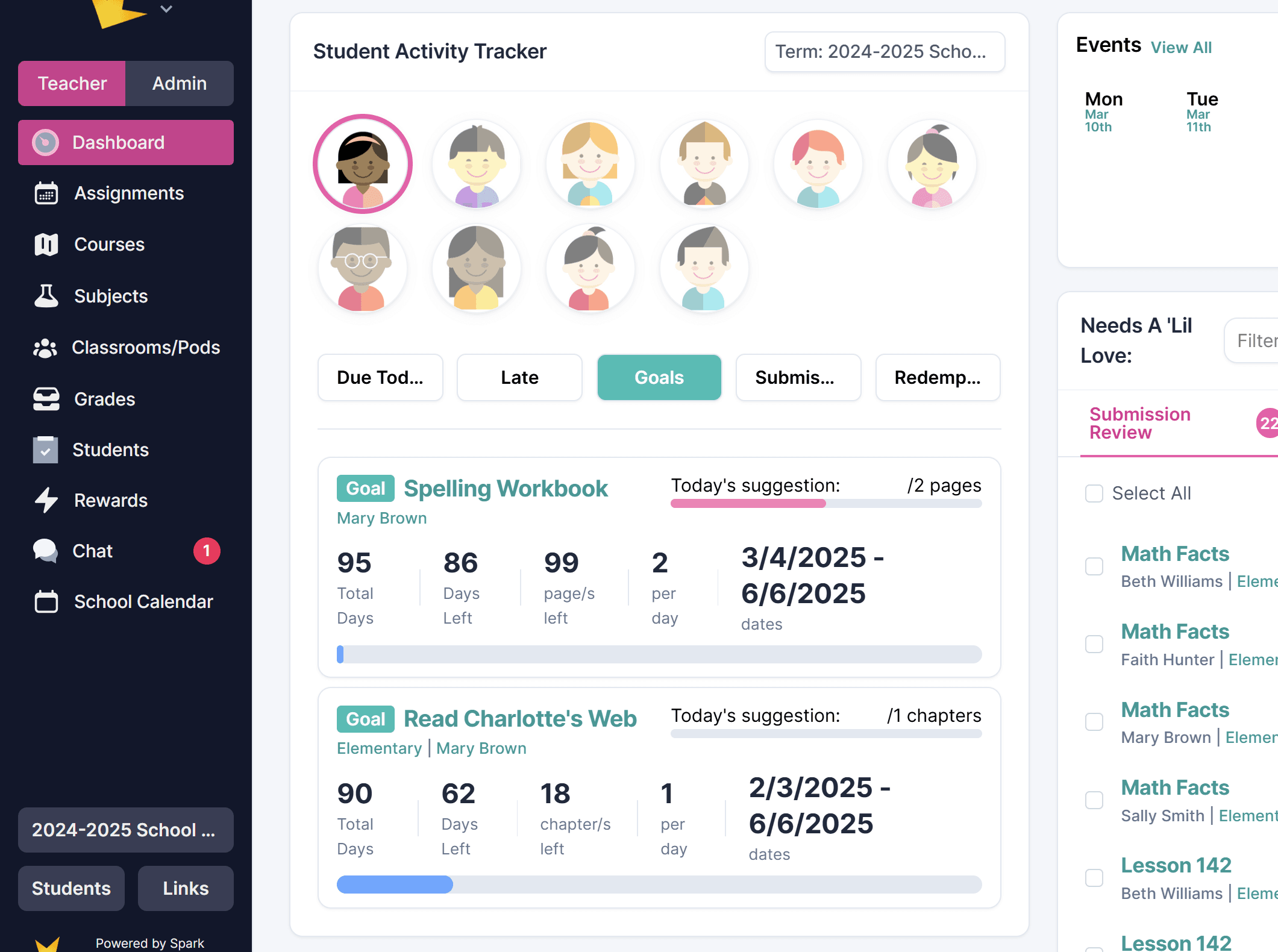
- Go to the Student Activity Tracker on the dashboard.
- Click on the student’s picture and select Goals to see all current goals along with progress.
- From the Student Planner:
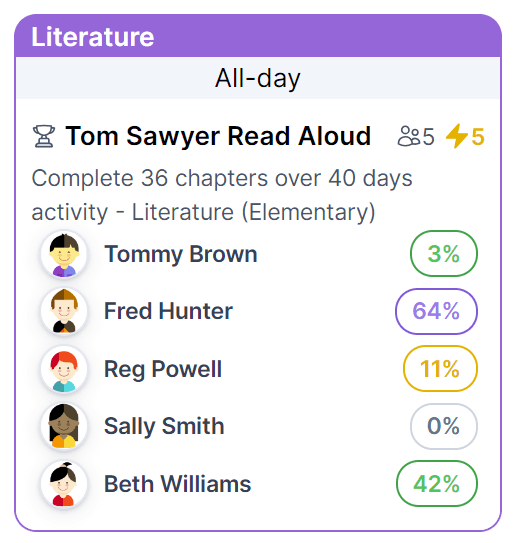
- Go to Student Planner on the left navigation or in your classroom and locate the goal. The percentage of completion will appear next to the goal.
- If the Show Submissions option is not enabled, go to View Options and select it.
- Click on the percentage to view detailed progress and feedback.
- From a classroom's Activity section
- Open the classroom and go to the Activity page -> Progress & Submissions section
- Select Goal Progress from the dropdown at top
- Select a student