- Help
- Core Concepts
Portals
Every person in your school or program has access to a portal tailored to their role. Students use the Student Portal to view and submit assignments, track their progress, and stay informed about upcoming events. Guardians use the Guardian Portal to monitor their students' learning, complete forms, view events, and make payments. Staff use the Staff Portal to manage schedules, assignments, grades, attendance, and other school operations.
Portal access can be managed within each individual profile, or on the Portal Access page in People.
Portal Use
Students
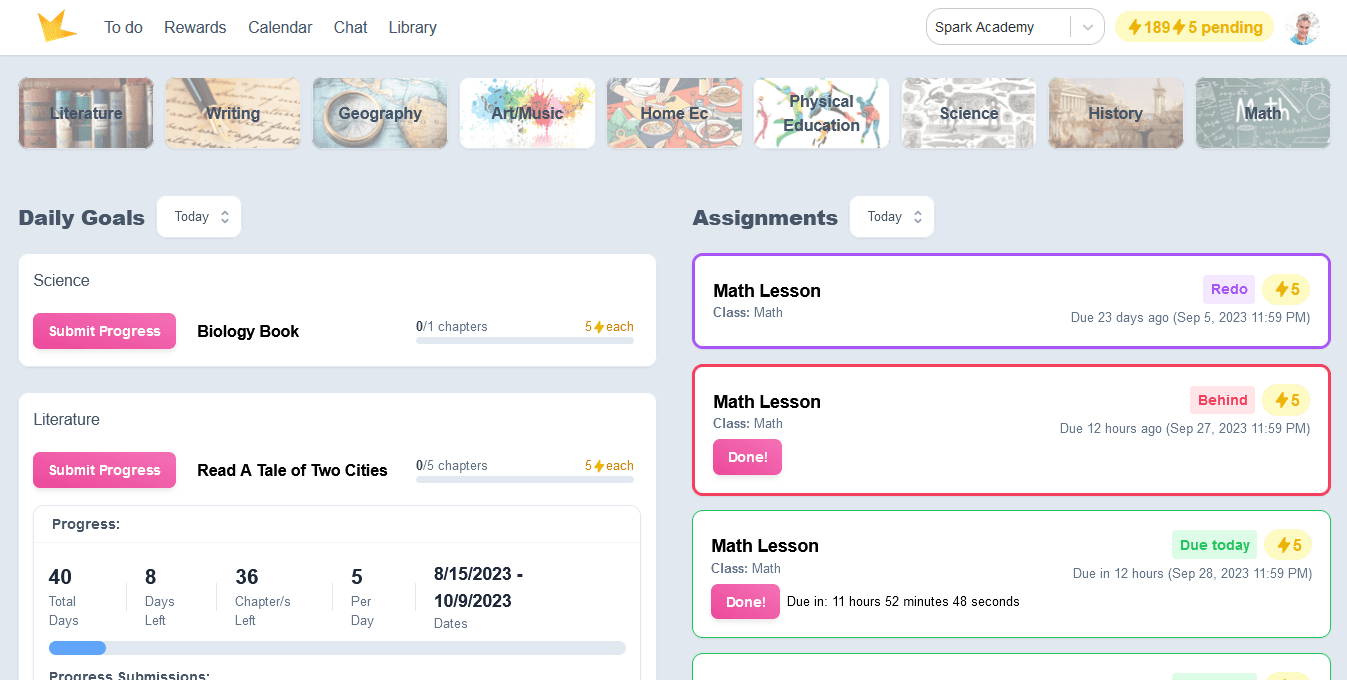
The Student Portal keeps students organized and motivated by providing access to all assignments, goals, activities, events, and rewards.
- Assignments: Click to view instructions, attachments, and to make a submission.
- Goals: Track self-paced assignments with progress bars and submission history.
- Activity Box: View a list of scheduled activities for the day.
- Subject Filters: Sort assignments by subject for easy navigation.
- Additional features include the Rewards Store, School Calendar, Chat, and Library, enhancing the student’s learning journey.
View the sections below to learn how to grant portal access to students.
Guardians
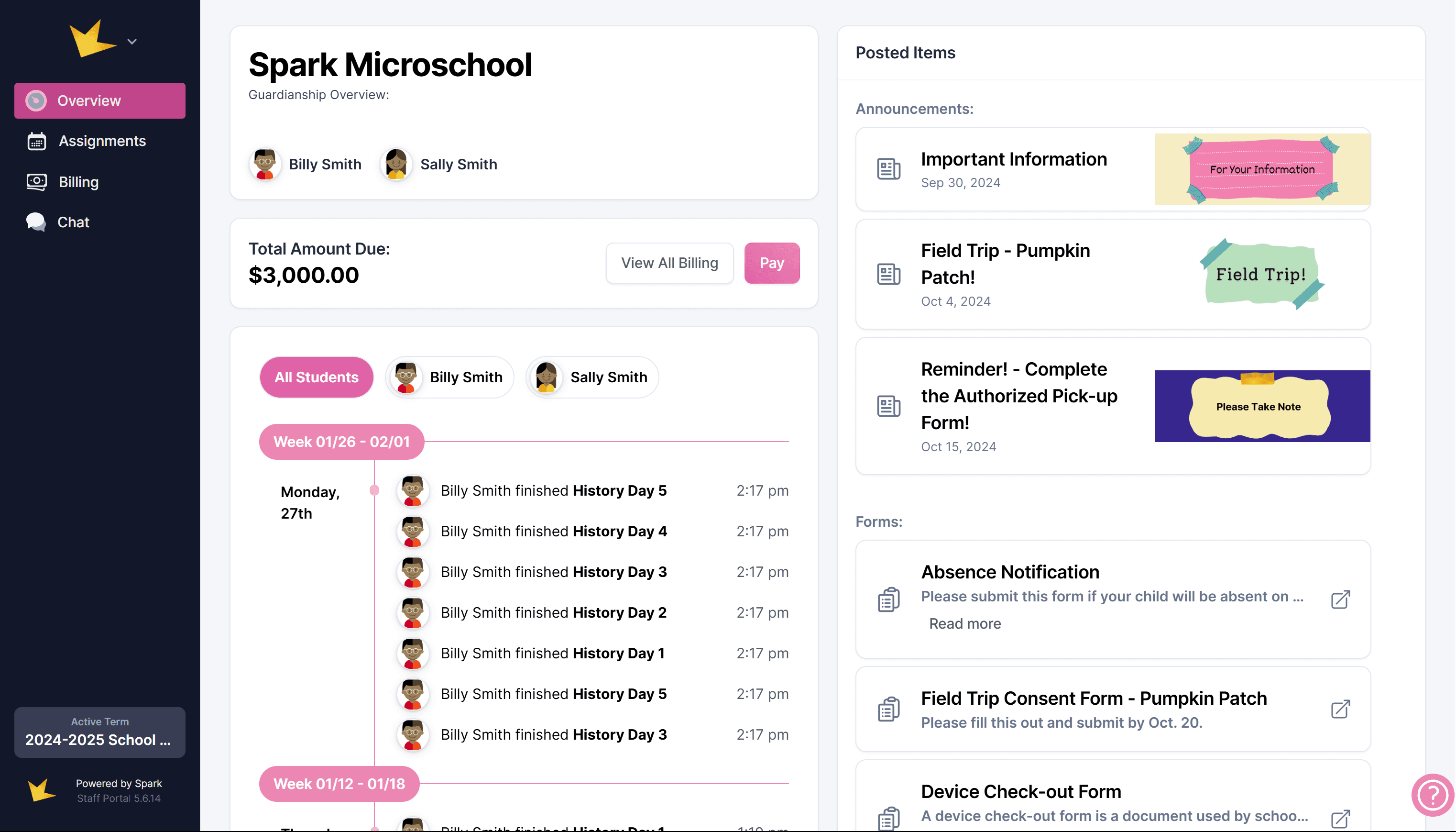
The Guardian Portal keeps parents informed about their child’s progress and activities.
- Student Planner: View student assignments, goals, submissions, and progress.
- Events and Announcements: Stay updated on important school events.
- Invoices: Conveniently pay invoices online.
- Forms: Fill out and submit forms.
- Reports: View students' grade and attendance reports.
- Chat: Communicate directly with teachers and students.
View the sections below to learn how to grant portal access to students.
Staff Portals
Staff Portals are identical to the Spark platform created by the owner of the school, but can be customized to allow access only to specific parts of the program.
- All Access: This is the default setting and provides the staff member full access to all features and information within your Spark school.
- Limit to Classrooms: Restrict the staff member’s access to only the classrooms where they are listed as a teacher.
- Custom Access: Select specific resources and features the staff member is allowed to access.
- Refer to the Staff → Portal Access help doc for more details.
View the sections below to learn how to grant portal access to staff.
Portal Access
Individual Access
To grant students, guardians, or staff portal access individually, open the profile and go to the Portal Access tab.
Managing Access in Bulk
To manage portal access for students, guardians, and staff in bulk, go to the Portal Access page in the People section.
Helping Users Access Portals
To help families understand Spark and how to access their portal, share the following documents, or use the Custom Email template, "Welcome/Onboarding for Guardians."
Resources for welcoming and onboarding families