- Help
- Core Concepts
Courses & Subjects
What is a Course?
A Course is a focused plan of study in a specific subject. It includes all the needed assignments, lesson plans, and attachments. Once created, a course can be saved and scheduled for any date, student, or classroom as many times as needed. It can also be used by the teacher as a lesson plan guide.
Examples of Courses:
- Biology
- Algebra I
- 7th Grade American History
- World Geography
- Greek Literature
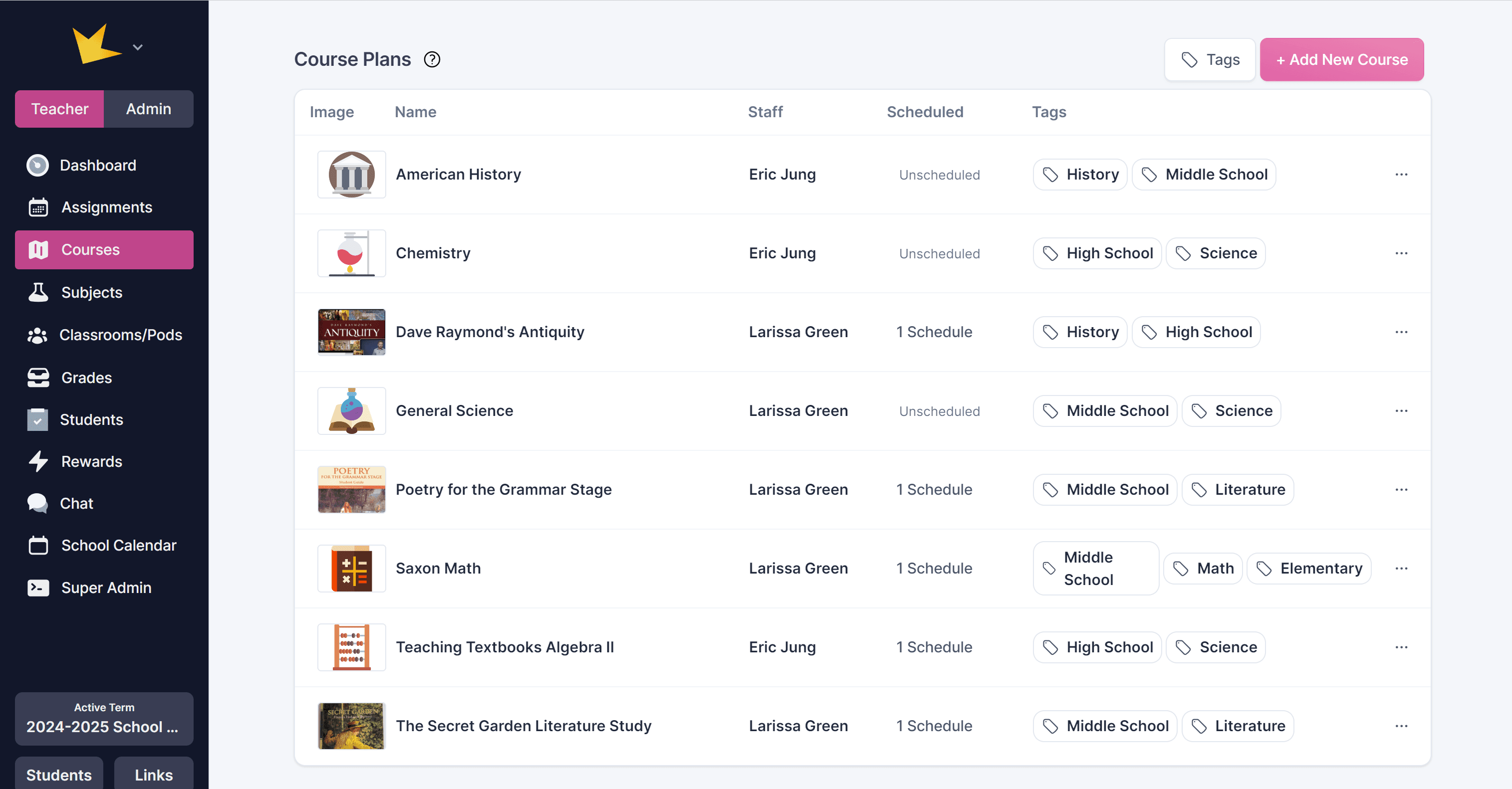
Creating a Course
- To create a course: go to Learning → Courses section (or your Classroom’s Courses tab), click “+ Add New Course Plan”, enter a name, then click Create Course.
- From there, you can add assignments, lesson plans, attachments and other course materials.
Using Courses
- Once your Course Plan is ready, you turn it into an actionable schedule by creating a Course Schedule — specifying dates, students or classroom, and term, which then applies the course plan to real assignments.
- When scheduled, the assignments from the course automatically appear on the Assignment Calendar and in student portals, just like any other assignment.
- You can reuse a Course Plan multiple times across different terms or groups, and adjust scheduling details (dates, included students, etc.) as needed without recreating the plan from scratch.
Learn more in the Course help docs.
What is a Subject?
A Subject is a general category or label used to organize assignments, courses, classrooms, or gradebooks based on the type of material they cover. Assigning subjects to these areas helps keep information organized and labeled properly on the student planner, student portals, and grade reports.
Examples of Subjects:
- Math
- Science
- Language
- History
- Art
- Music
- Physical Education
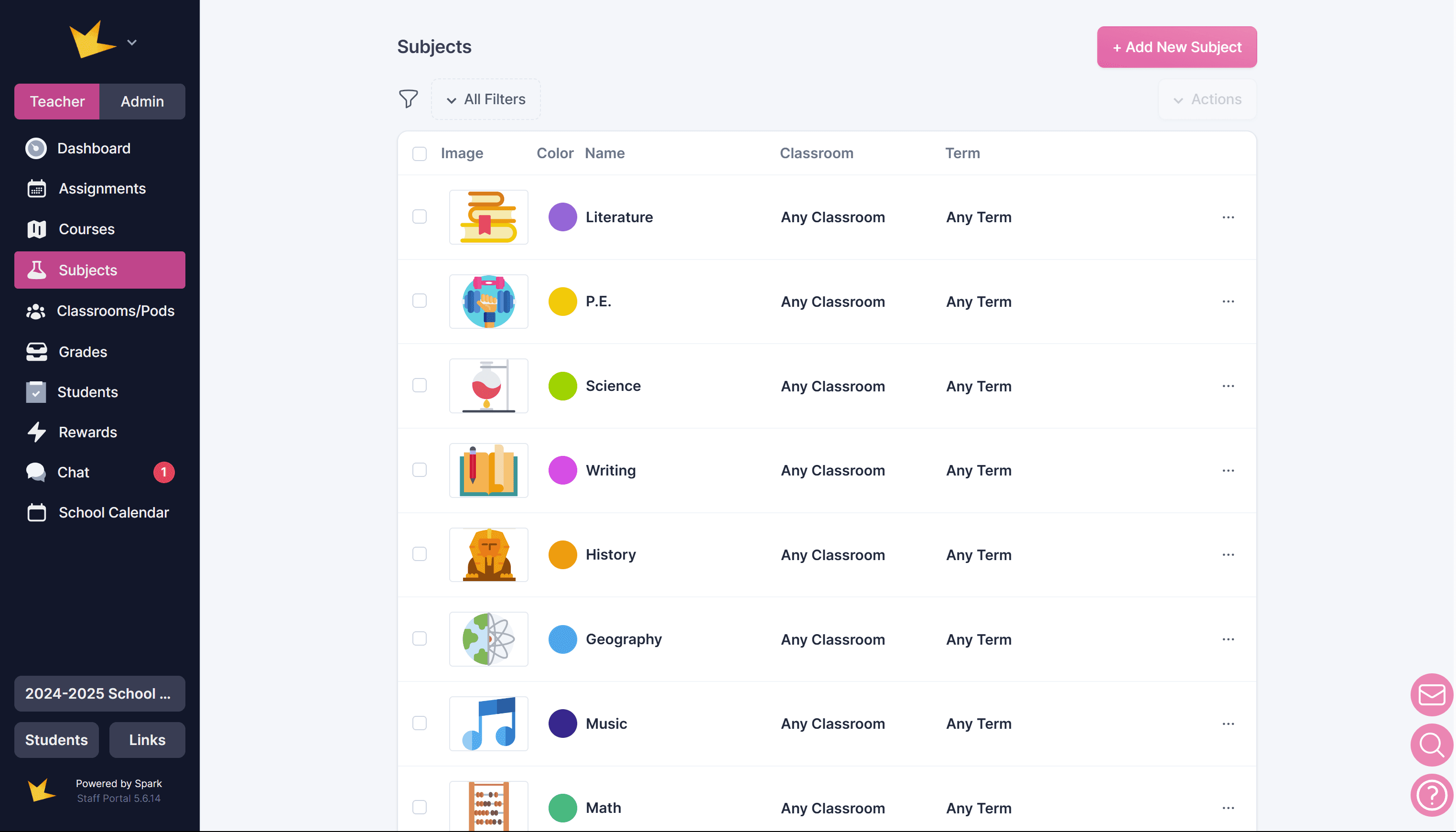
Creating a Subject
- Go to Learning → Subjects, click + Add New Subject, fill out the form, and click Create.
- Determine if your subject should be used across your entire Spark platform, or whether you want it to be assigned to a specific term or classroom.
Using Subjects
Label the following with a subject to enhance organization and clarity:
- Assignments: Labeling assignments with a subject allows you to organize them by subject on the student planner and student portals.
- Grade Records: Assigning a subject to a grade record in the gradebook provides clarity when generating grade reports.
- Classrooms: Assigning a subject to a classroom helps identify what is being studied within that classroom.
- Courses: Designating a course with a subject clarifies the type of material being taught.
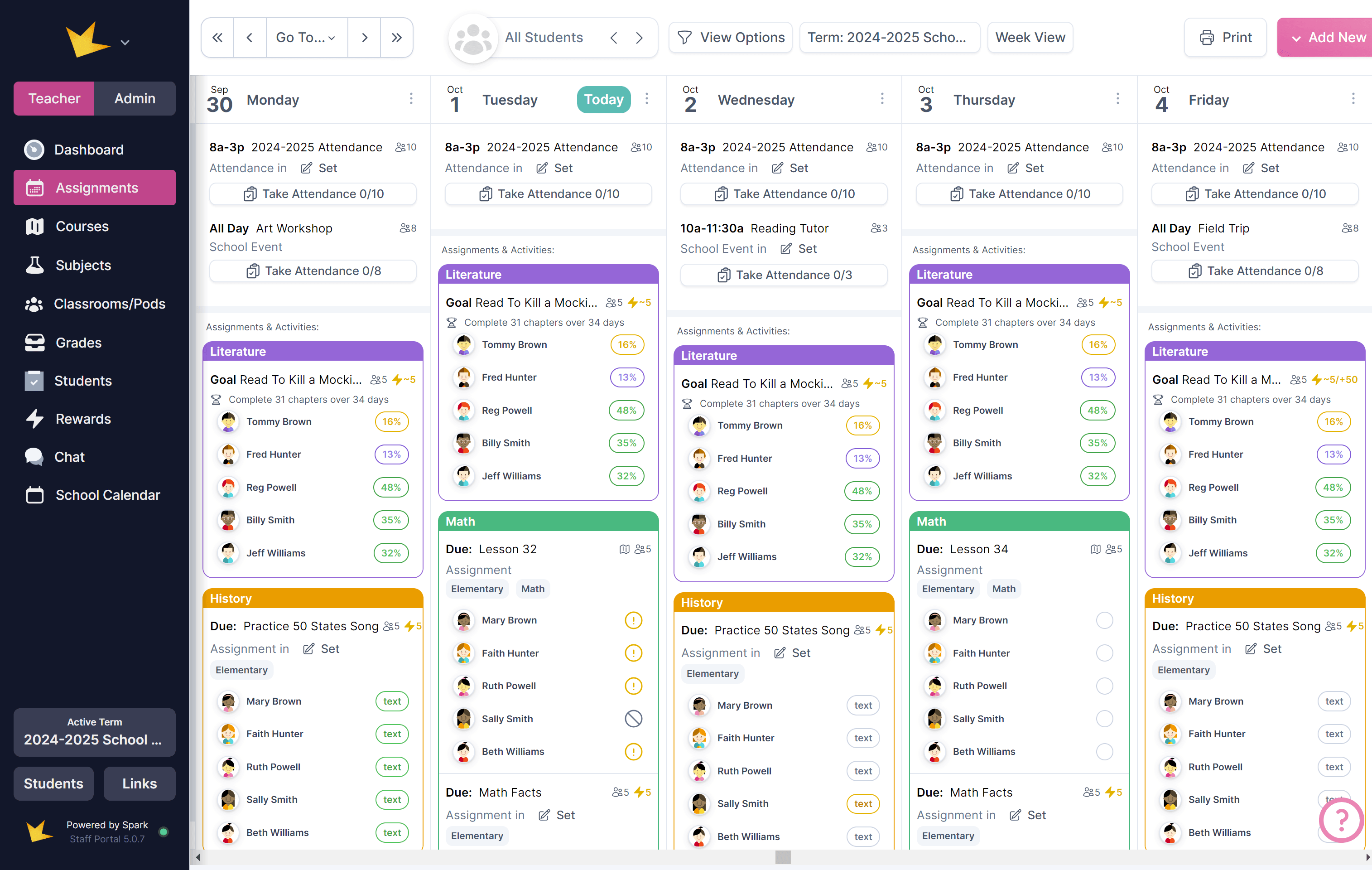
Courses, Subjects, and Classrooms
Subjects, classrooms, and courses are three distinct features on Spark. Understanding these features will increase your ability to use Spark to the fullest in your school operations.
- Course: A focused, specific plan of study with a reusable set of assignments and lesson plans. Example include "Pre-Algebra" or "World History." Staff can create a course "plan," then schedule it for specific dates and students as many times as needed.
- Subject: A general label used to organize assignments, courses, classrooms, or gradebooks by type of material being studied. Examples include math, science and art.
- Classroom: A group of students with one or more teachers. Examples: "6th Grade" or "Miss Susie’s Science Class."
- Teachers can perform classroom tasks within a self-contained classroom, such as create assignments, keep grades, and take attendance.
- Course plans can be scheduled for a classroom to work through.
- Classrooms may be labeled with a subject, or left unlabeled if they cover multiple subjects.