- Help
- Grades
Transcripts
A transcript is an official summary of a student’s academic history. It lists courses taken, grades earned, credits awarded, and GPA. Transcripts are commonly used when applying to colleges, transferring schools, or verifying academic progress. Spark's transcripts can pull data from grade records across multiple terms, and can also be customized or created from scratch.
Creating a Transcript
Transcripts can be accessed in Admin → Reports → Transcripts or from a student profile → Reports & Transcripts.
To create a transcript:
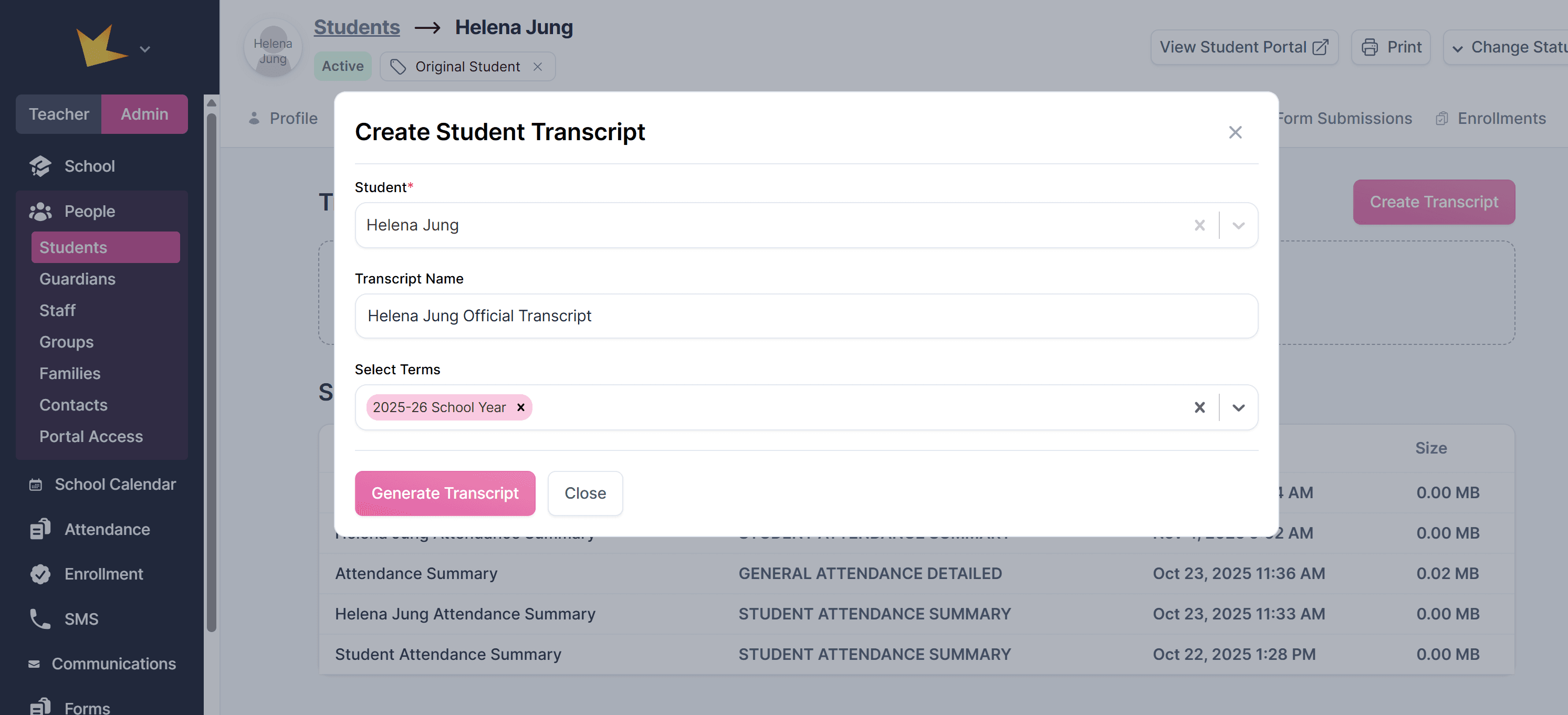
- Go to Admin → Reports → Transcripts or open the student’s Reports & Transcripts tab.
- Make sure the correct student is selected.
- Enter a name for the transcript.
- Select the terms to include. Grade data from those terms will be pulled into the transcript.
- Each term will comprise a section in the transcript.
- You can add sections, courses, and grades manually later.
- Click Generate Transcript.
Transcript Builder
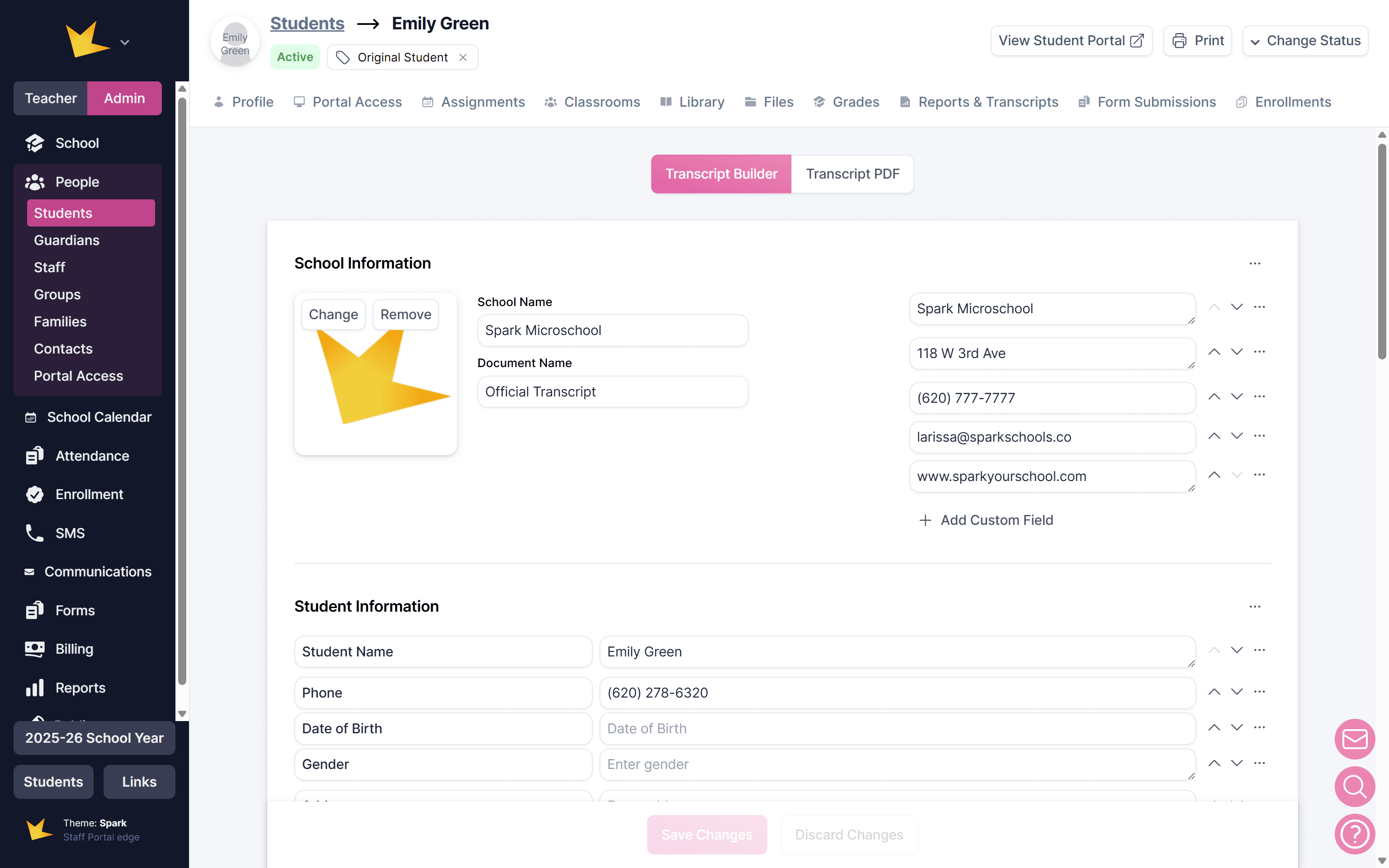
After generating the transcript, you’ll enter the Transcript Builder. Here you can customize each section.
School Information
Displays details from your School → Settings → Public Information page.
Student Information
Shows basic details from the student profile.
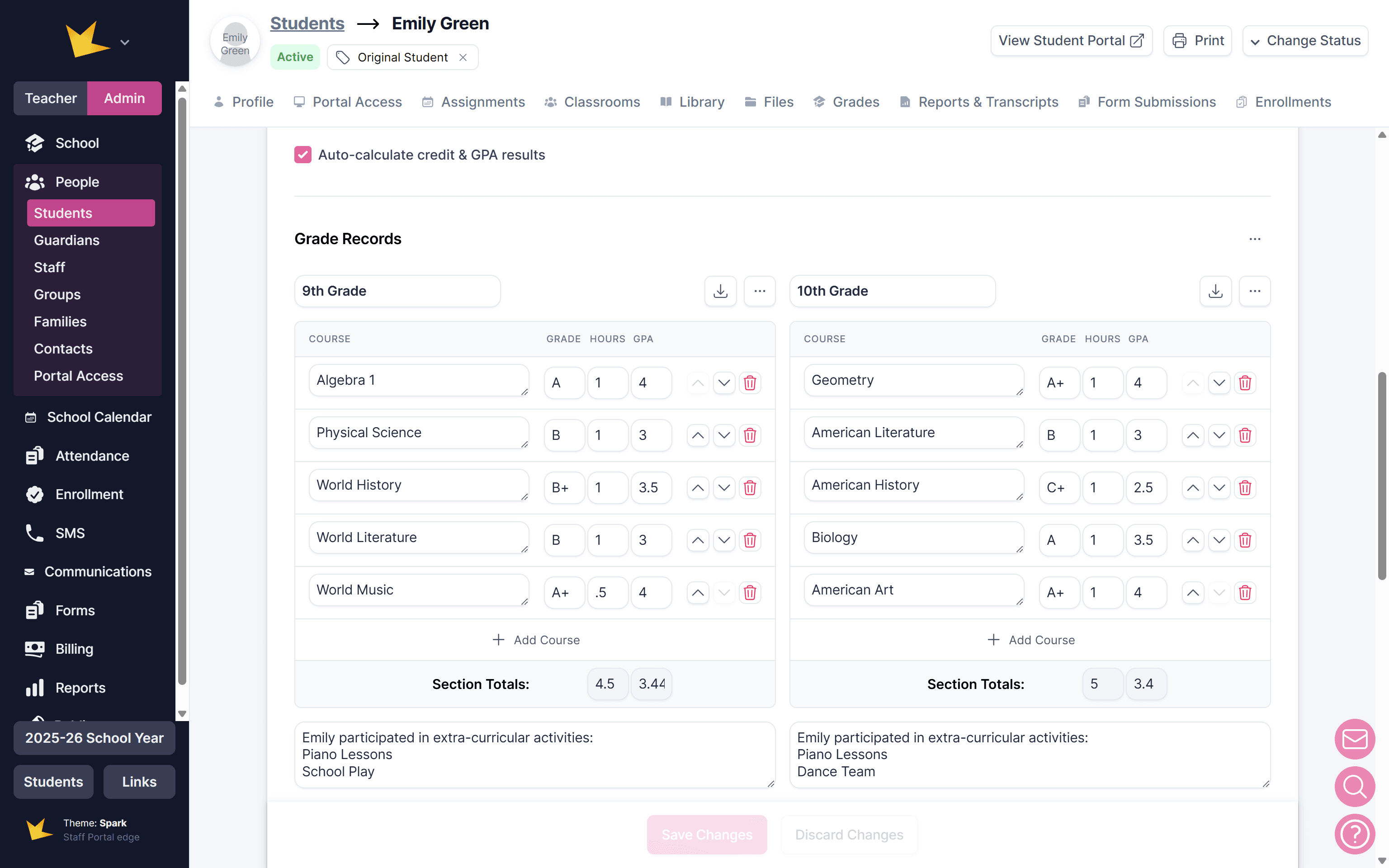
Grade Records
Displays course and grade data for the selected terms.
- Up to four sections can be included.
- Add or remove courses as needed.
- Create custom sections and rename them.
- Add notes to each section.
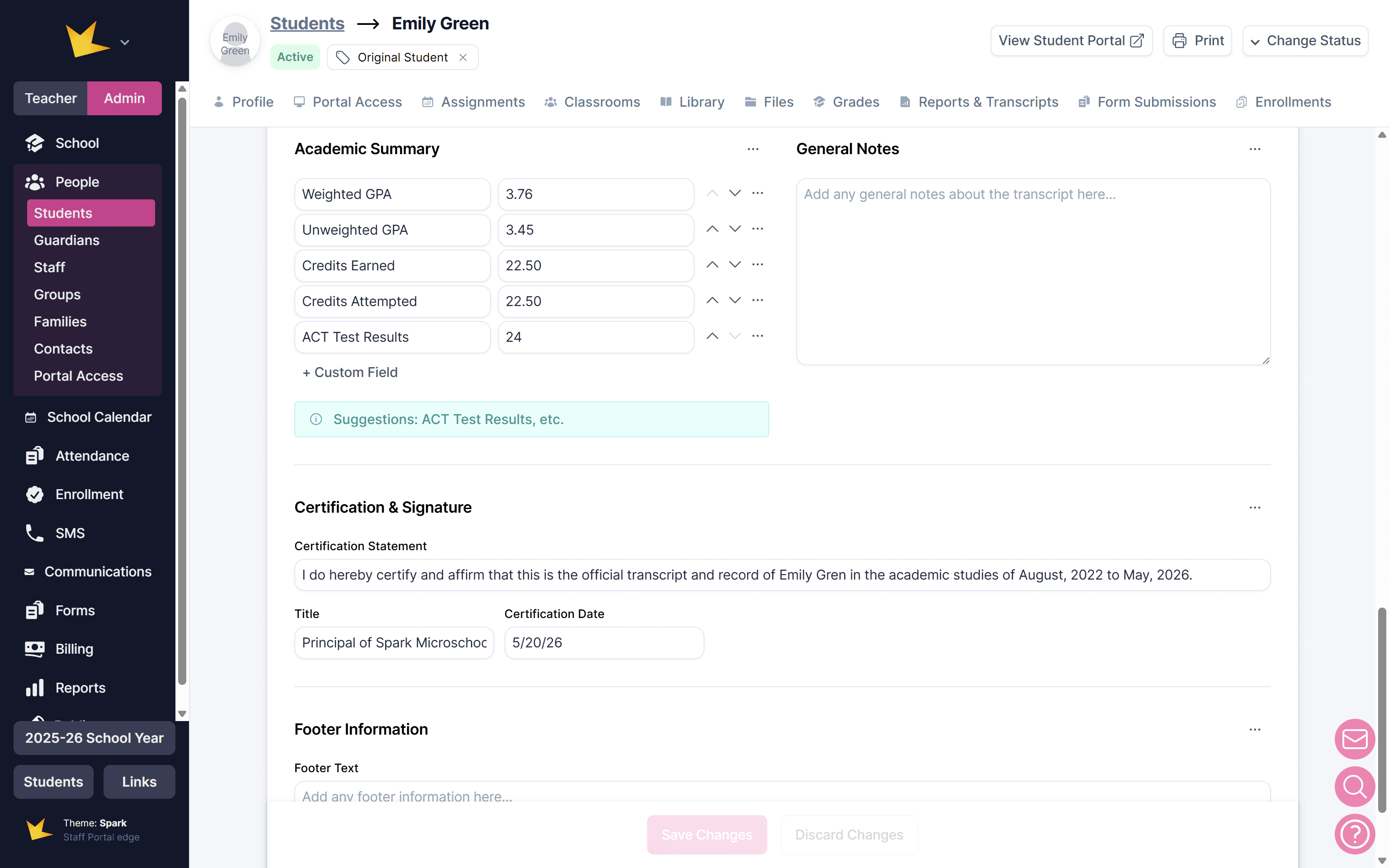
Academic Summary
Shows credits earned, GPA, and other summary information.
General Notes
Add optional notes such as extracurricular activities, test scores, or course descriptions.
Certification & Signature
Add the certifier’s title and name. When printed, the transcript can be signed here.
Footer
Add footer details as needed.
Transcript PDF
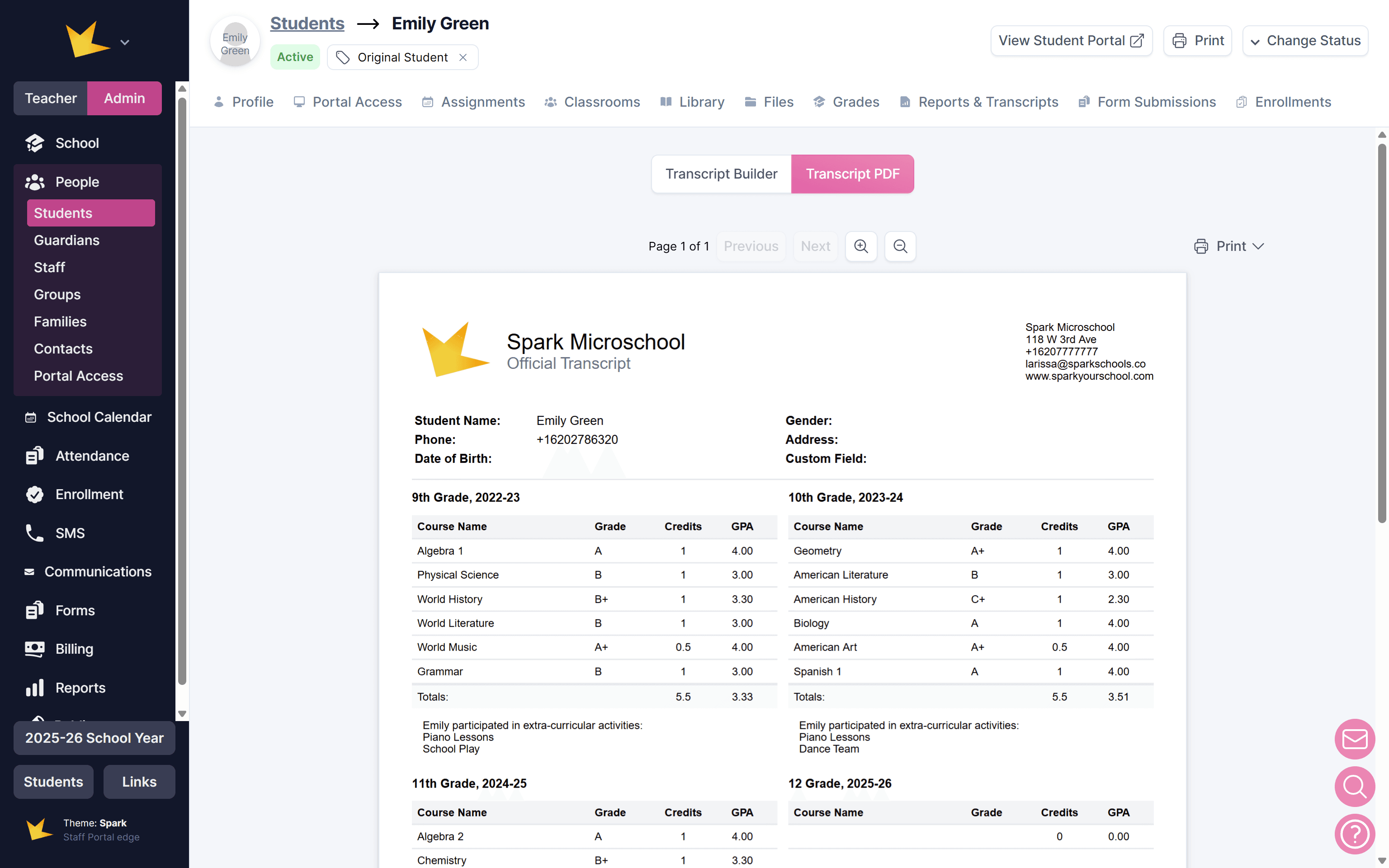
When your transcript is ready, preview it in the Transcript PDF view.
Click Print to download or print the transcript.
The transcript will also be saved in the student’s Reports & Transcripts section.