- Help
- Rewards
Managing Rewards - OLD
Managing Reward Redemptions
When a student redeems a reward, the transaction is not complete until the reward is fulfilled by the teacher. Here’s how to manage reward redemptions:
What Happens When a Student Redeems a Reward?
After a student clicks Redeem on a reward, you’ll receive a notification in multiple places:
- Email notification
- The Needs a ’Lil Love section on your dashboard
- The Rewards → Student Balances page
- The Classroom/Pod → Activity & Rewards page
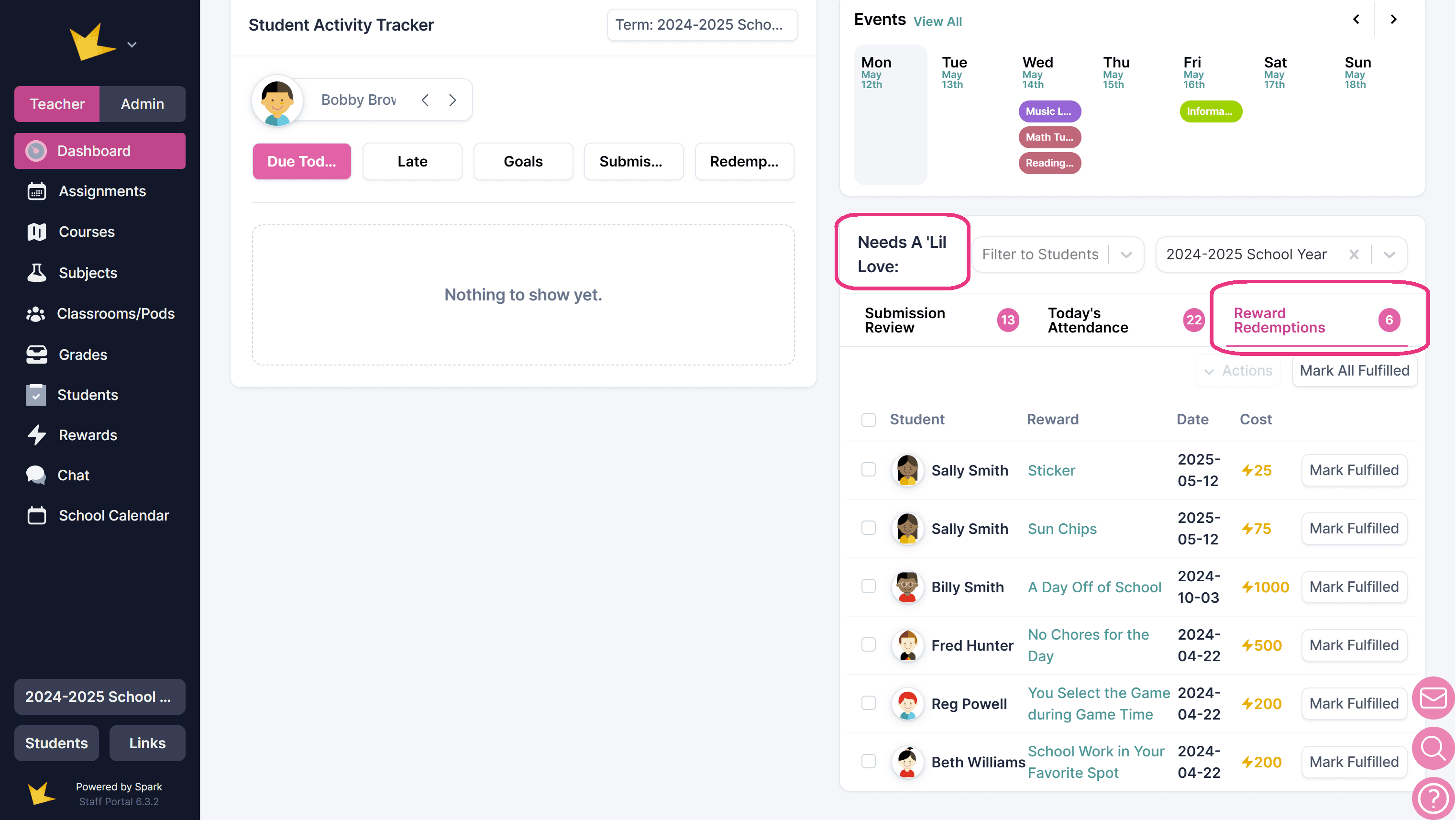
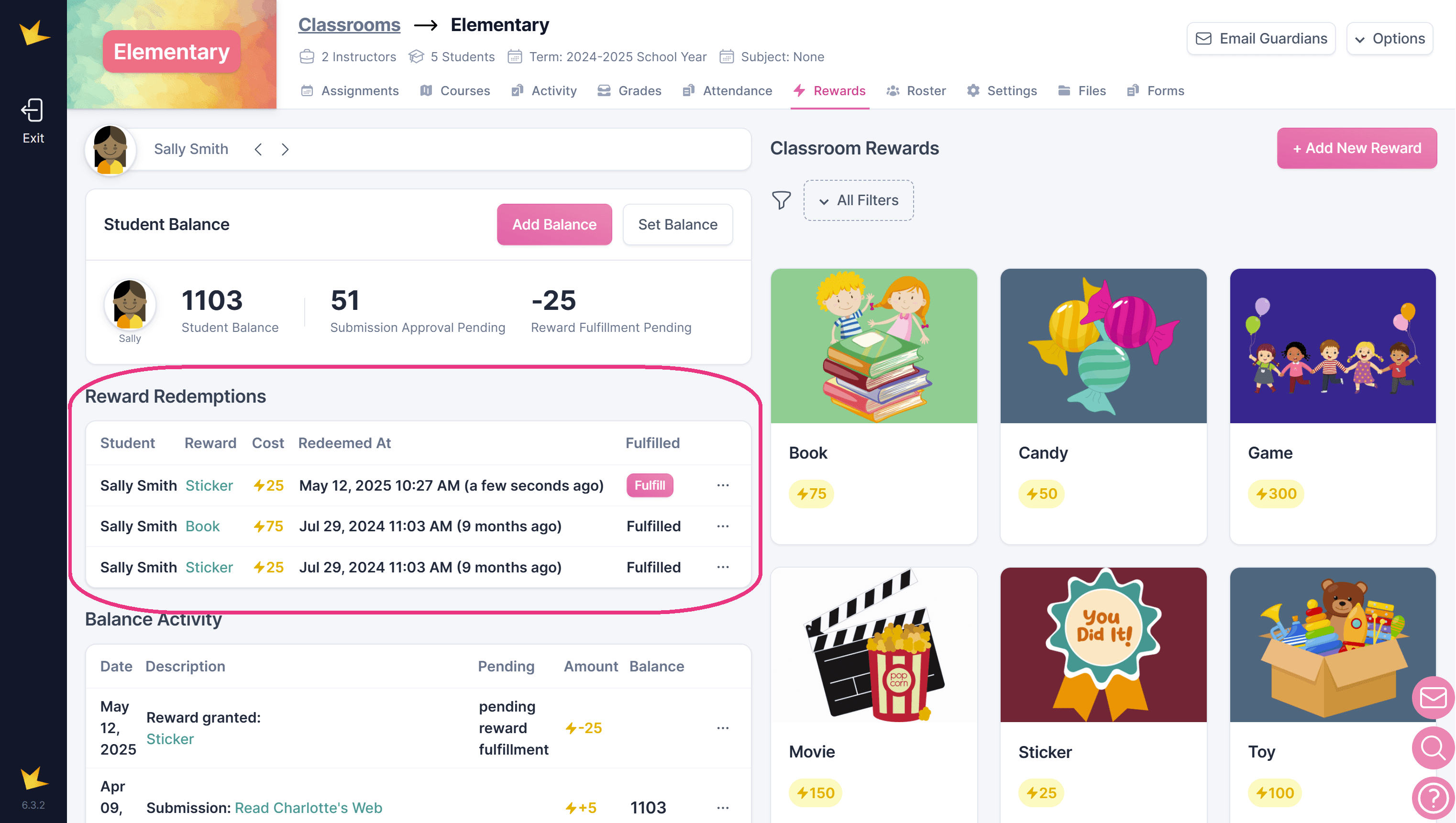
The transaction is considered complete only when you click Fulfill on the reward redemption. Once fulfilled, the student’s point balance will be updated to reflect the transaction.
Fulfilling a Reward
Rewards must be fulfilled by you, the teacher:
- Once you see that a student has redeemed (purchased) a reward, decide whether or not the reward can be fulfilled.
- If the reward can be fulfilled, click Fulfilled next to the redemption to complete the transaction and keep your records up-to-date.
Removing a Reward Redemption
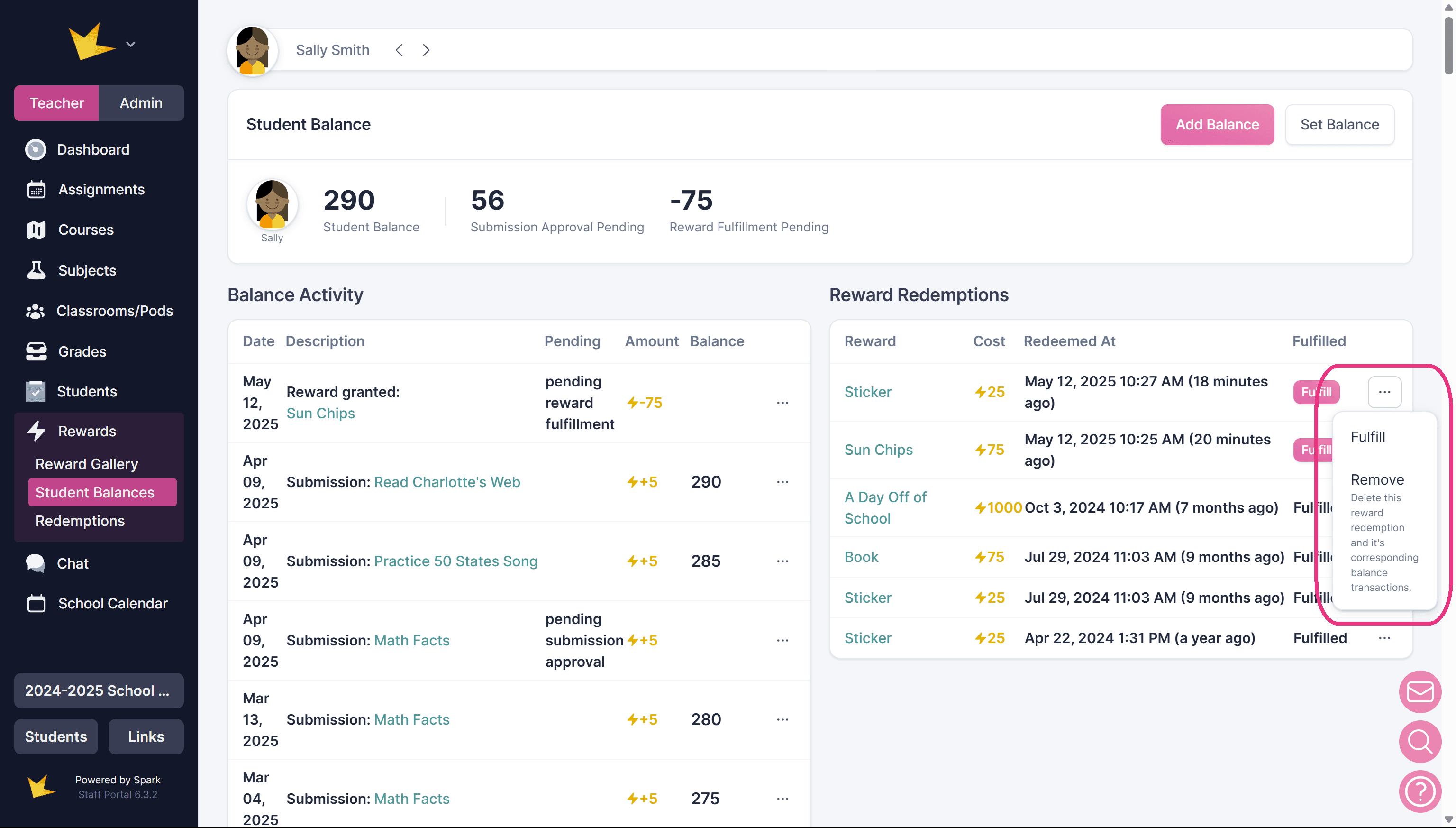
If the reward was redeemed in error or cannot be fulfilled, you can remove the redemption:
- Go to Rewards → Student Balances or Classroom/Pod → Activity & Rewards.
- Find the student in the table and open their record.
- Locate the redemption you want to remove.
- Click the three-dot menu next to it.
- Select Remove.
This ensures that your reward system remains accurate and consistent.
Monitoring Student Point Balances
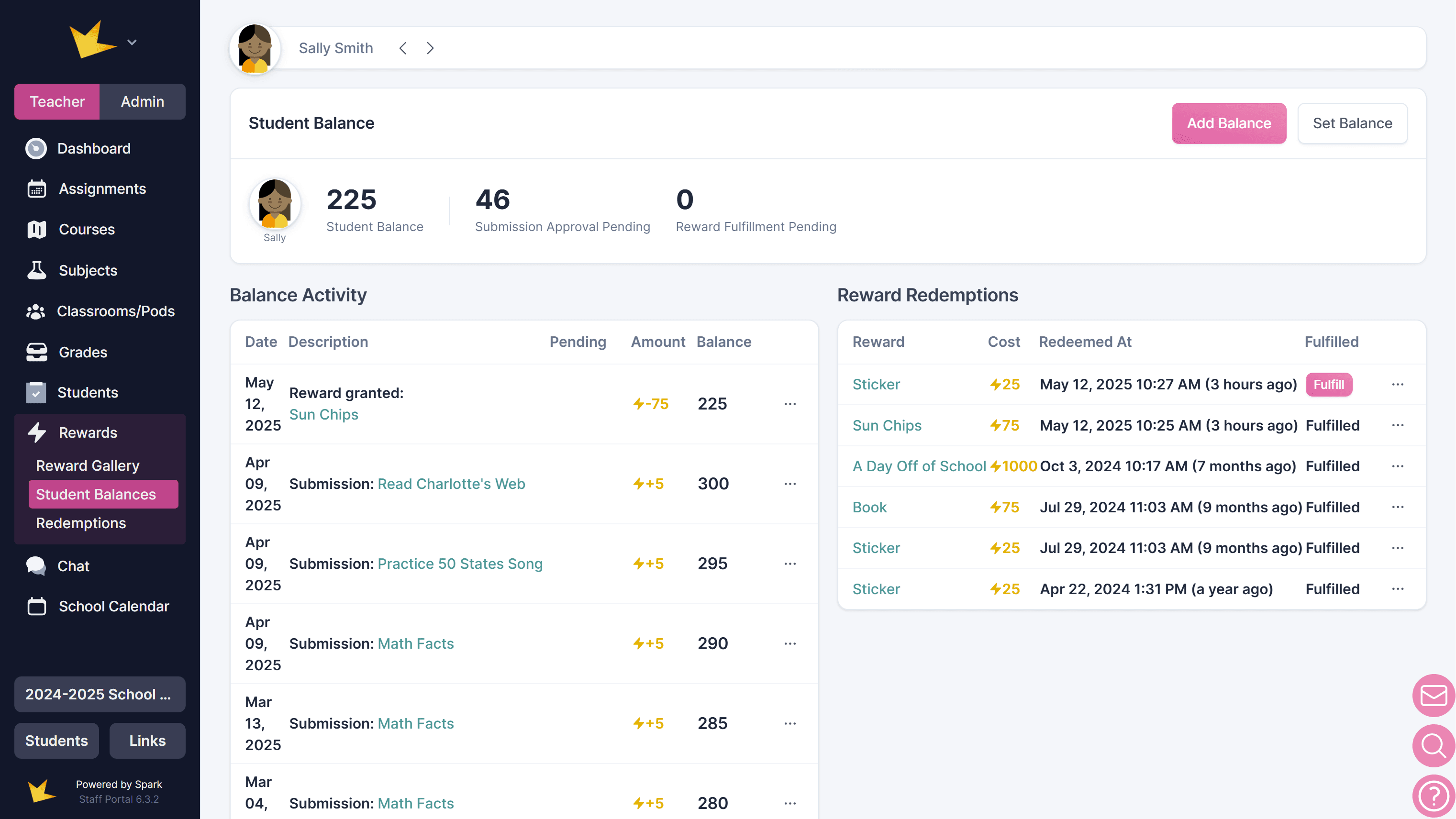
To monitor a student’s points, follow these steps:
- Go to Rewards in the left navigation bar or navigate to the Classroom → Activity & Rewards tab.
- Find the student on the chart and open his record.
- Click on Student Balances.
- Select the student from the dropdown at the top to view their Balance Activity.
- This will allow you to track the points they have earned, redeemed, and their current balance.
Modifying Student Point Balances
You have the ability to modify student point balances as necessary. Here’s how to do it:
- Go to Rewards → Student Balances in the left navigation bar or navigate to Classroom → Rewards.
- Select the student whose balance you want to modify.
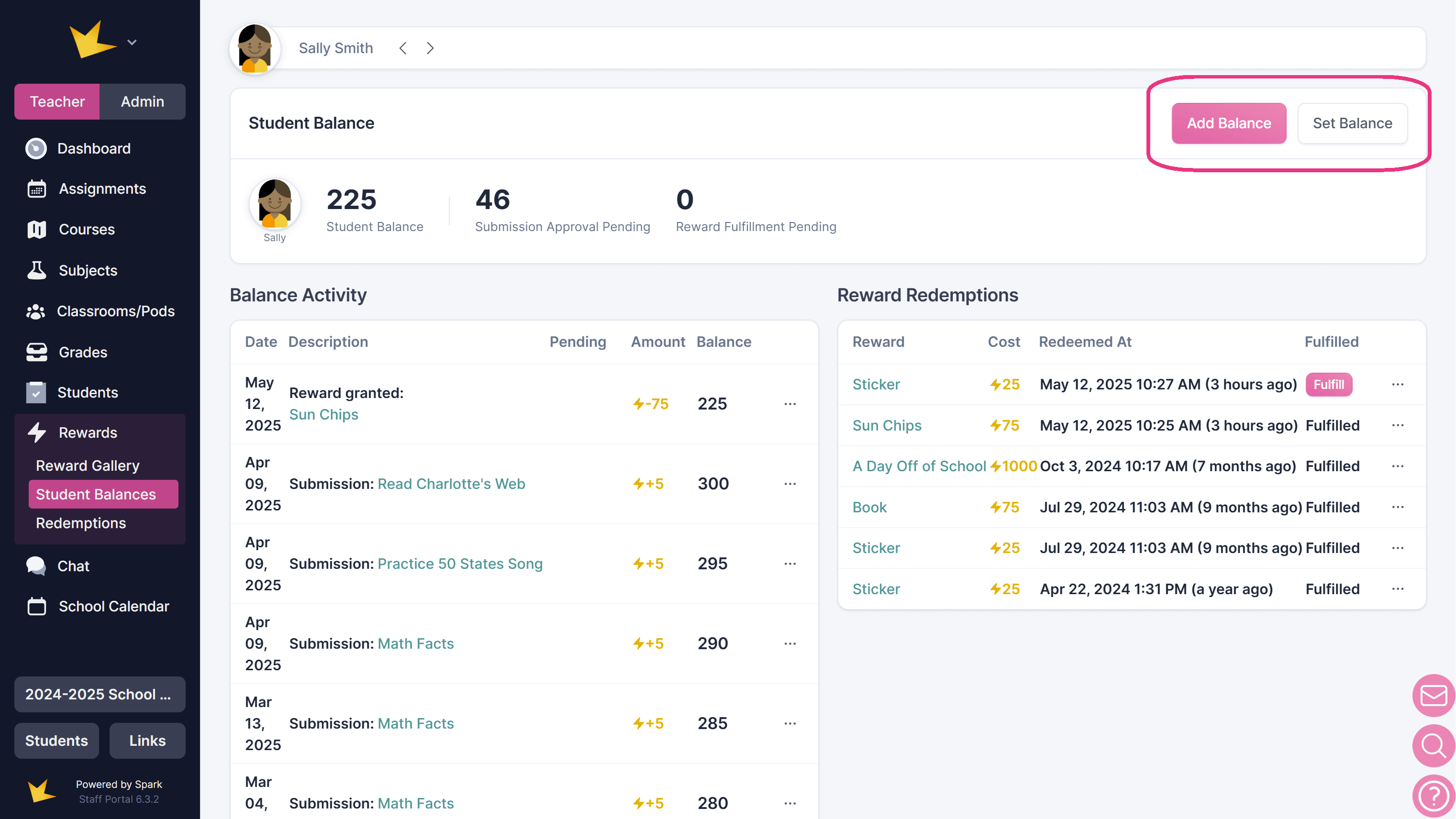
- Click Add Balance.
- To add points, type the amount you wish to add.
- To subtract points, type the minus symbol and the amount you wish to subtract.
- You can also reset the student’s balance by clicking Set Balance and typing in the new balance.
This allows you to have full control over the point management for your students.