- Help
- Rewards
Creating Rewards - OLD
What are Rewards?
The Rewards feature in Spark allows teachers to recognize students for their academic achievements, keeping them motivated throughout their learning journey. Here’s how you can effectively use the rewards system:
- Set Point Values – Assign point values to assignments and goals by entering a value in the Reward Points field in the assignment or goal modal.
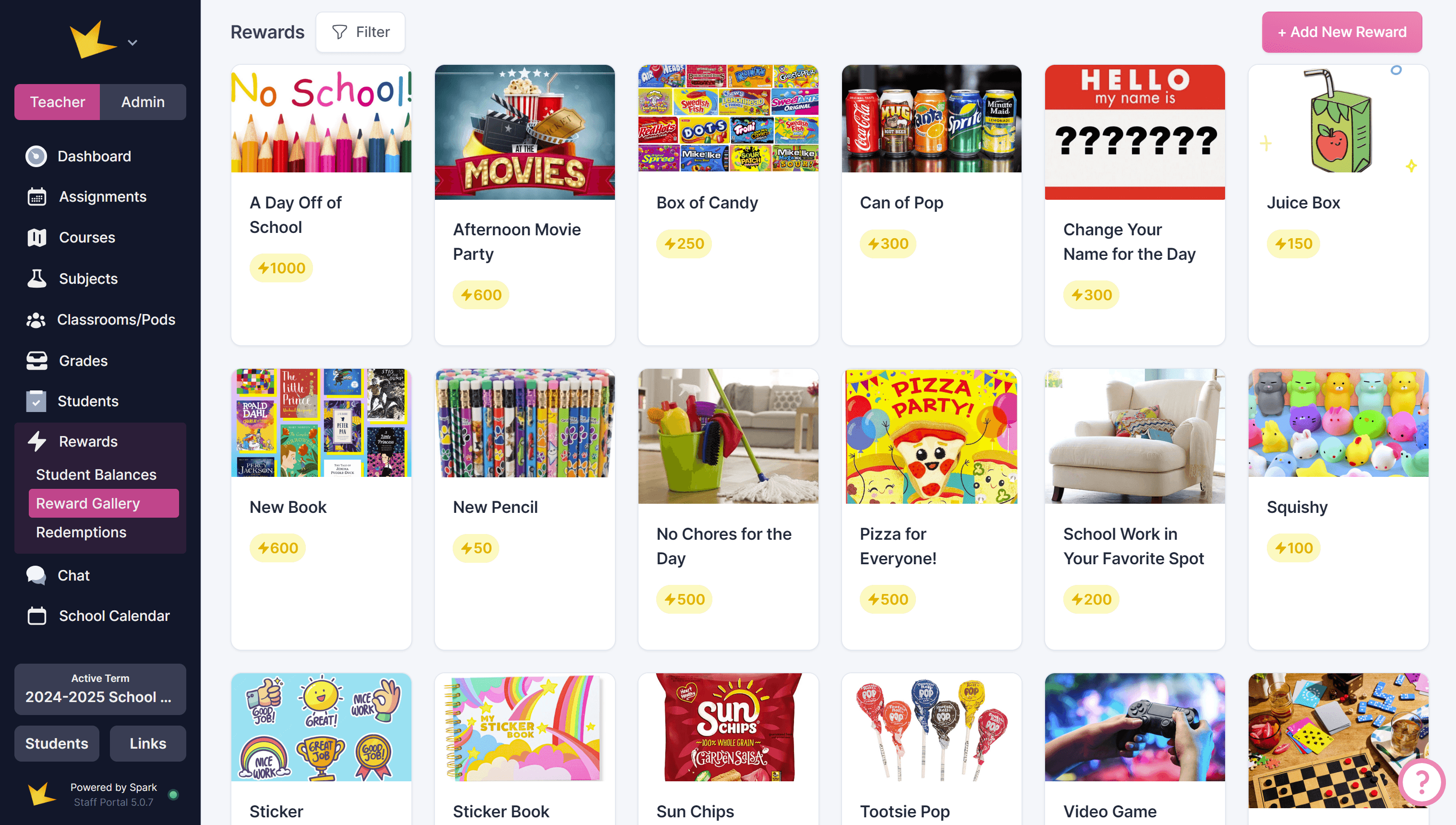
- Create Rewards – Design custom incentives based on your students' interests. Rewards can be created in the Rewards → Reward Gallery page for school-wide rewards, or in an individual classroom in the Settings tab.
- Track Progress – Monitor student achievements and redemptions. You can track this information in:
- The Needs a ‘Lil Love section on your dashboard
- The Rewards → Student Balances page
- A Classroom/Pod → Activity & Rewards tab.
Using Rewards Effectively:
- Keep rewards meaningful but manageable.
- Align rewards with educational goals to encourage lasting habits.
- Clearly communicate the criteria and expectations for earning rewards to students.
By integrating rewards, you create a more engaging environment where students are encouraged to stay on track and succeed academically.
Creating Rewards
Creating rewards for your students is simple and customizable. Here’s how to create rewards:
- Go to the Rewards → Reward Gallery or navigate to the Classroom → Settings tab.
- Click + Add New Reward to start creating a new reward.
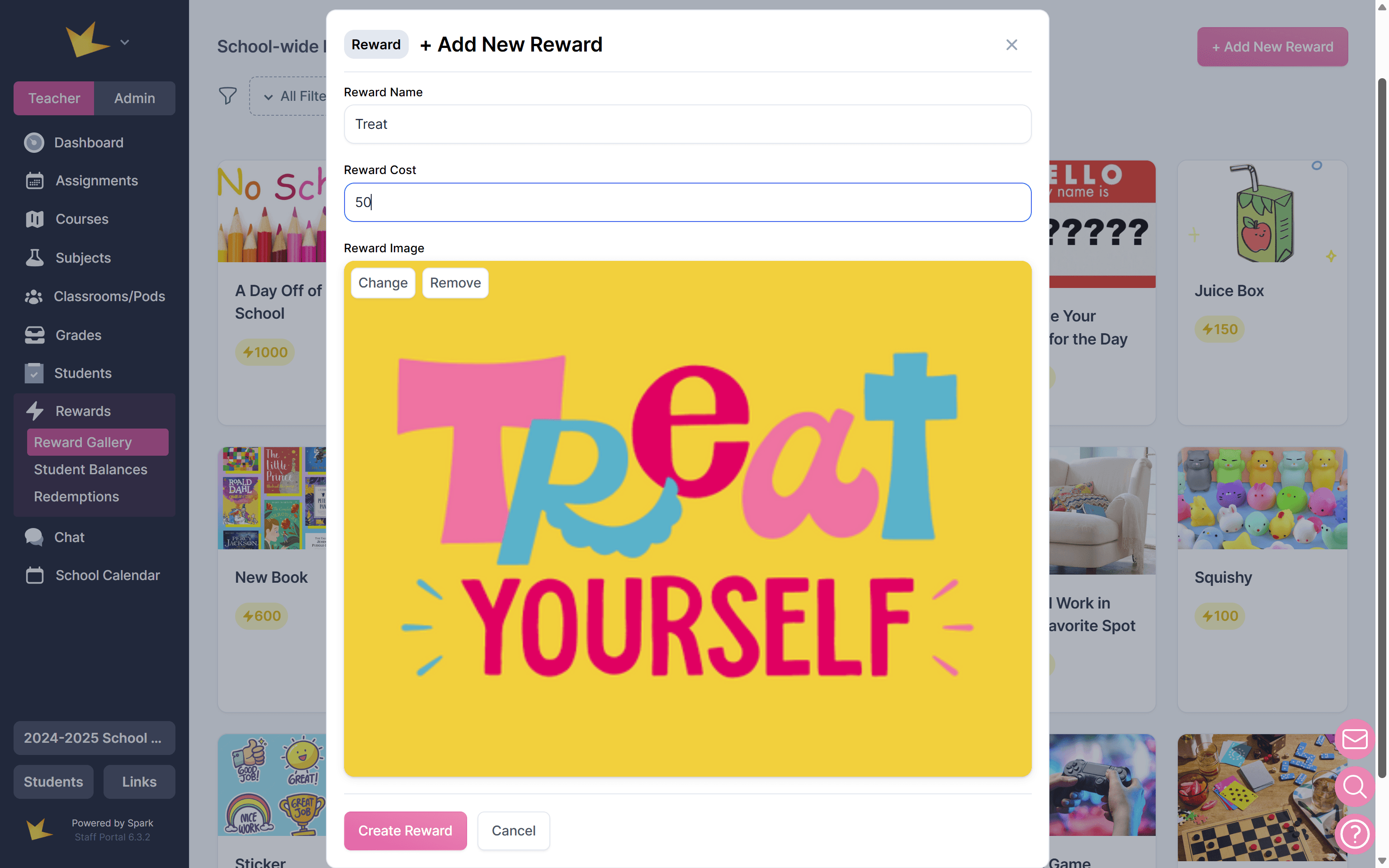
- Fill in the details about the reward, and optionally, upload an image from your device or choose from stock images.
- Click Create Reward to save it.
Note: Rewards created within a specific classroom will only be visible to students in that classroom.
Redeeming Rewards
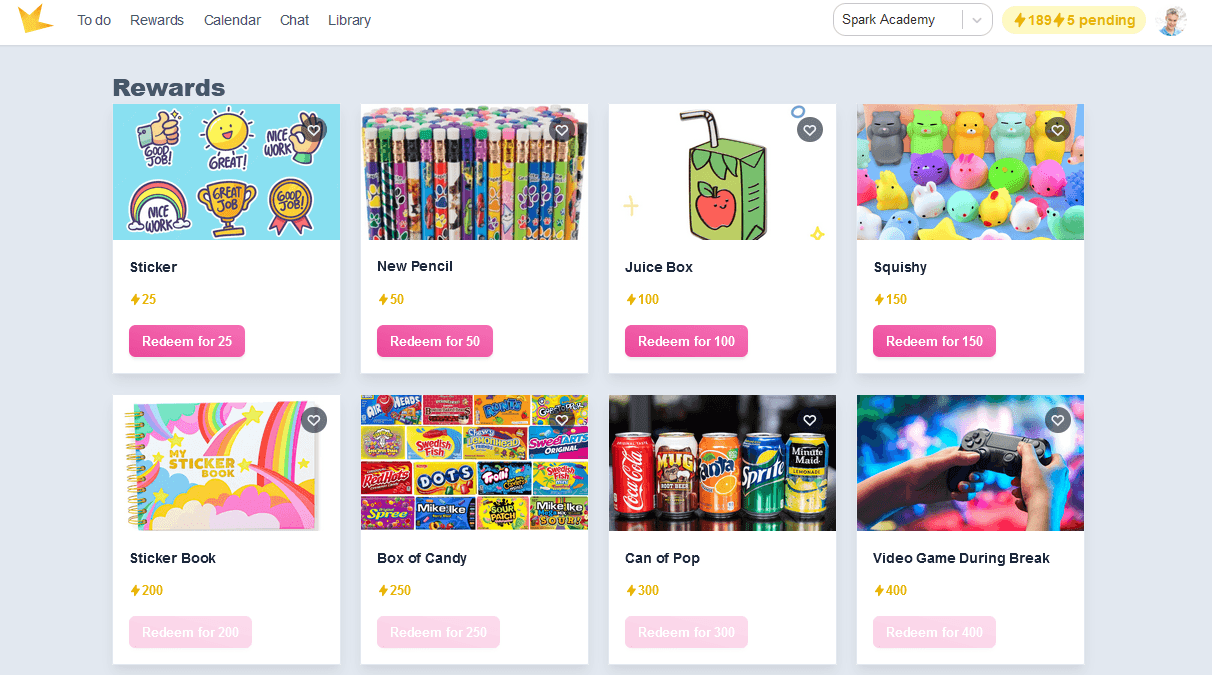
Students can purchase, or redeem, rewards in their student portals.
- In the Student Portal, go to the Rewards page.
- Browse the main reward gallery or select a classroom to view that classroom’s specific rewards.
- To purchase a reward, click Redeem.
Note: Only rewards the student can afford based on their points balance will be selectable.
Classroom Rewards
Each Classroom/Pod has its own reward gallery. Students can earn points from classroom submissions that either apply only to that classroom or count toward their school-wide total. This setting can be managed in Classroom/Pod → Settings.
To add rewards for a classroom:
- Go to Classroom/Pod → Settings
- Scroll to the Classroom Rewards section
- Click + Add New Reward
Students can view a classroom’s rewards by going to the Rewards page in their Portal and selecting the classroom.
Student point balances and reward redemptions can be found in Classroom/Pod → Activity & Rewards, under the Rewards & Balance section.